 TUTORIALS
Erie Adds Haptic Feedback to Your iPhone’s Button Presses
 11/30/2017
 5475
5475
One of the things we see a lot of in the jailbreak community are tweaks that bring haptic feedback to the iPhone, and a new free release called Erie by iOS developer Sniper_GER follows in these footsteps.
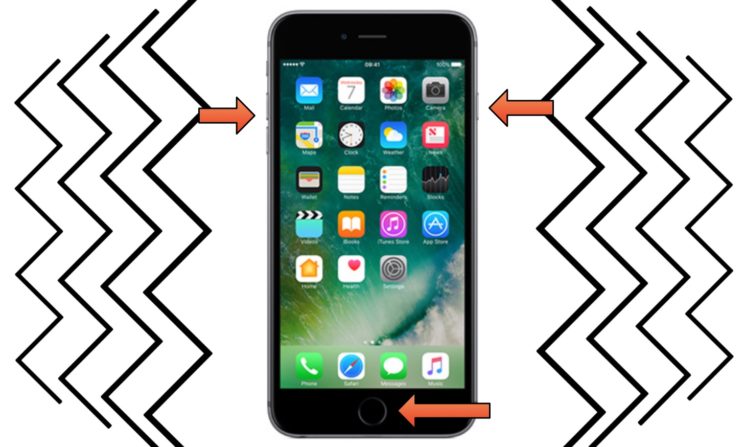
While most tweaks along these lines bring haptic feedback by way of screen taps, Erie takes a different approach by imposing haptic feedback whenever you press a button on your device.
Out of the box, Erie supports the following actions:
Pressing the Home Button
Authenticating with Touch ID
Pressing the sleep button
Pressing the volume up/down buttons
You can configure Erie in full from the tweak’s preference pane in the Settings app:
Personally, I think it’s great how you can turn haptic feedback on or off on a per-button basis. The vibrations can be overwhelming if you repeatedly press the volume up/down buttons to get the right sound level or use Touch ID frequently. Conversely, it works great with the Home and sleep buttons because you don’t use these as often.
If you use an iPhone 7 or an iPhone 7 Plus, then you already know what this feels like – you’ll get a small inkling of feedback as you press the button, and it feels similar (albeit not entirely identical).
While the developer says Erie only works on devices with the Taptic Engine, I can vouch for the fact that it seemed to work just fine on my iPhone 6 Plus, which has a traditional vibrator motor instead. That said, it should work on any iPhone if it has a working vibration mechanism.
You can download Erie for free from Cydia’s BigBoss repository. The tweak works on all jailbroken iOS 10 iPhones, and the developer open-sourced the tweak on GitHub for anyone interested in learning about Erie’s inner working mechanisms.










