 TUTORIALS
AppCentral – Hacked Tweaks and Apps from multiple Installers
 10/25/2017
 10664
10664
A new no-jailbreak sideload store called AppCentral has just been released. Here’s how you can download it on your iPhone, iPad, and iPod touch.
What is AppCentral?
Installing multiple installers and keeping track of what has been revoked and what isn’t is certainly difficult. This new installer aims to solve that issue once and for all.
AppCentral is an aggregator that pulls hacked apps and tweaks from multiple installers. It is developed by developer Joseph Shenton.
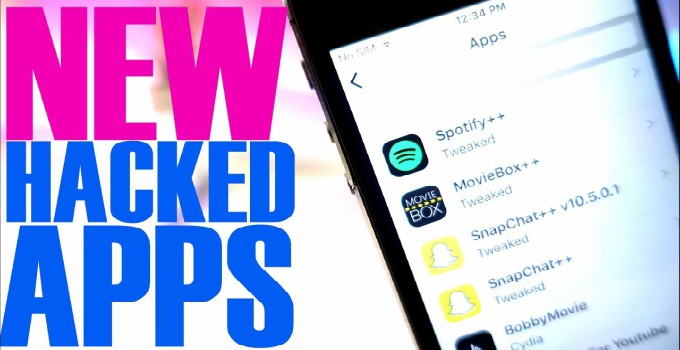
Here’s a list of all the supported installers –
TweakBox
Ignition (upcoming)
vShare
Appvalley
TutuApp
Therefore, instead of downloading and installing these package installers, you can directly use AppCentral. While this is a good initiative, I do not know whether the developer has taken prior permission from these developers of these installers.
Compatibility
Compatibility actually depends upon the installers you choose and the individual apps therein. Remember, 32-bit apps won’t work on iOS 11 firmware.
iOS 9
9.0.1 / 9.0.2 / 9.1 / 9.2 / 9.2.1 / 9.3 / 9.3.1 / 9.3.2 / 9.3.3 / 9.3.4
iOS 10
10 / 10.0.2 / 10.0.3 / 10.1 / 10.1.1 / 10.2 / 10.2.1 / 10.3 / 10.3.1 / 10.3.2 / 10.3.3
iOS 11
iOS 11.0.1 / iOS 11.0.2 / iOS 11.1
Requirements
iPhone, iPad, and iPod touch
A compatible firmware
Internet connection
How to download and install AppCentral?
Step 1 Open Safari web browser.
Step 2 Go to this URL – ios.sh
Step 3 Once the website opens, you can browse its various sections. Here you can access apps, tweaks, and games from various different installers.
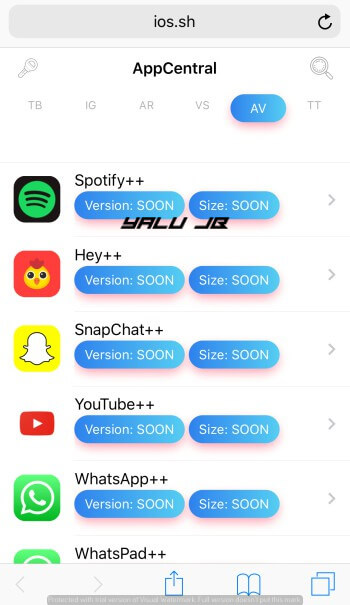
Step 4 Select the app you would like to install on your device and tap on it. It will now prompt you to install the app. Tap Install. Step 5 Wait for the app to finish downloading.
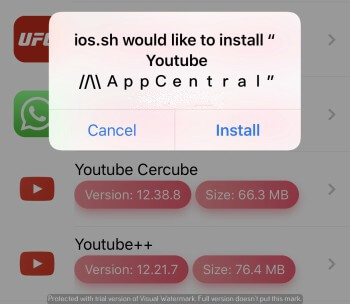
Step 6 Once it appears on your home screen, you must authorize the app. To do this, go to Settings > General > Profiles and authorize the associated enterprise certificate.
Step 7 That’s all there’s to it! You can now start using your downloaded apps, tweaks, and games.









