 TUTORIALS
Auto SilentMe Silences your iPhone Based on Calendar Events
 09/15/2017
 4228
4228
There are times when you can take notifications, and then there are times when you just can’t. While Do Not Disturb is a great tool for this, it’s not the perfect solution to avoiding unwanted notifications because it relies on you to manually enable or schedule it, and sometimes we forget.
That’s a weak link that a new jailbreak tweak called Auto SilentMe by iOS developer IArrayshopes to strengthen, as it brings new notification-suppressing features to your device that will prevent embarrassing notifications from coming in when you don’t want them knocking at the door.
The tweak keeps your iPhone’s sounds and vibrations from going off by using smart features like Calendar event detection, Wi-Fi network detection, and Do Not Disturb integration; but it doesn’t stop there.
Those who attend work meetings or go to class every day know that when a phone goes off, it’s both rude and attention-grabbing for the whole audience, and this tweak offers a very real solution to that problem so long as you keep your calendars updated with your upcoming events.
Auto SilentMe comes with a host of options to configure your experience, letting you tailor it to the way you use your device in any environment. You’ll find a new preferences pane in the Settings app after installation:
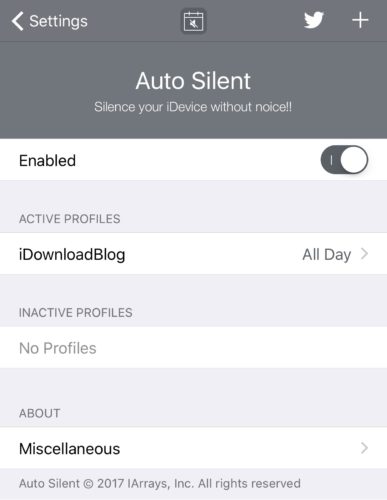
Here, you can:
Toggle the tweak on or off
View active profiles
View inactive profiles
If you go into any of your profiles, you can configure it to keep notifications from coming at bad times. You’ll find all the following options for each of your profiles:
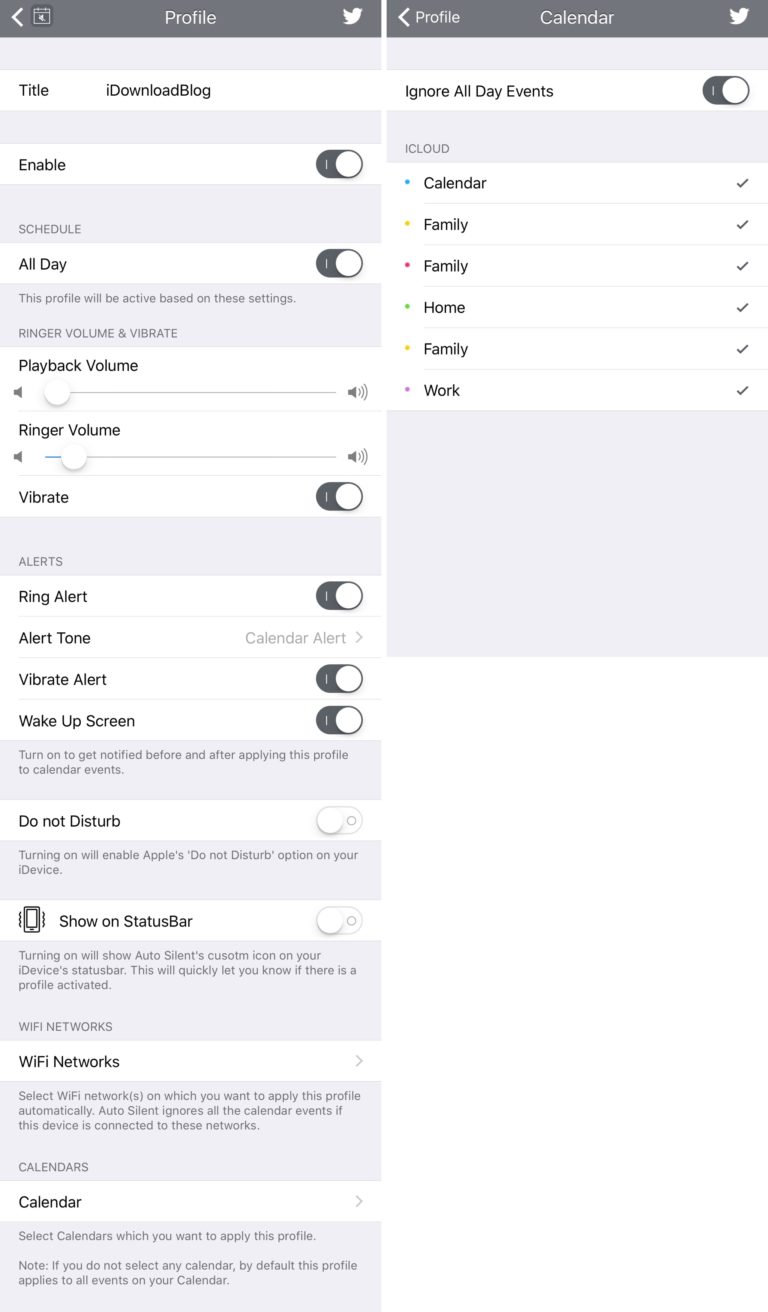
Toggle the profile on or off
Schedule when the profile will be active
Choose default media playback volume while profile is active
Choose default ringer volume while profile is active
Toggle vibration while profile is active
Toggle ring alerts while profile is active
Choose the alert tone that plays while profile is active
Toggle vibration alerts while profile is active
Toggle waking up the screen while profile is active
Toggle Do Not Disturb when profile is active
Show a Status Bar icon when profile is active
Choose Wi-Fi networks that will toggle your profile automatically when connected
Choose the Calendar(s) that the tweak will draw events from to toggle your profile automatically
Prevent all-day events from toggling your profile
Auto SilentMe is going to be great for those who work in professional office environments or attend school (college, or other), but it can be great for casual use too. It’s available as a free download from Cydia’s BigBoss repository, but the developer’s third-party payment system requires a $1.99 payment to activate the tweak once installed.
Auto SilentMe is compatible with jailbroken iOS 8, 9, and 10 devices.









