
TUTORIALS

Vigor – Take a Quick Look at your Apps’ Notifications and Information

07/18/2017

4430

Today we have a new tweak on our hands that aims to enhance the native UI manifold. Here’s how it works.


How Vigor works?

Vigor Cydia tweak allow you to a quick glance of an app’s notifications or associated information. It is developed by Italian developers Gabriele Filipponi and A. Chiarlitti, who are a part of Atom Dev Team.


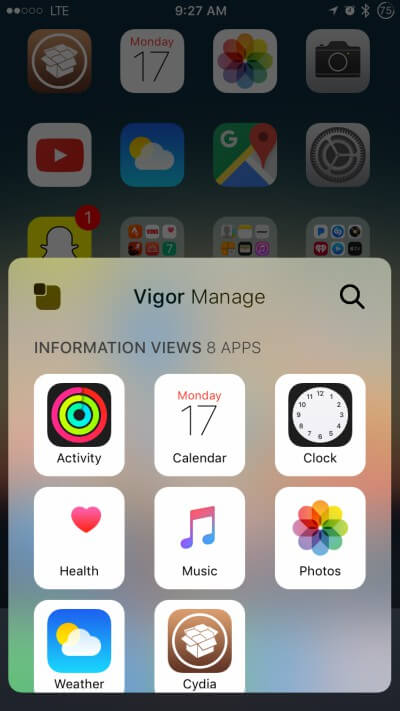
The tweak works in a fairly simple manner. Once you install this tweak, you just need to enable the widgets. You can enable or disable this tweak by pressing a Control Center button.


It adds another Control Center page from where you can manage Vigor for different applications.

Vigor – Take a Quick Look at your Apps’ Notifications and Information


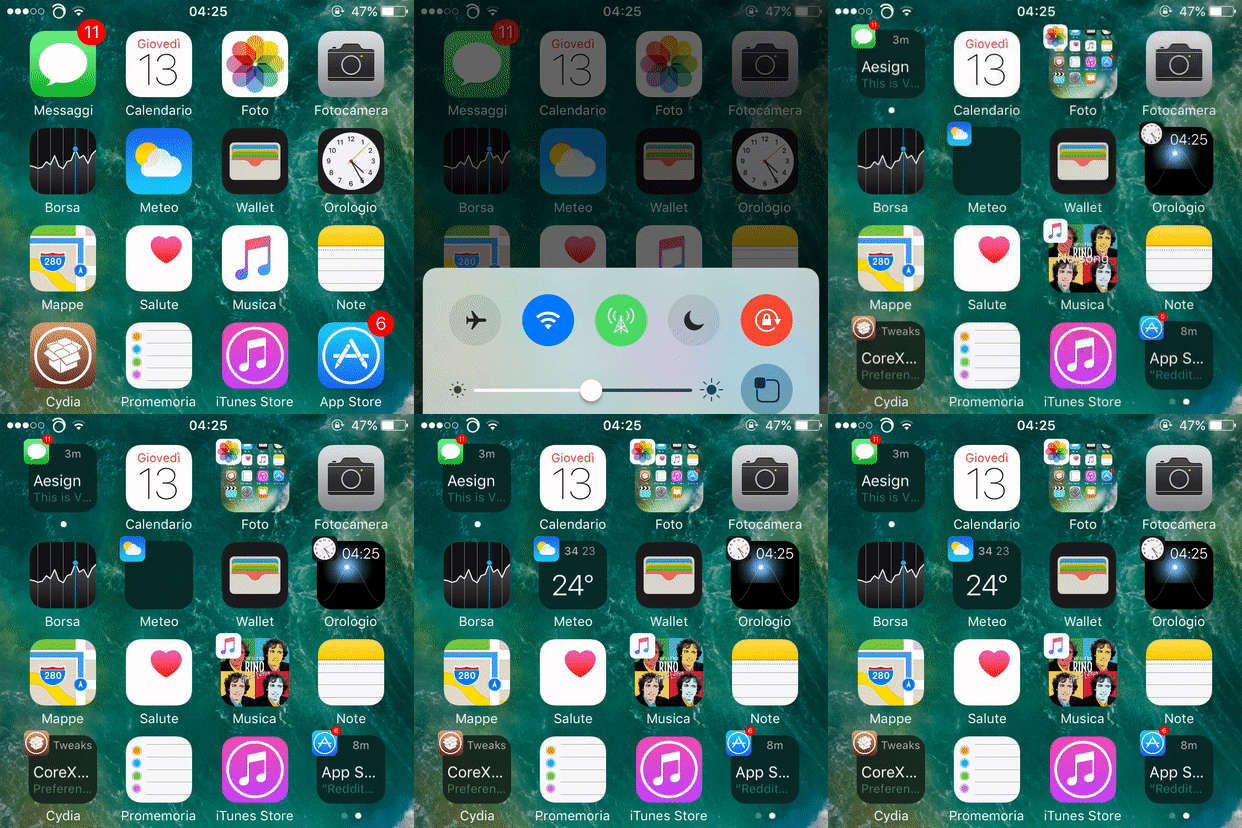
Now once you press the Vigor button, the app icon will minify to the top left and notifications or other information will replace the app icon itself.


You can also enable this transition by tapping twice anywhere on your home screen.


Here’s a quick gif demonstration of this tweak.

Vigor – Take a Quick Look at your Apps’ Notifications and Information


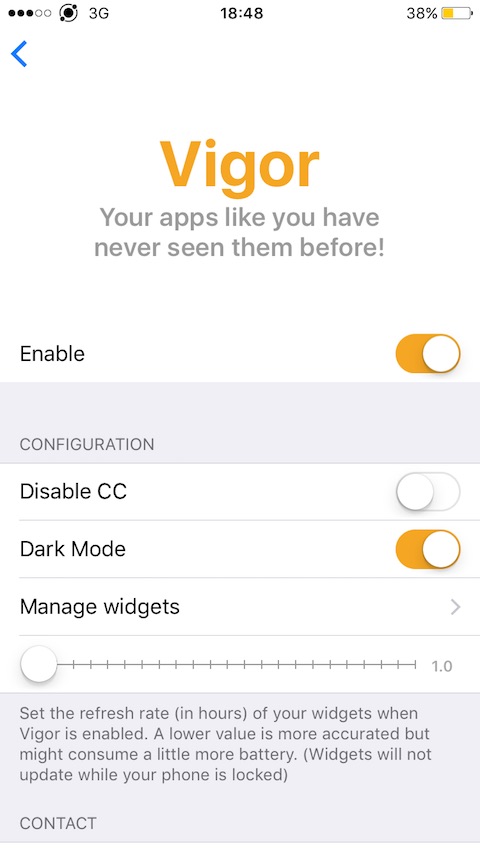
This tweak comes with a comprehensive Settings section. You can perform the following actions through it –

  • Enable or disable the tweak.

  • Disable the extra widget manager page in Control Center.

  • Manage different widgets.

  • Configure refresh time for widgets.

  • Dark Mode Toggle.

  • Contact the developers.


Download Vigor Tweak

At $1.99, this tweak offers cool UI enhancement. Users who like to keep a tab on their notifications will find this very useful. Highly recommended.


Vigor comes with its own API as well. Any developer who wants to develop widgets can contact Atom Dev Team through e-mail.


Vigor is available for download on BigBoss Cydia repo for $1.99. It is compatible with iOS 10. Click here to download.


Vigor – Take a Quick Look at your Apps’ Notifications and Information

Windows
Mac OS
iOS
Linux
3uTools
Win 64-bit For this device
V9.01 2025-12-27
Download
Win 32-bit For this device
V9.01 2025-12-27
Download
3uTools
Intel Chip How to Identify Chip Type
V9.01 2025-12-31
Download
Apple Silicon
V9.01 2025-12-31
Download
How to Identify Chip Type
1.  Click the Apple icon in the top-left corner of the screen and select About This Mac.
2.  Check the Processor or Chip field to determine if it is "Intel" or "Apple".
Please use the 3uTools PC client to install the iOS client:
1、 Install either the Windows or Mac version of 3uTools on your computer
2、 Open the PC client and connect your device to the computer via USB cable
3、 After the connection is successful, wait for the computer to automatically install the mobile app for the device, or locate “Install Mobile App” on the computer and manually click to install.
3uTools
deb file
V3.01 2025-11-20
Download
rpm file
V3.01 2025-11-20
Download
Windows
Windows
iOS
iOS
Android
Android
TV
TV
3uAirPlayer
Win 64-bit For this device
V6.0.2 2025-11-19
Download
Win 32-bit For this device
V6.0.2 2025-11-19
Download
iOS Device Mirroring (No App Required)
1、 Install 3uAirPlayer on the Windows PC
2、 Open Control Center and select Screen Mirroring
3、 From the list, choose your PC to start mirroring
4、 Or connect your iOS device to the PC via USB to begin mirroring
Scan to get "3uAirPlayer" App
3uAirPlayer TV V1.0.18
2025-11-28
TV System Requirements: Android 7.0 or later
Download the TV installation package, copy it to a USB drive, insert it into your TV or set-top box, then select the file from the home screen to install.



