 TUTORIALS
PreferMyFi 2 Lets You Specify Your Preferred WiFi Network on iPhone
 05/04/2017
 5035
5035
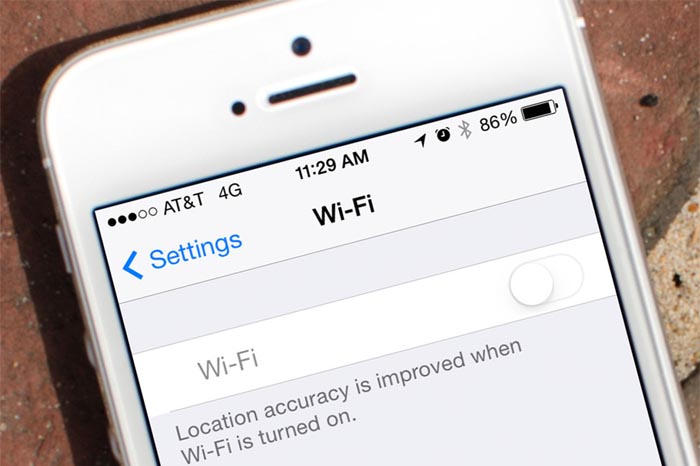
If you there are multiple WiFi networks at your home, workplace or any other place, your device will choose a random network and connect to it. In such a situation, you may prefer one WiFi network over the other and there's no way that you can designate this. Your iPhone will randomly connect to a known WiFi network as soon as you get close in its proximity.
PreferMyFi 2 is a jailbreak tweak that comes very handy in these situations. The tweak allows you to set your preferred WiFi network so that your iPhone will automatically connect to the WiFi that has a higher priority. For instance, if there are two known WiFi networks nearby and you assign a priority for each of them, your iPhone will connect to the network that has a higher priority. If it fails to connect, it will automatically connect to the next one with a lower priority.
Upon installing PreferMyFi 2, you can get started by heading to the tweak's preferences pane in Settings. From there, you can designate which WiFi network should have a higher priority over the other. The WiFi entered in "WiFi Network 1" will have a higher priority than the one entered in "WiFi Network 2".
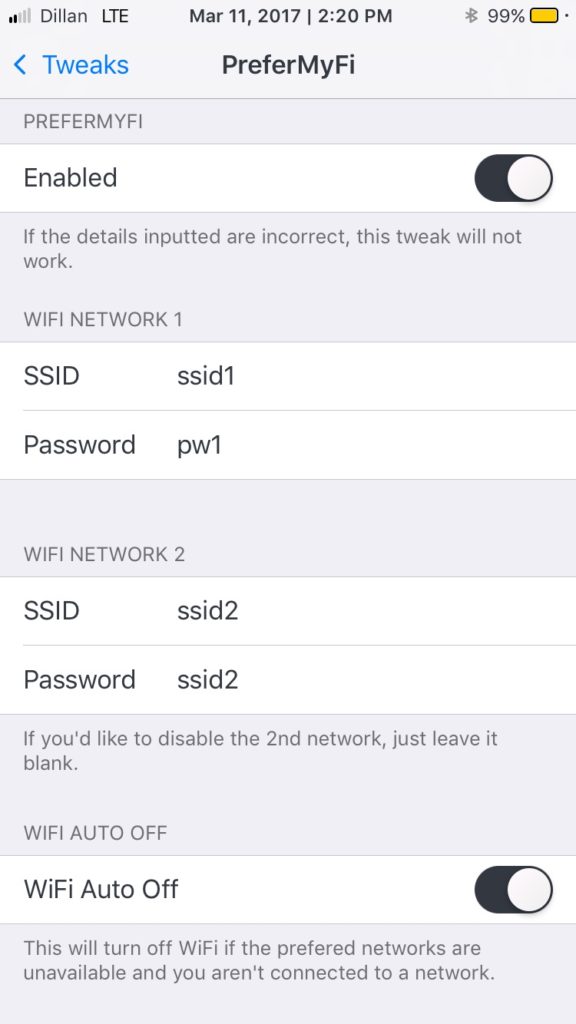
The tweak also offers another interesting feature called "WiFi Auto Off". When enabled, the tweak will automatically disable your WiFi if the preferred networks aren't in your proximity and if you are currently not connected to any WiFi network. This leaves you with a better battery performance than if the WiFi remained on at all times.
If you ever wanted to assign a priority to your WiFi networks then you will find PreferMyFi 2 useful. This tweak is available for free in Cydia's BigBoss repo and supports iOS 10. Let us know what you think about it once you give it a try.
Source: appleinsider









