 TUTORIALS
The Difference Between “Professional Export” and “Export”
 07/15/2026
 16870
16870
1. What Is Professional Export?
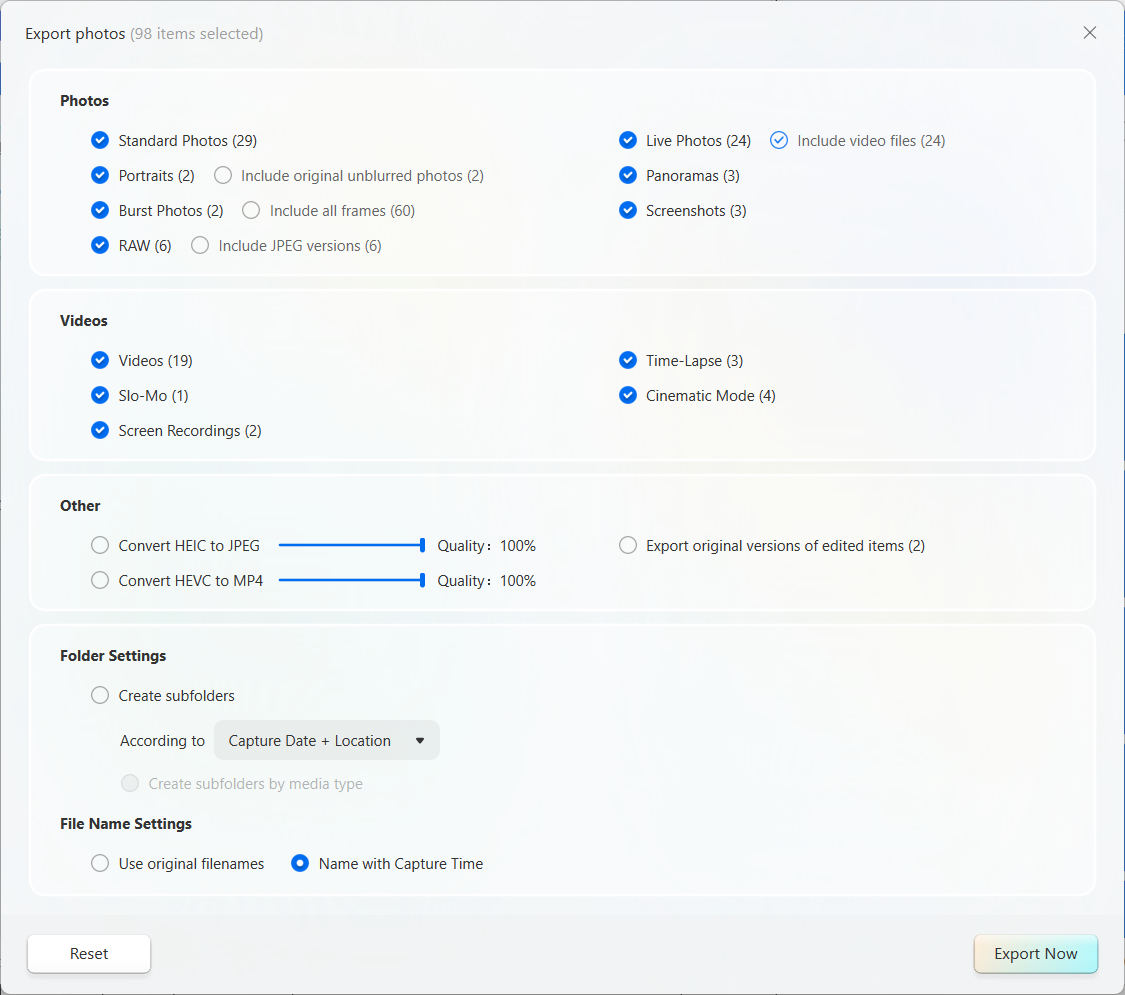
Professional Export provides more advanced export options. You can choose whether to include original Portrait photos, all Burst photo frames, Live Photo video files, and more. You can also customize the export folder and file names.
Terms Explained
a.Portrait – Original Photo Without Blur
The original photo without the Portrait effect applied, meaning the background is not blurred.
b..RAW
A professional photo format that preserves more original image data for advanced editing.
c.HEIC
The default photo format on Apple devices. It uses less storage space than JPEG, but may not be supported on non-Apple devices.
d.HEVC
The default video encoding format on Apple devices. It creates smaller files than traditional video formats, but may have limited compatibility with non-Apple devices and standard media players.
e.Original File of Edited Items
The original file of an edited photo, without the applied edits.
2. What Is Export?
Export uses the default settings to export files directly. The default settings are as follows:
Portrait: Default (does not include the original photo without blur)
Burst Photos: Default (does not include all photo frames)
RAW: Default (does not include the JPEG rendered version)
Live Photos: Includes video files by default
HEIC Files: Not converted to JPEG by default; quality is set to 100%
HEVC Files: Not converted to JPEG by default; quality is set to 100%
Edited Items: Selected by default
Folders: No folder is created by default
File Names: Named by capture time by default