 TUTORIALS
How to Jailbreak iOS 12.0-12.1.2 with Chimera?
 04/30/2019
 19635
19635
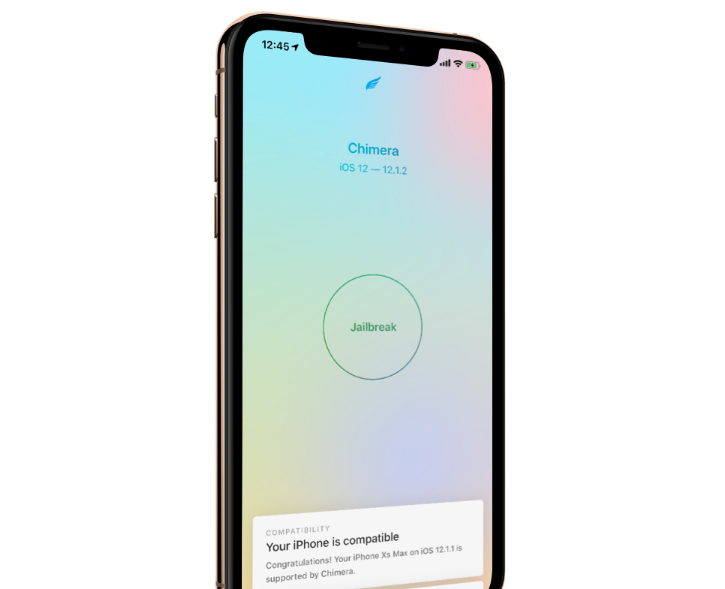
In case you missed it, the CoolStar-led Electra Team has made good on its promise to release an iOS 12.0-12.1.2 jailbreak with full support for A12(X) devices, but unexpectedly changed the name of the project from Electra12 to Chimera just in time for the release.
In this tutorial, we’ll show you how to jailbreak your iOS 12.0-12.1.2 device with the new Chimera jailbreak tool.
Chimera can jailbreak all iOS 12.0-12.1.2 devices, and so a supported device list isn’t necessary. If your handset is running one of these firmware versions, then you’re good to go.
Prerequisites
Download the most recent version of Chimera from the official Chimera website.
Download Cydia Impactor on your computer
When you’re ready, simply follow the steps below:
Step 1 Connect your iDevice to your computer with a USB cable.
Step 2 Click and drag the Chimera.
Step 3 Once installed, go to Settings → General → Profiles & Device Management and tap on your Apple ID. Next, Tap on the blue Trust button, and then tap on the red Trust button inside the popup that appears:
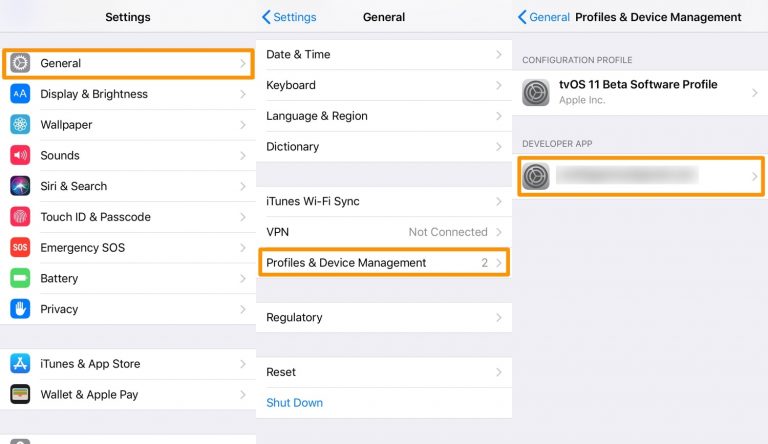
Note: Before proceeding to the next step, enable Airplane Mode, disable your passcode/Touch ID/Face ID, disable Siri, and reboot your device. Taking these additional steps isn’t mandatory, but has been known to increase jailbreaking success rates in the past.
Step 4 Tap on the Chimera app on your device’s Home screen:
Step 5 Next, tap on the round Jailbreak button in the Chimera app:
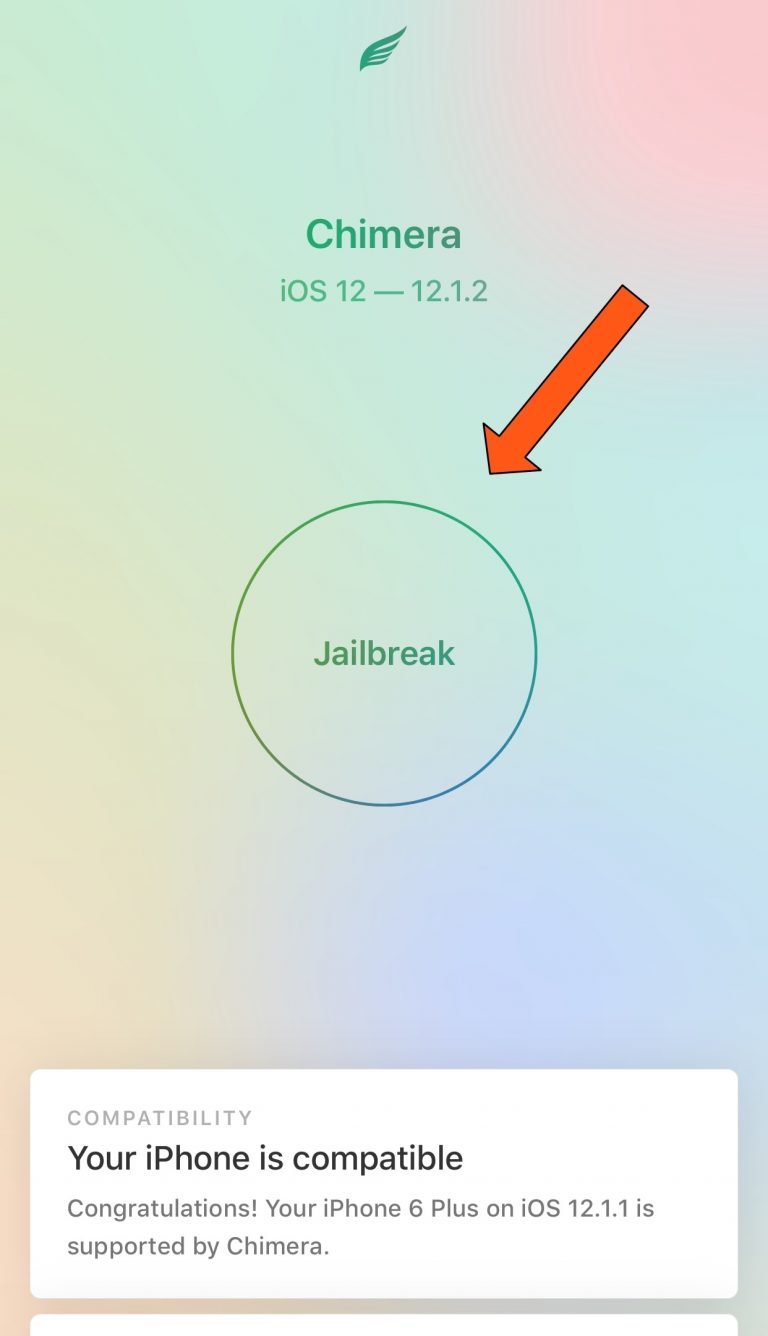
Note: the tool will begin jailbreaking your device; it should respring afterward.
Step 6 Once finished, the Chimera jailbreak app will confirm that you’re jailbroken:
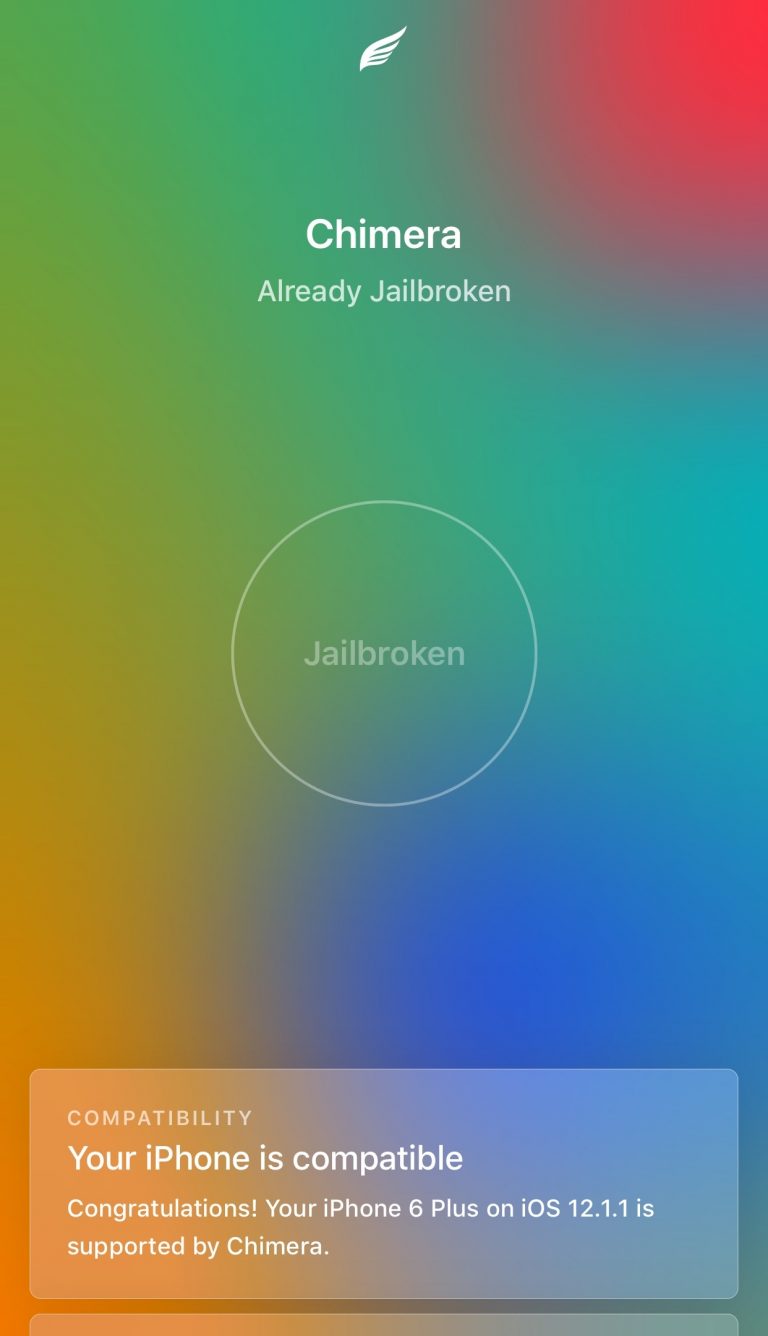
Step 7 Sileo should now be displayed on your Home screen alongside the Chimera jailbreak app:
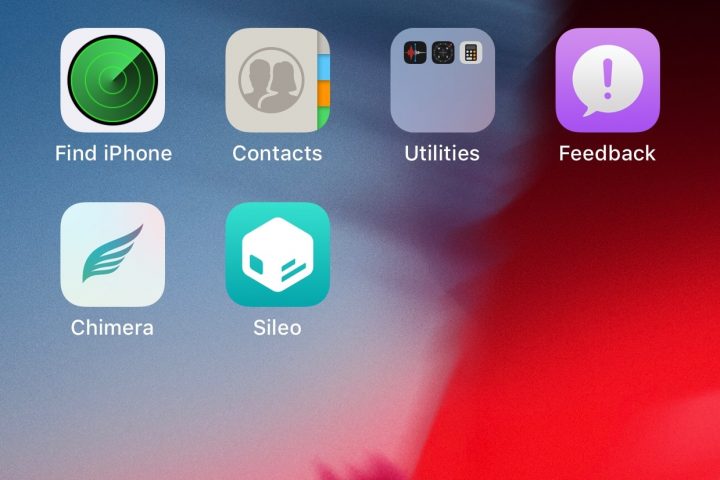
Note: If you don’t see Sileo after jailbreaking with Chimera, then reboot and re-launch the Chimera app and keep trying until it works.









