 TUTORIALS
SwipeUptoKillX Lets You Force Close Apps in iPhone X With a Single Swipe Up Gesture
 08/03/2018
 5764
5764
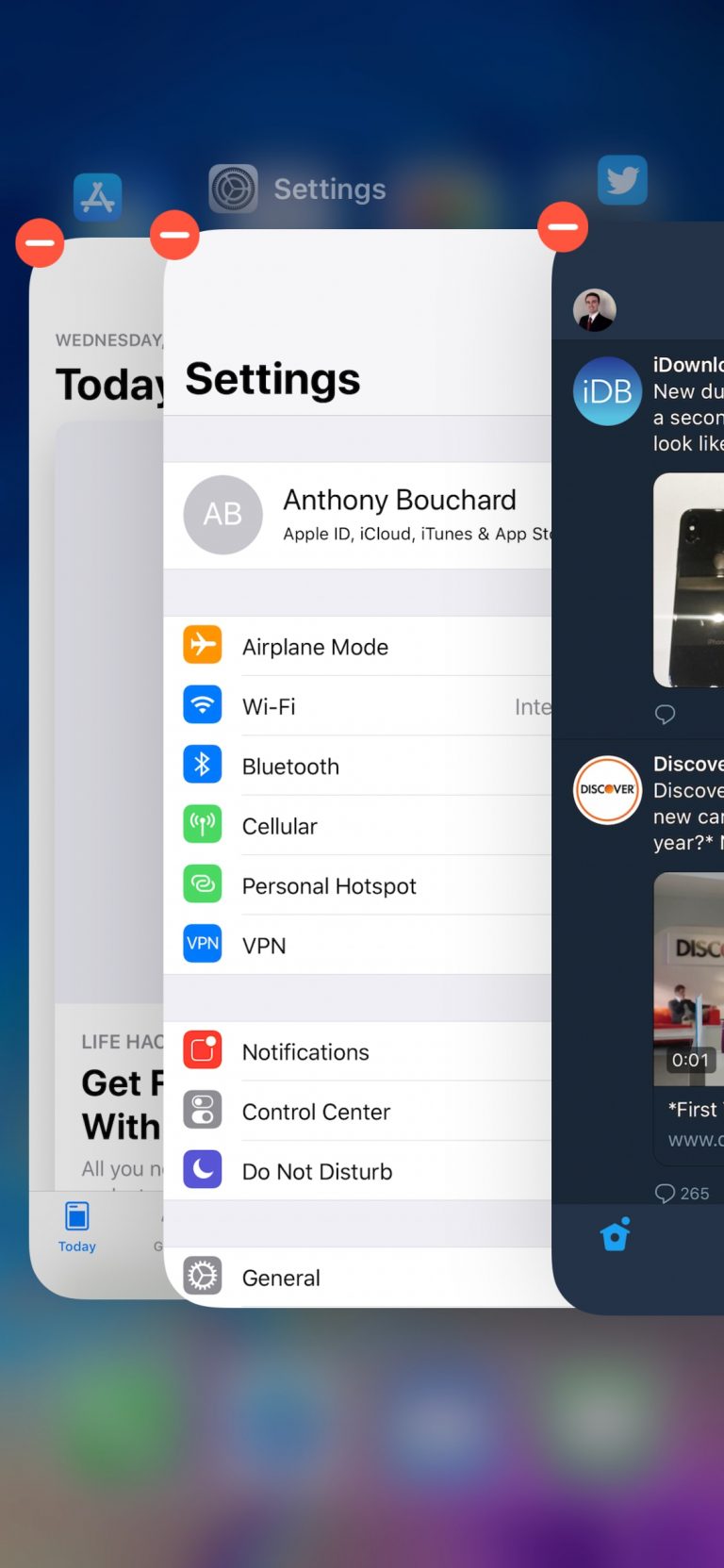
One of the inconvenient features of iPhone X is the inability to close apps with a single swipe up gesture after opening the App Switcher. Instead, you have to tap and hold on any one of the App Switcher cards before you can swipe up to force close them.
In older models of iPhone, you can swipe up the cards to close them after you open the App Switcher. While this has changed in iPhone X, if you are jailbroken, then you can easily bring back this feature with the help of a new jailbreak tweak known as SwipeUptoKillX.
The tweak gets rid of the two-step process required for closing apps on iPhone X and reverts back to the old method. This means that you can swipe up to close apps immediately after you open the App Switcher. This eliminates the need for tapping and holding on an App Switcher card before you can force close all the apps.
Although this tweak adds a simple feature, it makes a big difference when it comes to convenience. It doesn’t require any additional settings once you install it and can be used right away.
It’s important to note that it’s a better practice to keep apps running in the background if you use them regularly. This preserves the battery as it avoids the need to re-launch apps every time you want to use them and thereby prevents battery drain.
Apple has reverted back to this old method of force closing apps in iOS 12, which means that you no longer have to tap and hold an app in the App Switcher before you can close it. If you don’t want to lose your jailbreak by upgrading to iOS 12, then this new jailbreak tweak will suffice.
SwipeUptoKillX is a free jailbreak tweak that can be installed right from Cydia’s BigBoss repo. If you plan to give it a try, let us know how it goes in the comments below.
Source: iphonehacks









