 TUTORIALS
Best iPhone X Jailbreak Tweaks on Cydia for iOS 11.3.1
 07/16/2018
 13464
13464
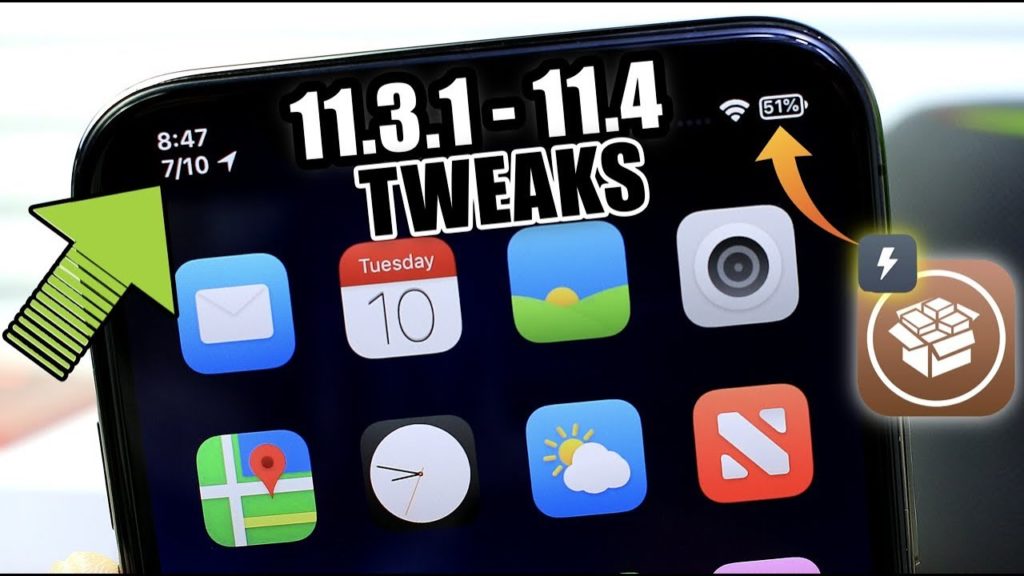
In this article, we have compiled the best iPhone X jailbreak tweaks on Cydia that are compatible with iOS 11.2 – iOS 11.3.1.
Best iPhone X Jailbreak Tweaks on Cydia for iOS 11.3.1
Check out the video by Miguel (iDeviceHelp) to see the best iPhone X jailbreak tweaks for iOS 11.3.1 in action:
Thanks to the iPhone X notch, there isn’t much space available in the Status bar but as the name suggests, the jailbreak tweak adds the date below the time in the status bar.
You can tap on the Lock screen to wake iPhone X. The doubleTapLock tweak, does the opposite. It allows you to double tap on the Home screen to lock your iPhone X.
easySwitcherX
On iPhone X, you need to tap and hold on the app card and swipe up to force close the apps, which is not very convenient. easySwitcherX makes it much easier as you can simply swipe up on the app card to force kill the app.
To check the battery percentage of iPhone X, you need to swipe down from the top-right part of the screen – the right ear next to the notch to access the Control Center.
Apple doesn’t provide a way to enable battery percentage in the Settings app. BatteryPercentX replaces the battery indicator with the battery percentage in the Status bar itself so you don’t need to swipe down to check the battery percentage on your iPhone X.
ForceInPicture
Apple introduced a new feature in iOS 9 called Picture-in-Picture that allows you to multitask by watching a video and interacting with another app at the same time. Unfortunately, this feature is limited to certain iPad models so it doesn’t work with iPhones, iPods and even some iPads.
ForceInPicture gets rid of this limitation. ForceInPicture brings Picture-in-Picture mode to jailbroken iPhones.
SpotCC
The jailbreak tweak lets you access the Control Center by swiping down on the Home screen, rather than having to reach out to swipe down from the top right corner.
In iOS 11, when you turn off the toggles such as Wi-Fi, Bluetooth etc in the Control Center, the iOS device will immediately disconnect from Wi-Fi networks and Bluetooth accessories, but they will continue to be available for what Apple calls important features such as AirDrop, AirPlay, Apple Pencil, Apple Watch, Continuity features like Handoff and Instant Hotpot and Location Services. This change in the behavior of the toggles has confused many users.
RealCC solves that problem as it completely disables the Wi-Fi and Bluetooth when you turn off the toggles.
VideoHUD brings iOS 11’s video player volume HUD system-wide.
These are our favorite iPhone X jailbreak tweaks on Cydia that are compatible with Electra iOS 11.3.1 Jailbreak so you can fix the minor annoyances with iPhone X.









