 TUTORIALS
BottomControlX Brings the Classic Control Center Gesture to the iPhone X
 05/02/2018
 6984
6984
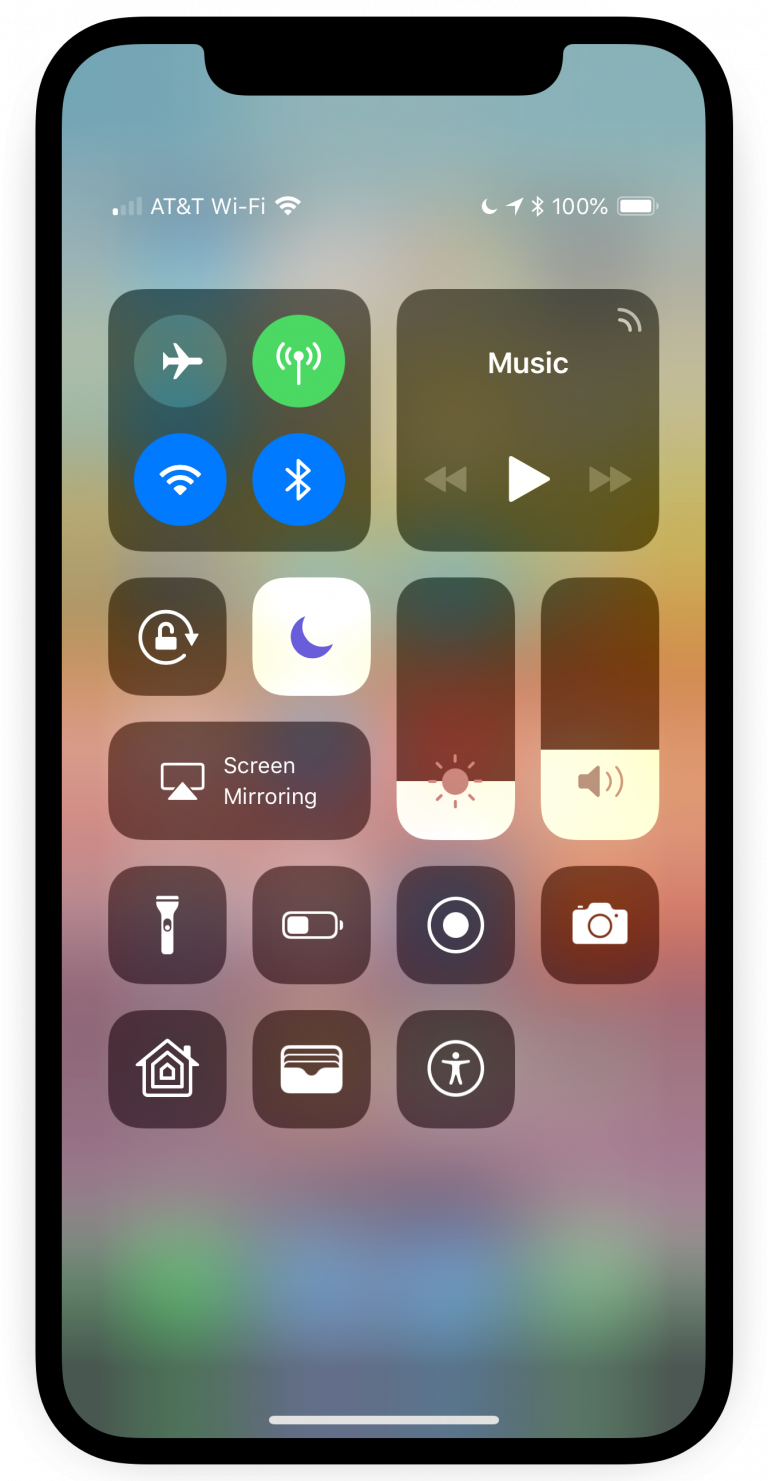
Much like other iOS handsets, the iPhone X comes equipped with Control Center for quick access to your favorite toggles, shortcuts, and features. But Apple made the gesture entirely different on its latest flagship by requiring you to pull down from the top right corner of the display.
If you don’t particularly enjoy this stock gesture on your iPhone X, then you may want to consider installing a new free jailbreak tweak called BottomControlX by iOS developer XCXiao.
As implied by the tweak’s name, BottomControlX makes the iPhone X Control Center experience slightly more traditional by letting you swipe up from the bottom of the display. Of course, there’s a catch…
Because the iPhone X has the Home Bar rather than a Home Button for closing apps and accessing the App Switcher, you can’t access Control Center by swiping up from the middle of the screen. Instead, you’ll need to utilize the bottom-left or bottom-right instead.
BottomControlX adds a preference pane to the Settings app where you can toggle the tweak on demand and configure your preferred side for the gesture (left or right):

Given how the iPhone X sports a 5.8-inch display, this tweak is ideal for those with smaller hands or for left-handers that have trouble stretching their thumb all the way up to the top-right of the screen.
Even if you don’t fall under either of these categories, it can be a great way to get the nostalgic Control Center gesture back on your iPhone X without interfering with the Home Bar’s functionality.
If you’d like to give BottomControlX a try, then you can download it for free from Cydia’s BigBoss repository. The tweak is specifically designed for jailbroken iPhone X handsets and requires iOS 11 to be installed.
Source: idb










