 TUTORIALS
This Tweak Hides the Home Bar at the Bottom of the iPhone X
 03/26/2018
 7863
7863
The iPhone X lacks a Home Button, so Apple created the Home Bar to take its place. Swiping up on the Home Bar lets users unlock their device, return home from apps, and access the App Switcher, but the Home Bar itself isn’t very aesthetically-pleasing in the long run.
Given the circumstances, a new free jailbreak tweak called ByeHomeBottomBarX by iOS developer CydiaGeek has been released in Cydia this week. As the name suggests, this tweak efficiently hides the Home Bar from view.
Above, you can see an example of the iPhone X Lock screen interface before and after installing ByeHomeBottomBarX. The screenshot example below illustrates how it looks in Safari (it will look similar in other apps):
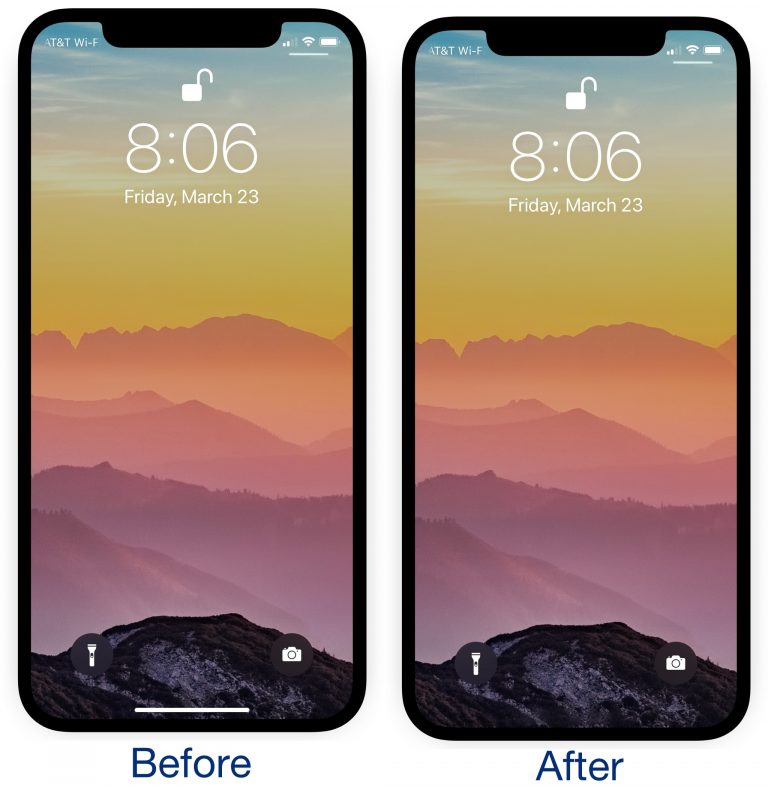
Notably, while the Home Bar becomes invisible after installing ByeHomeBottomBarX, the gesture for unlocking your device, exiting apps, and multitasking doesn’t change.
ByeHomeBottomBarX adds a preference pane to the Settings app where you can customize several settings:
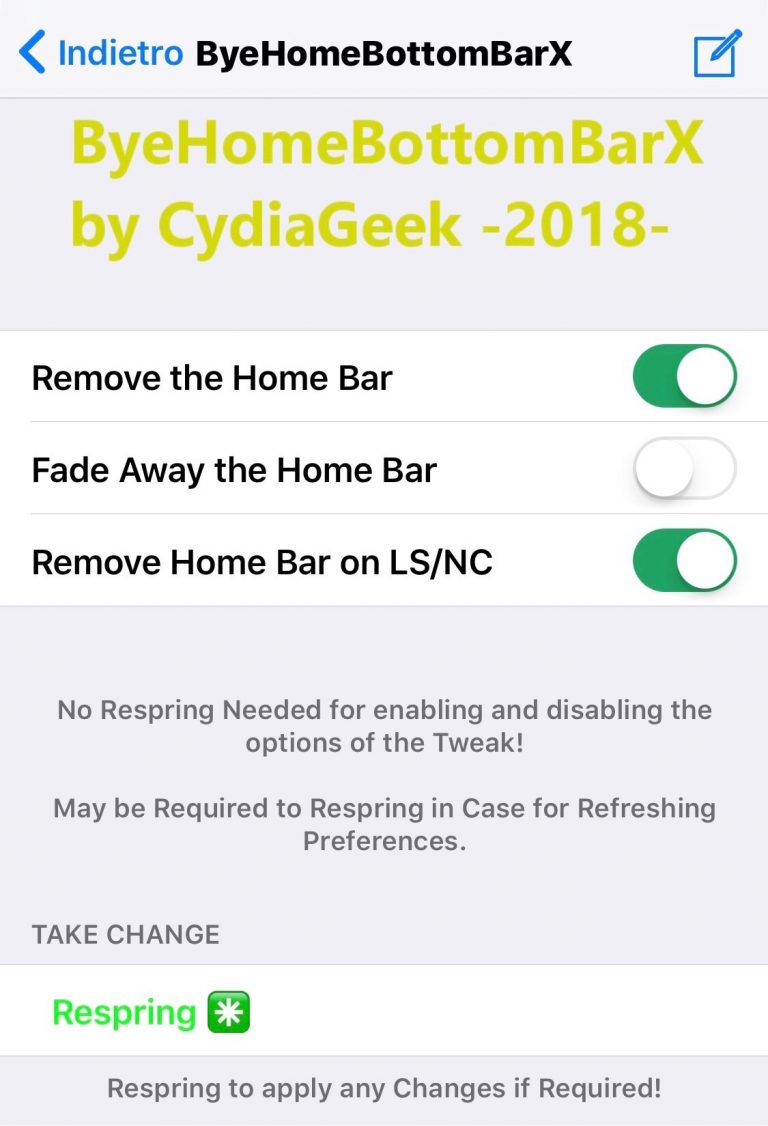
Here, you can:
Completely hide the Home Bar from view
Have the Home Bar fade away rather than being entirely gone
Hide the Home Bar only from the Lock screen and Notification Center interfaces
The developer includes a complimentary respring button at the bottom of the preference pane so you can save any changes you make to the tweak’s preferences.
While most people probably aren’t perturbed by the Home Bar’s presence on their iPhone X, this tweak serves a purpose to the subset of people that dislike looking at it. It really comes down to personal preference.
If you’d like to give ByeHomeBottomBarX a try, then you can download it for free from Cydia’s BigBoss repository. Given the nature of the tweak, it’s only intended to work on jailbroken iPhone X handsets.
Source: idb









