 TUTORIALS
Tweak DateUnderTimeX Indicates the Date on your Jailbroken iPhone X
 03/15/2018
 6887
6887
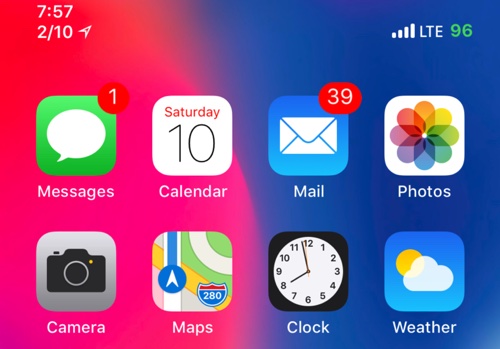
DateUnderTimeX is a subtle new jailbreak tweak made by iOS developer NeinZedd that adds a date indicator beneath the Status Bar time indicator on jailbroken iPhone X handsets.
Shown above, you can see how well the date meshes with the existing time indicator. The implementation is so clean that it virtually looks like something Apple would offer right out of the box.
In case you were wondering, DateUnderTimeX also works with activity-based Status Bar indicators, such as the blue highlight that designates Personal Hotspot tethering or the green highlight that denotes a backgrounded phone call:
Also, the tweak plays nicely with the iPhone X’s notch; the additional text string won’t hinder your Home screen app icons or the user interface of your apps. Non-iPhone X handsets lack the notch, and consequently, they can’t take advantage of DateUnderTimeX because of their entirely different Status Bar layout.
DateUnderTimeX doesn’t come with any options to configure, but regardless, it doesn’t really need any. The point of the tweak is boldly spoken by its name, and it does its job quite well.
Given just how often I forget the date and need to be reminded of it throughout the day, I think DateUnderTimeX is a great idea, and I’d install it on my daily driver iPhone X if only it were jailbroken.
If you’d like to give DateUnderTimeX a spin on your jailbroken iPhone X, then you can download it for free from Cydia’s BigBoss repository. For clarity, we’d like to reiterate that the tweak only works on jailbroken iPhone X handsets.










