 TUTORIALS
How to Install Ext3nder on iOS 11-iOS 11.1.2?
 02/27/2018
 12051
12051
Ext3nder now works on iOS 11-11.1.2 firmware. This tutorial aims to show you how to download and install Ext3nderElectrified on your iPhone, iPad, or iPod touch.
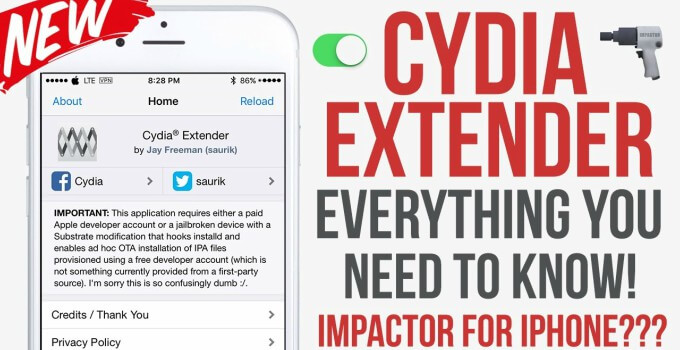
What’s Ext3nderElectrified?
Ext3nderElectrified is an automatic app signer application for iOS 11-11.1.2. It is developed by “Midnight Chips” and Marco. This application allows you to sign your jailbreak tool and any other third-party apps that you may install on your device. On-device signing comes in handy when you don’t have a computer or laptop with you.
You can try it on your device using the download links below. Remember to use the correct version depending on the version of Electra you have.
* If you are on a beta version such as beta 11, use the Beta version.
* If you are already using the leaked Electra RC1 IPA file, use the RC version.
Download Ext3nderElectrified
* RC version (not fully functional yet)
Requirements
* iPhone, iPad, or iPod touch
* Electra jailbreak toolkit
* Internet connection
* Filza file manager
* iTerminal
* ZipApp free
How to install Ext3nderElectrified without PC?
Step 1 Download the ZIP package using the links above on your device. If you can’t download the ZIP file, try switching to the desktop version of Github.
Step 2 Open and extract the archive using ZipApp free app (available on the App Store) in its default directory.
Step 3 Open FilzaEscaped file manager and search for “Electrified” in the root folder. If you don’t have this version, you can also use FilzaJailed or FilzaElectracuted.
Step 4 Select and copy this folder to the root directory (/) of your device.
Step 5 Open iTerminal application and select the SSH option.
Step 6 Turn on Wifi and enter the following details. Press Connect to enter the terminal.
IP Address – 127.0.0.1
Port – 2222
Username – root
Password – alpine
Step 7 Enter the following commands once you are in the terminal. Press return key after typing each command.
cd /Ext3nder-electrified
chmod +x ./install.sh
./install.sh
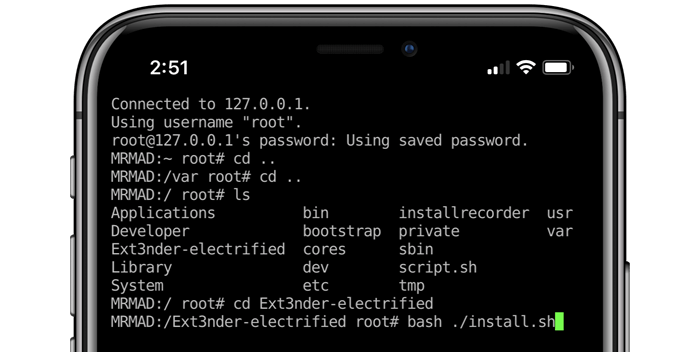
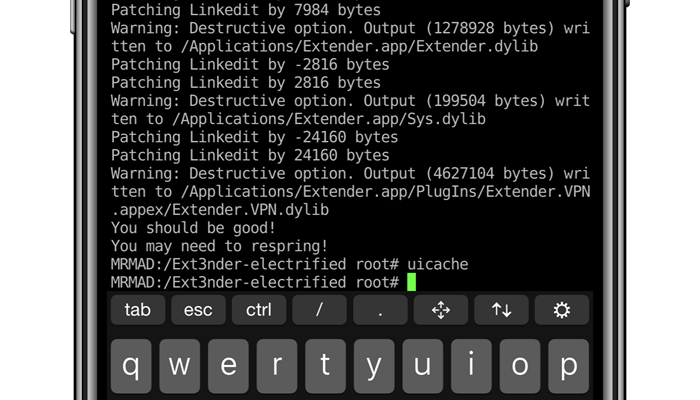
If the script displays the “Unable to Open Extender.VPN.dylib” error, you can safely ignore it. The developer will fix this message in the upcoming version of Ext3nderElectrified.
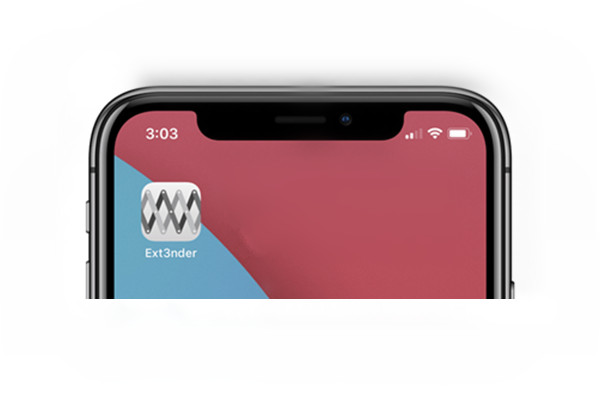
Step 8 You can now launch the app from your home screen.
Step 9 Navigate to the Installed tab and start signing apps on-device.
How to uninstall Ext3nderElectrified?
You can remove this app from your device by deleting its core files. Simply SSH into your device using the aforementioned details and run the following commands –
rm -rf /Extender.app
rm /bootstrap/SBInject/Ext3nder_SpringBoard.dylib
rm /bootstrap/SBInject/Ext3nder_SpringBoard.plist
rm -rf /Library/Switches/Ext3nderSwitch.bundle
Step 11 Delete the .app folder you extracted to your root folder in “step 4”.
Although it works just as well as the original application, it is not a complete replacement. If you can’t wrap your head around the installation process, I suggest waiting for the official release.










