 TUTORIALS
BatteryPercentX – Show Battery Percentage in iPhone X
 01/22/2018
 11266
11266
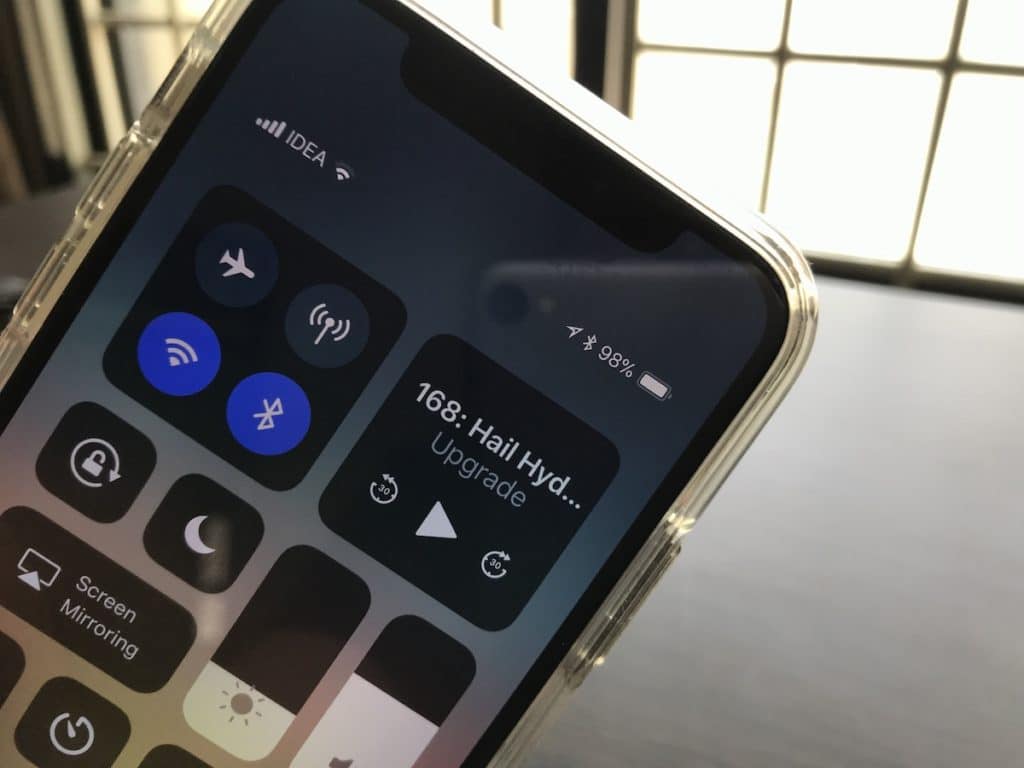
One of the first things I used to do after getting a new iPhone was to enable the battery percentage in the Settings app. It really helps to know exactly how much battery percentage is left on your iPhone.
But in iPhone X, because of the notch, Apple doesn’t provide a way to enable battery percentage in the Settings app. You can still check the battery percentage on the iPhone X but it’s hidden. To check the battery percentage of iPhone X, you need to swipe down from the top-right part of the screen – the right ear next to the notch to access the Control Center as you can see below.
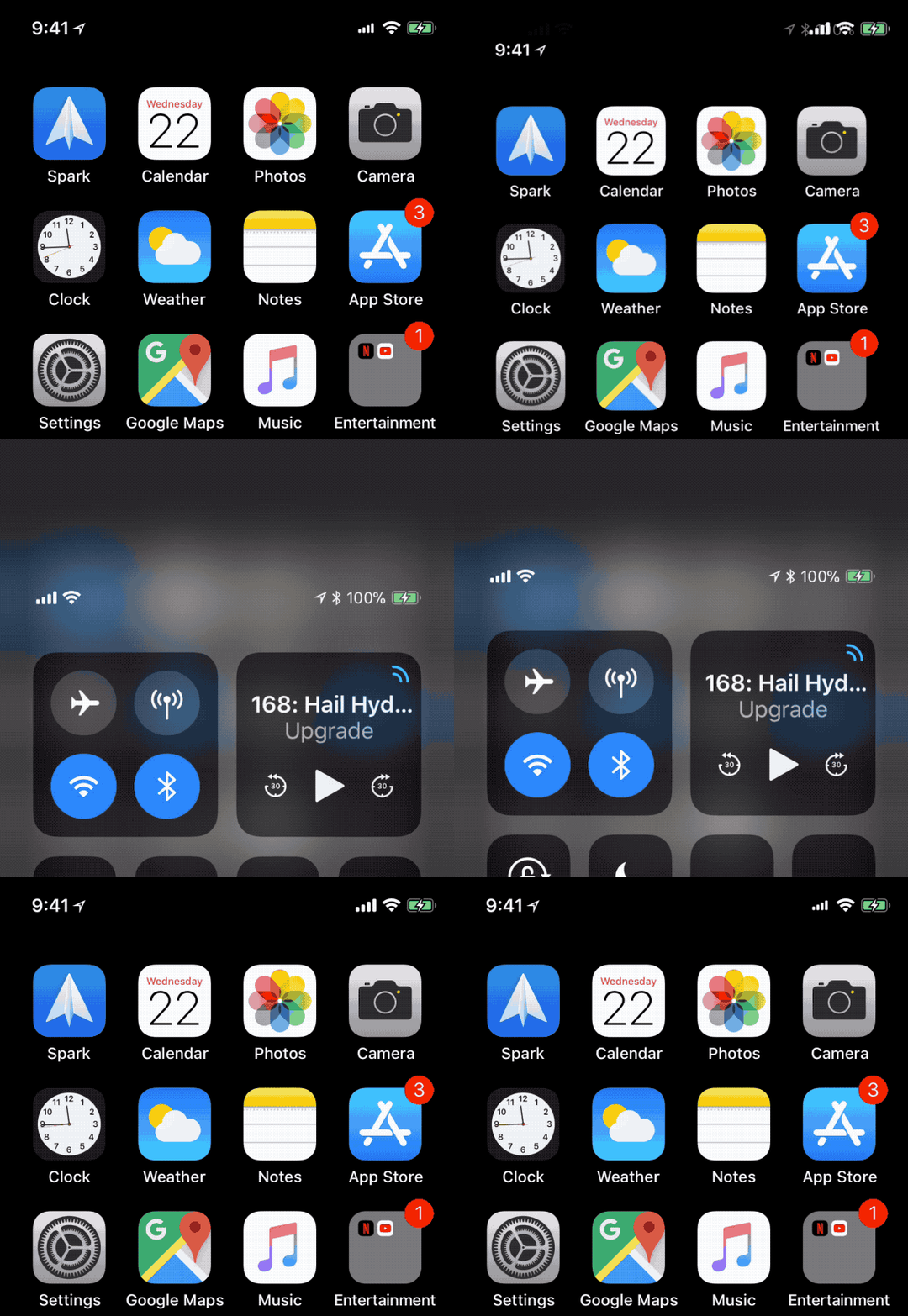
If you’ve jailbroken your iPhone using Electra jailbreak, then you can install the BatteryPercentX jailbreak tweak by jailbreak developer SparkDev, one of the first jailbreak tweaks for iPhone X, which makes it easier to check the battery percentage. It replaces the battery indicator with the battery percentage in the Status bar itself so you don’t need to swipe down to check the battery percentage on your iPhone X.
It gets working right after you install it. There are no Settings or preferences that require configuaration.
As of now, the percentage doesn’t have any animation or color effects.
A lot of jailbreakers have expressed interest in having the battery value change colors under different circumstances.
For example, the color should turn green when the device is plugged in and yellow when it’s in low power mode.
Also my iPhone X battery percentage tweak is fully working, so will be releasing that to Electra users soon pic.twitter.com/UlQK5ivg2h
— Spark (@SparkDev_) January 16, 2018
Download Tweak
This is a basic yet amazing tweak for all iPhone X users. Recommended.
BatteryPercentX is available for download for freeon SparkDev’s repository here. It is compatible with iPhone X on iOS 11 firmware.










