 TUTORIALS
How to Install An Input Method on jailboken iPhone?
 11/11/2016
 7846
7846
An input method (or input method editor) is an operating system component or program that allows any data, such as keyboard strokes or mouse movements, to be received as input. In this way users can enter characters and symbols not found on their input devices. Using an input method is obligatory for any language that has more graphemes than there are keys on the keyboard. This tutorial aims to introduce how to install an input method on jailbroken iPhone.
Note:
* Firstly, you need to jailbreak iDevice before you install a third party input method on it.
* If your iPhone has already installed an input method, you’re suggested to uninstall the original one so as to install the different one.
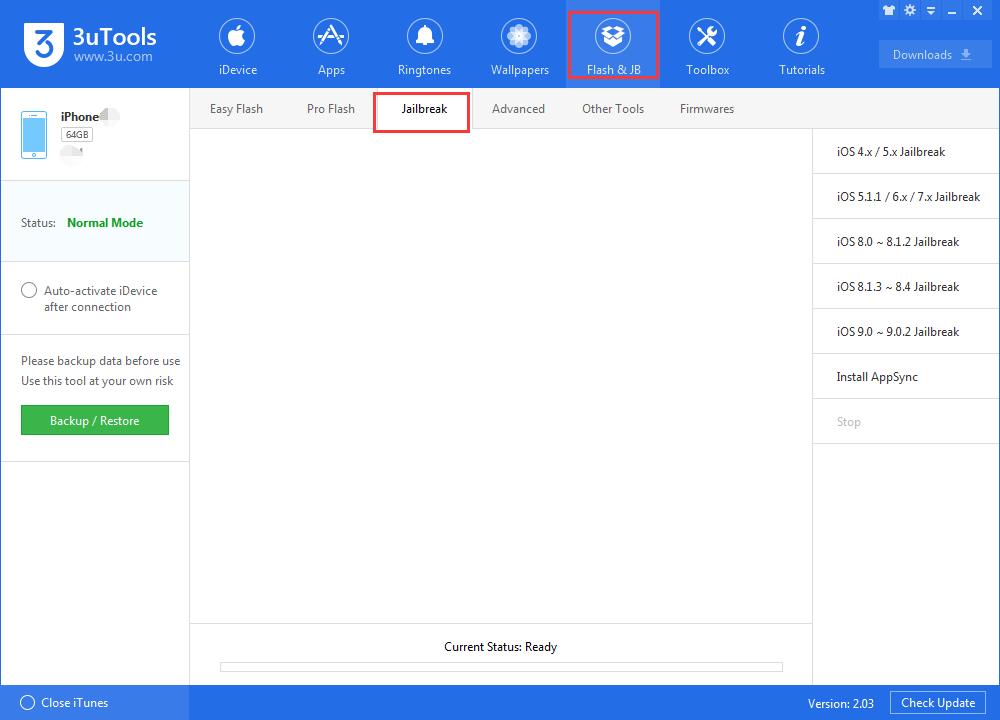
Step1: Open the Cydia of your iPhone and just try a search in Cydia for Cydia Substrate.
Step2: If you can’t find any useful results , please click Change→Refresh,and then try to search it again while it finish loading. Or you can add a third party software source first. And then, go back to the first step to search and install the latest version of Cydia Substrate.
Step3: Download deb file, including the input method itself and Cydia Substrate.
Step4: Two methods for you to install it.
A. Cydia can install it automatically
You are suggested to import the deb file from PC to your iDevice using 3uTools. (Settings→private →var/root/Media/Cydia/AutoInstall)After it’s successfully imported, please restart your iPhone twice.
B. Using an iFile plugin to install it
You need to import the deb file from PC to your iDevice using 3uTools. Open iFile on PC and select Installation Package→installation Program. After it’s completed, you need to restart your iPhone.
You can search and download your wanted input methods in Bigboss. Open the Cydia on your iPhone, after it’s finish loading, enter your wanted input method in the search bar.









