
TUTORIALS

QuickPowerMode Makes it Easier Than Activator to Toggle Low Power Mode

03/15/2017

5953


If you use Low Power Mode to save power when your battery percentage gets too low for comfort, but hate how cumbersome it is to turn the feature on, then a new free jailbreak tweak called QuickPowerMode by Olxios&Nico should be the next thing you install on your jailbroken iPhone.

QuickPowerMode Makes it Easier Than Activator to Toggle Low Power Mode


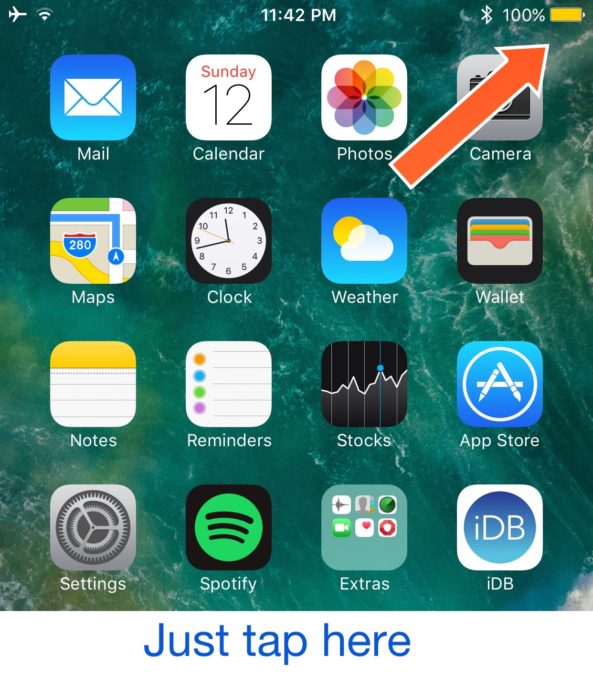
This tweak makes it easier to toggle Low Power Mode. With it, all you have to do is tap on the battery icon in your Status Bar, and this turns the feature on or off.


QuickPowerMode saves a lot of time and energy in comparison to opening the Settings app, going into the Battery preferences pane, and toggling the Low Power Mode switch on.


The tweak is also more efficient than the CCLowPower tweak, which adds a Low Power Mode toggle to Control Center, because you don't even have to open Control Center to toggle the feature on; that's one less swipe you have to make!


In an instant after tapping on the battery, it turns the icon yellow to indicate Low Power Mode is turned on. When you tap once again, Low Power Mode is instantly turned off, just as quickly.


It's worth noting that the tweak works from anywhere in iOS, whether you're in an app, on the Home screen, or even when you're on the Lock screen.


QuickPowerMode has no options to configure and is available for free from Cydia's BigBoss repository. The tweak is advertised to work with all jailbroken iOS 10 iPhones.


Source: idownloadblog


Windows
Mac OS
iOS
Linux
3uTools
Win 64-bit For this device
V9.06 2026-04-09
Download
Win 32-bit For this device
V9.06 2026-04-09
Download
3uTools
Intel Chip How to Identify Chip Type
V9.03 2026-03-27
Download
Apple Silicon
V9.03 2026-03-27
Download
How to Identify Chip Type
1.  Click the Apple icon in the top-left corner of the screen and select About This Mac.
2.  Check the Processor or Chip field to determine if it is "Intel" or "Apple".
Please use the 3uTools PC client to install the iOS client:
1、 Install either the Windows or Mac version of 3uTools on your computer
2、 Open the PC client and connect your device to the computer via USB cable
3、 After the connection is successful, wait for the computer to automatically install the mobile app for the device, or locate “Install Mobile App” on the computer and manually click to install.
3uTools
deb file
V9.0 2026-04-16
Download
rpm file
V9.0 2026-04-16
Download
Windows
Windows
iOS
iOS
Android
Android
TV
TV
3uAirPlayer
Win 64-bit For this device
V6.0.5 2026-04-23
Download
Win 32-bit For this device
V6.0.5 2026-04-23
Download
iOS Device Mirroring (No App Required)
1、 Install 3uAirPlayer on the Windows PC
2、 Open Control Center and select Screen Mirroring
3、 From the list, choose your PC to start mirroring
4、 Or connect your iOS device to the PC via USB to begin mirroring
Scan to get "3uAirPlayer" App
3uAirPlayer TV V1.0.18
2025-11-28
TV System Requirements: Android 7.0 or later
Download the TV installation package, copy it to a USB drive, insert it into your TV or set-top box, then select the file from the home screen to install.




