 TUTORIALS
Tutorial on Transferring Photos via Wi-Fi
 07/15/2026
 8357
8357
Prerequisite
Your phone and computer must be connected to the same Wi-Fi network. Otherwise, files cannot be transferred properly.
Steps
1. Open 3uTools on your computer. Under Import Photos, select Wi-Fi Import.
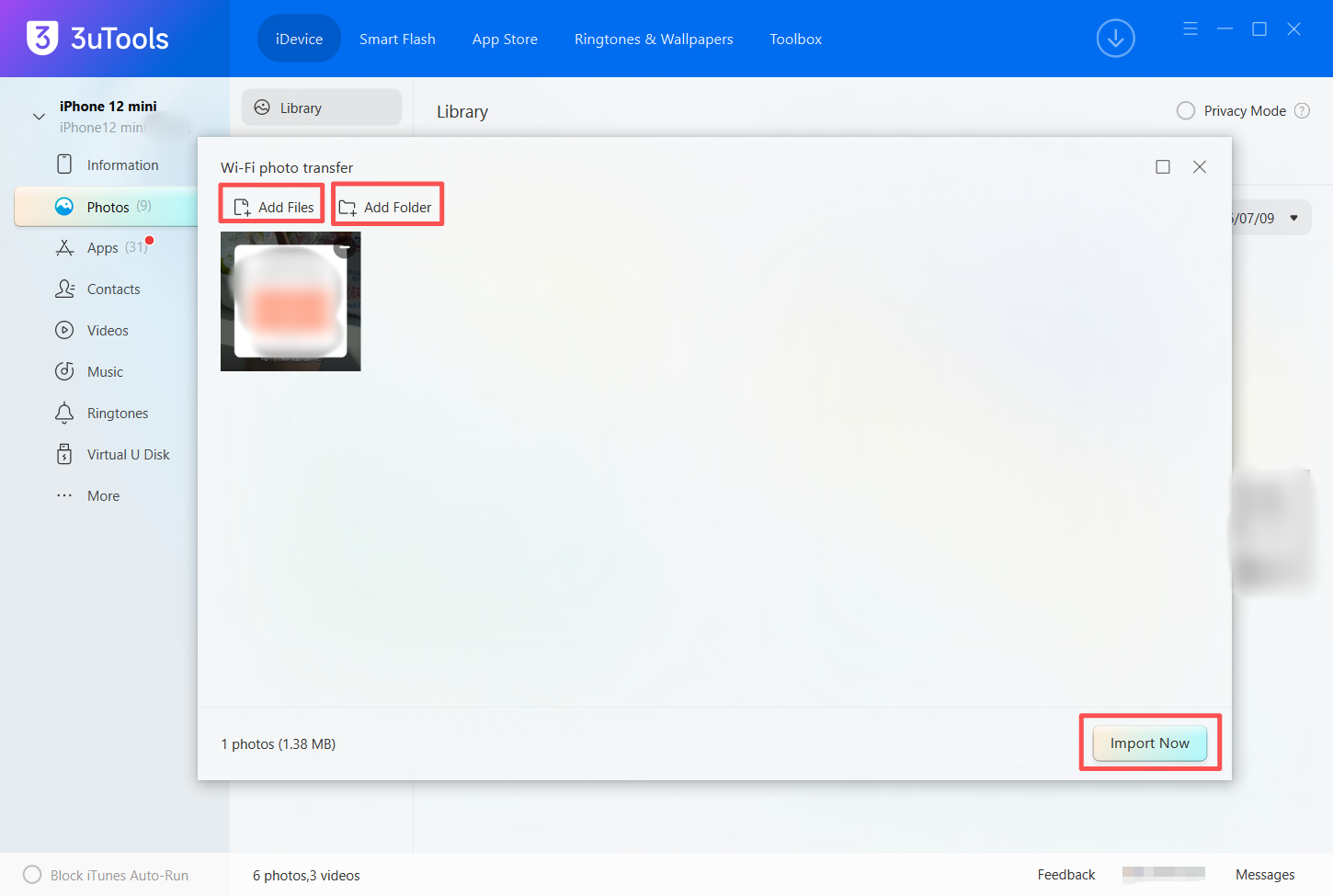
2. Select the photos or videos you want to transfer. You can click Add Files or Add Folder to select multiple items at once. Once confirmed, click Import Now.
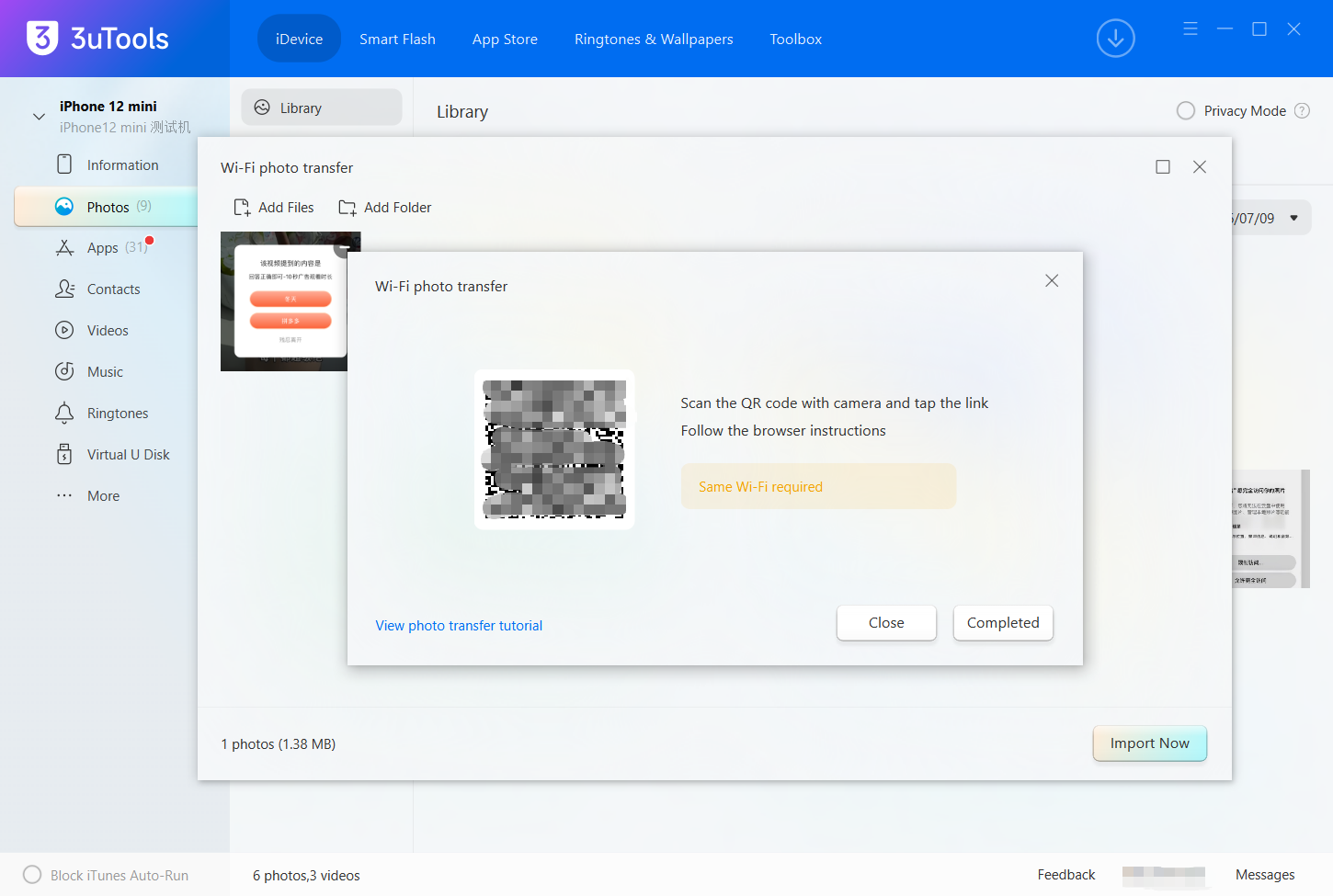
3. A dedicated QR code will be generated on the page.
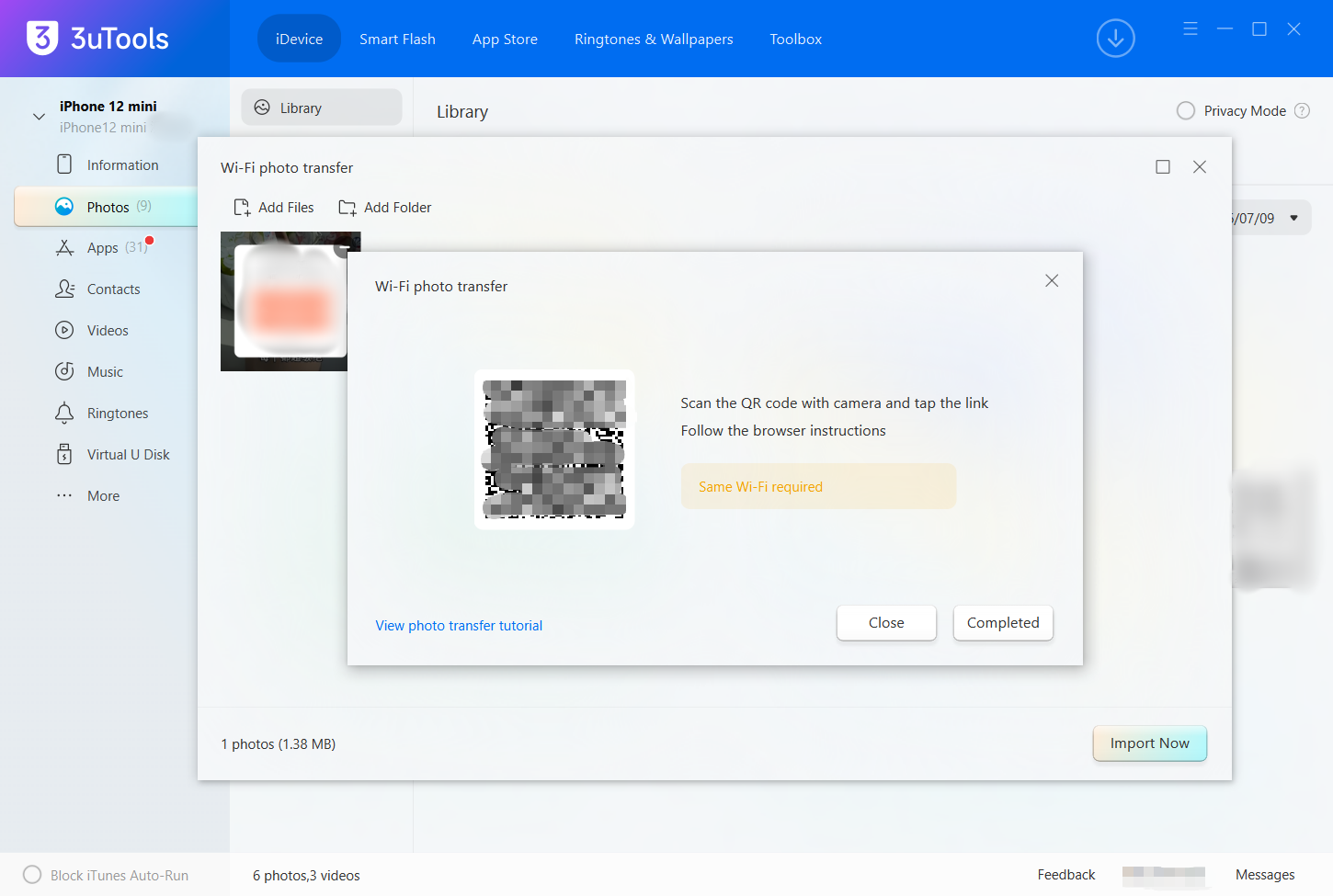
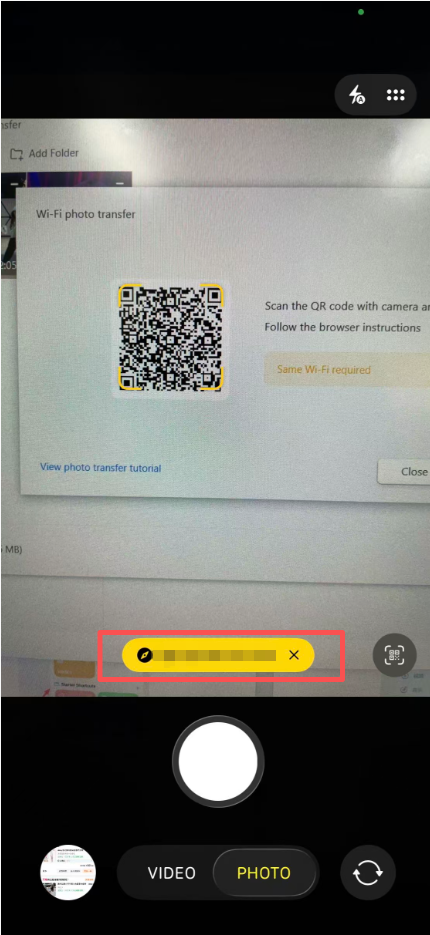
4. Open the built-in Camera app on your phone and scan the QR code. Tap the web link that appears.
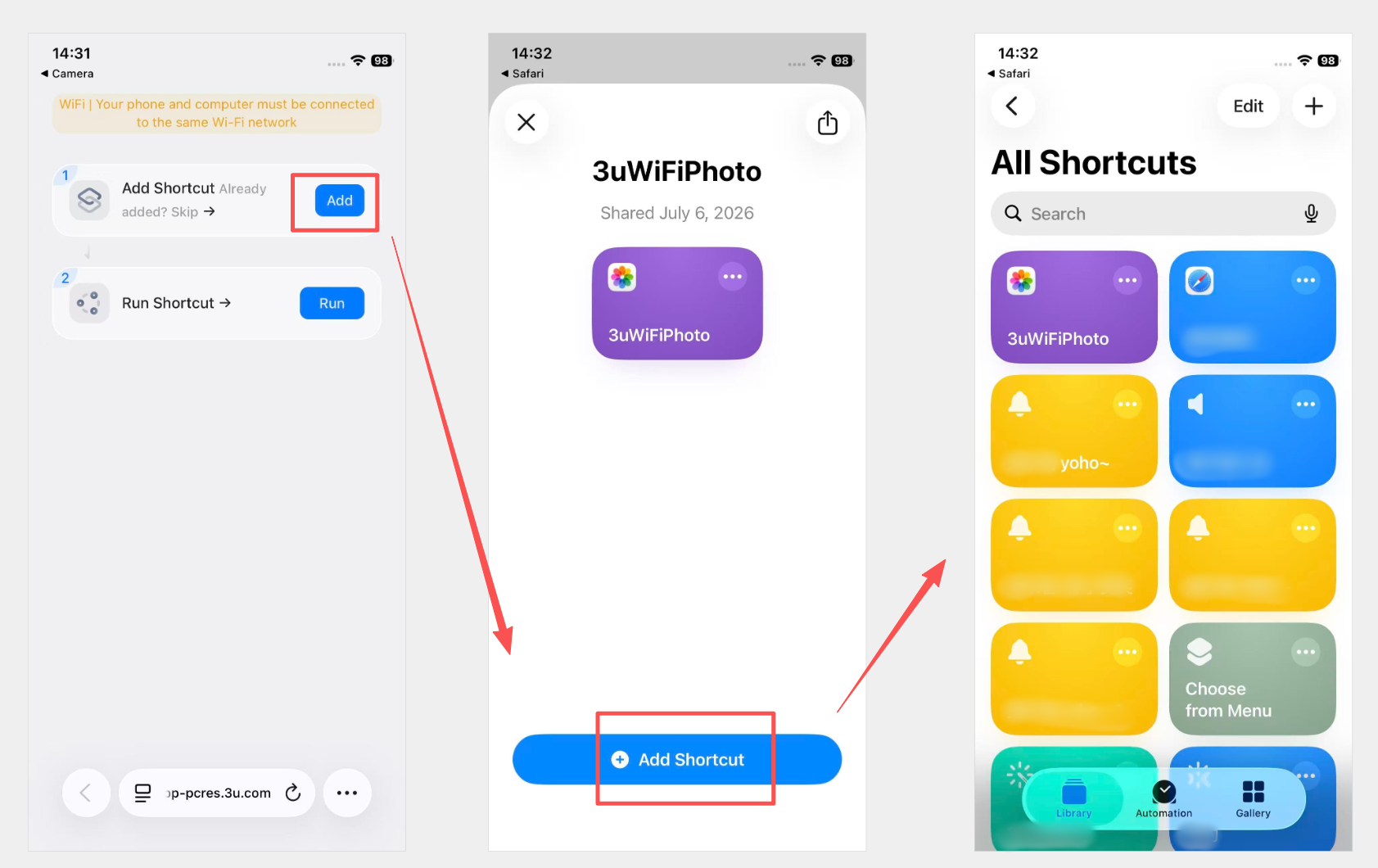
5. For first-time use: After being redirected to the browser, tap Add Shortcut. If you have already added the shortcut before, skip this step.
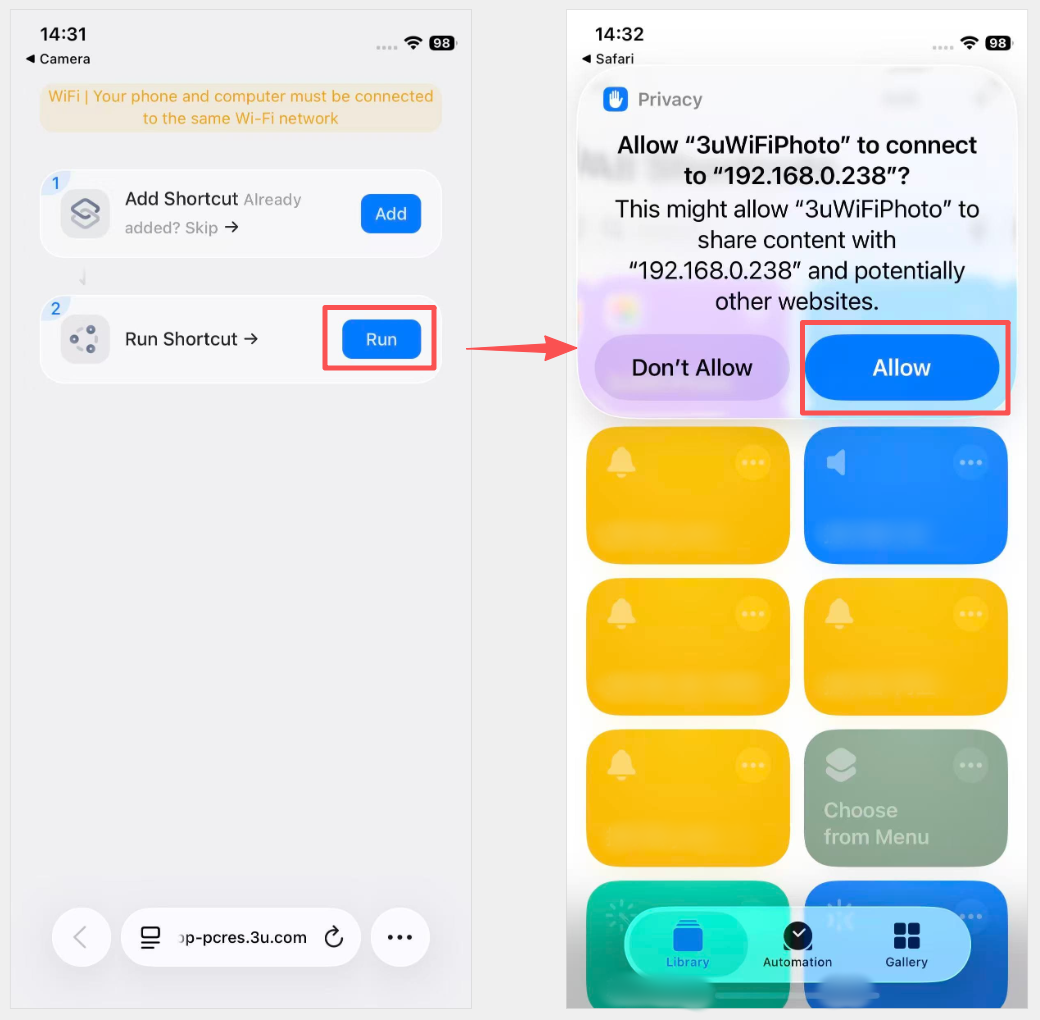
6. In the browser, tap Run. When the network access permission prompt appears, select Allow.
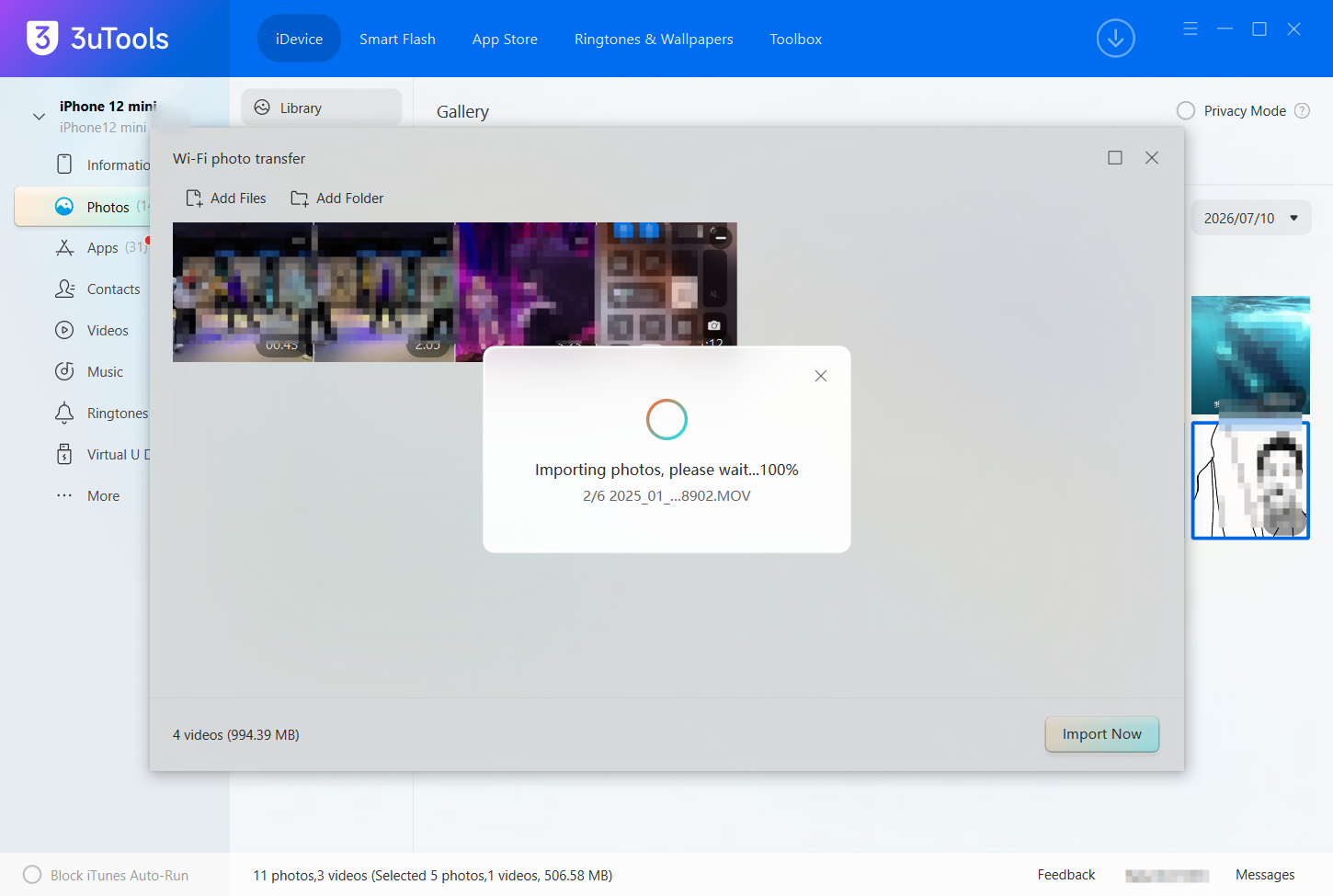
7. 3uTools on your computer will display the import progress in real time. Wait until the progress reaches 100% to complete the transfer.
Tips
- Transferring a large number of photos or videos may take longer due to larger file sizes. Do not disconnect from Wi-Fi or close the software during the transfer.
- If scanning the QR code does not work, make sure your phone and computer are connected to the same Wi-Fi network. Then restart the Camera app or browser and scan again.
- Selecting Don’t Allow on the permission prompt will cause the transfer to fail. Be sure to allow network access.