 TUTORIALS
How to Install USB Drivers for Android Devices
 05/12/2026
 4326
4326
How to Install USB Drivers for Android Devices
If your Android device cannot connect to your computer via USB, the issue is usually caused by a missing or incorrect USB driver.
Install the correct driver below to enable file transfer, screen mirroring, and other USB functions.
All links are from official or trusted sources.
1. Huawei Devices
Install HiSuite: https://consumer.huawei.com/en/support/hisuite/
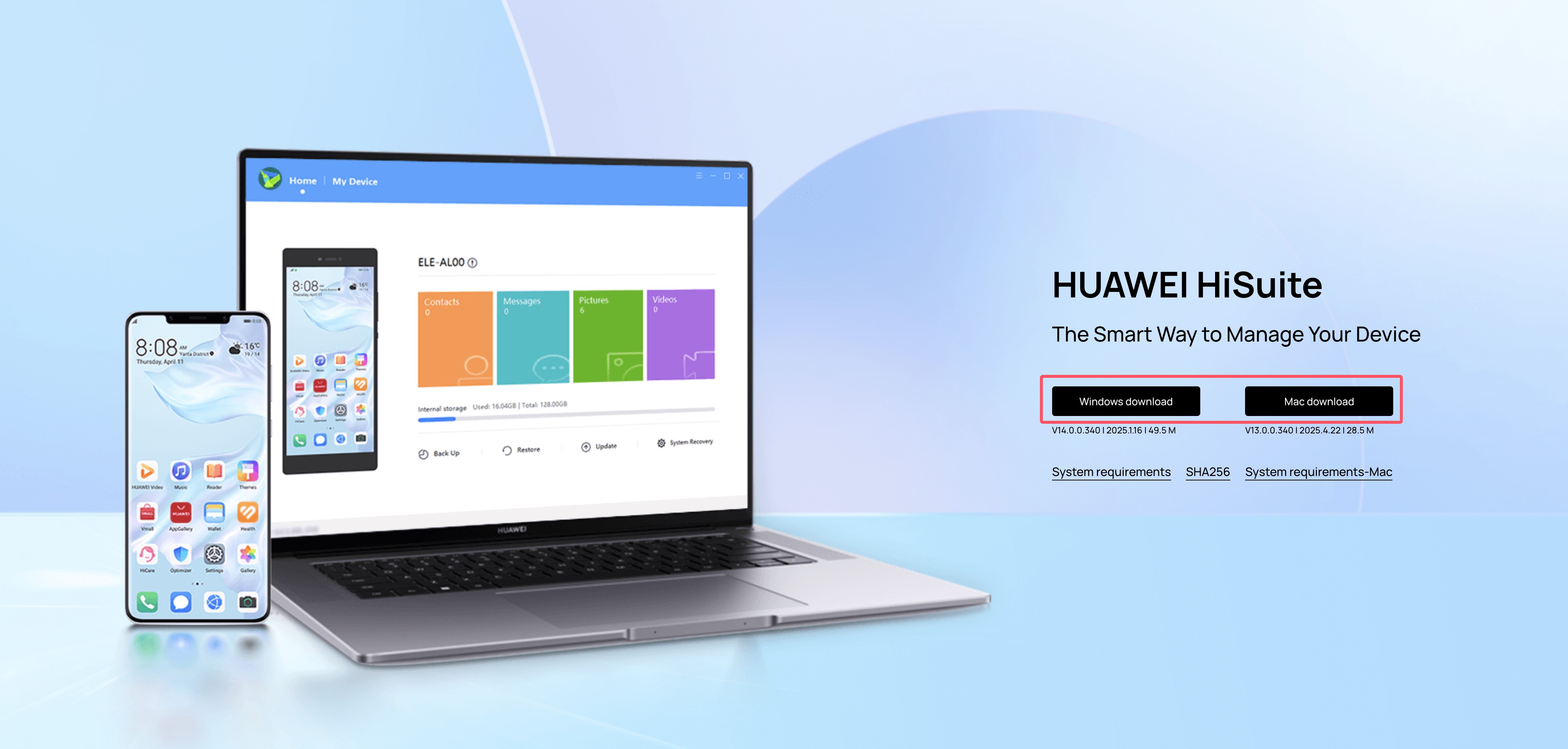
Steps:
a. Install HiSuite on your computer
b. Connect your Huawei device via USB
c. If the connection is successful, the driver is installed correctly
d. Close HiSuite
e. Open 3uAirPlayer and reconnect via USB
2. Samsung Devices
Download and install Samsung USB Driver: https://developer.samsung.com/android-usb-driver
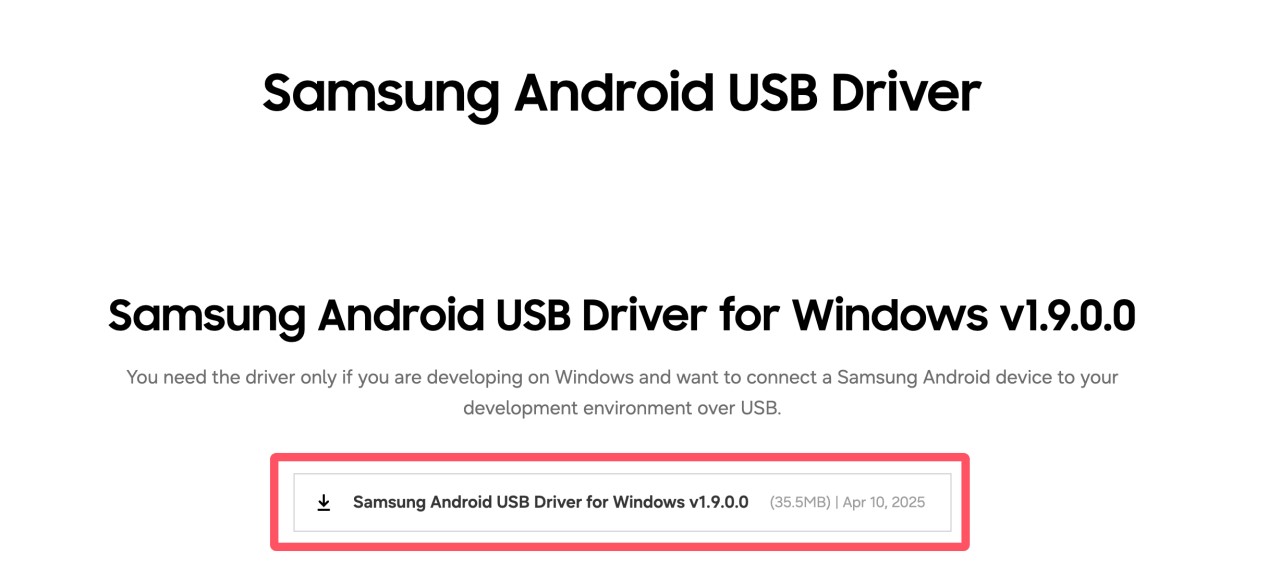
Then reconnect your device to 3uAirPlayer.
3. Xiaomi Devices
Download driver package: https://dl.3u.com/pc/driver/driver_xiaomi.zip
Manual installation:
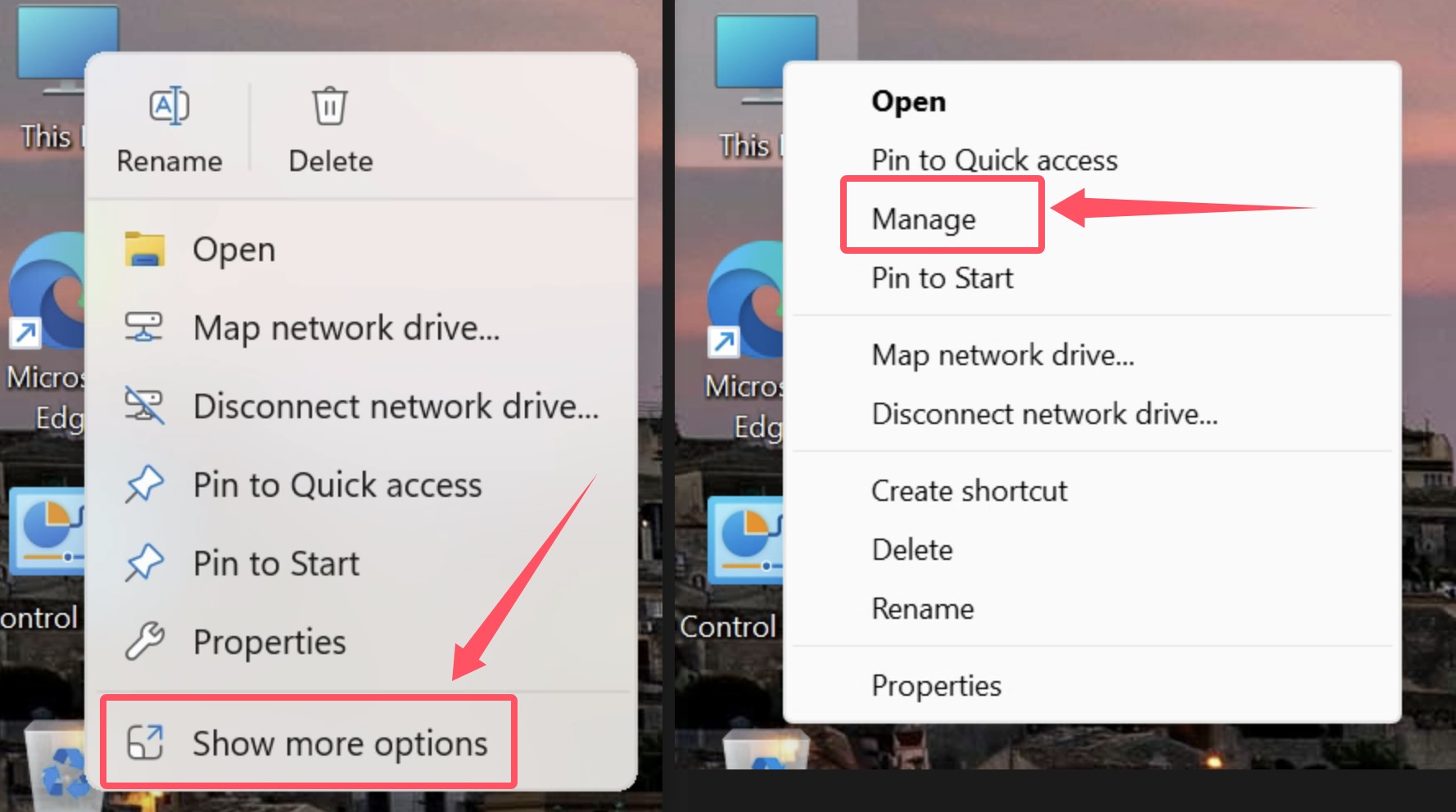
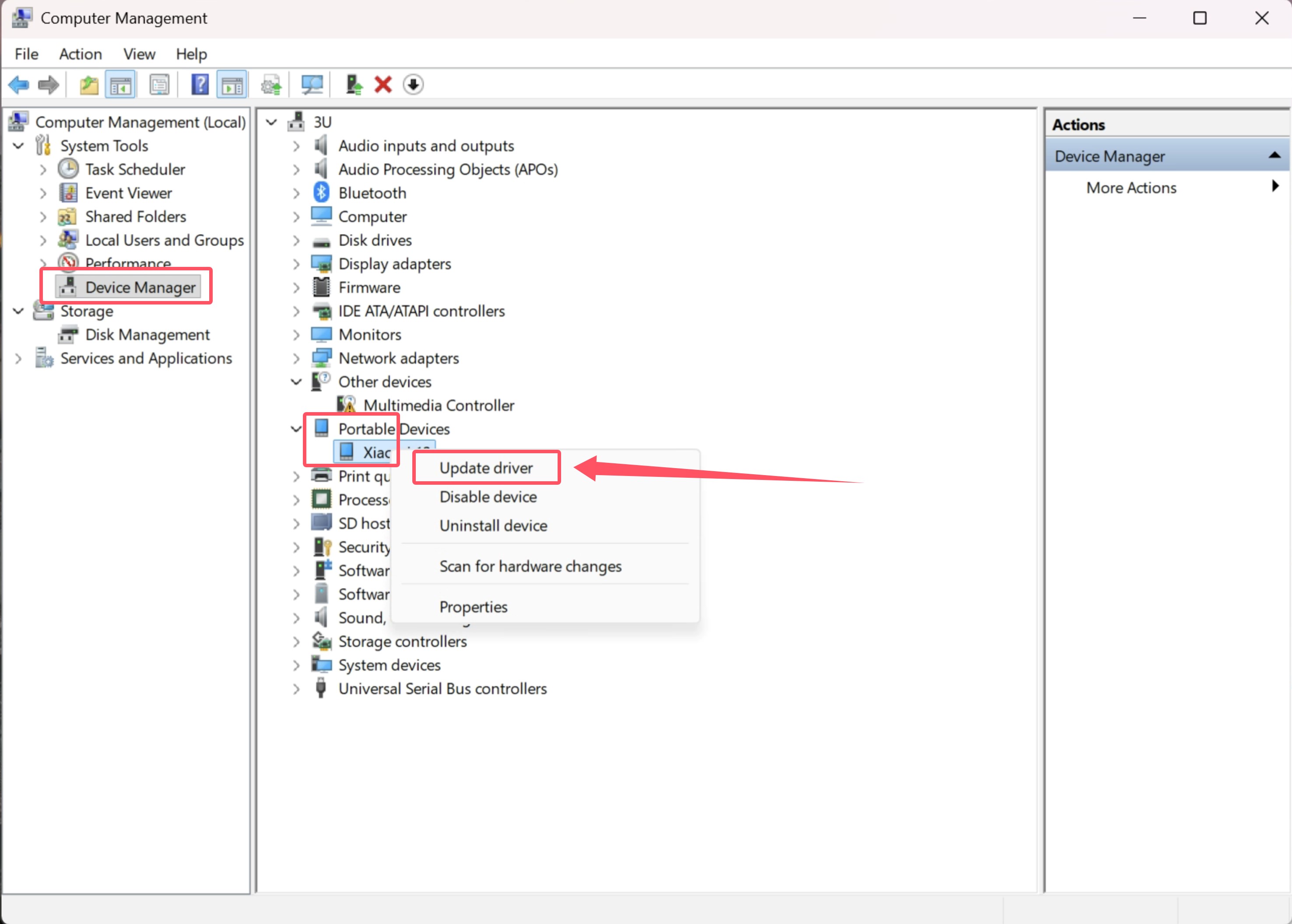
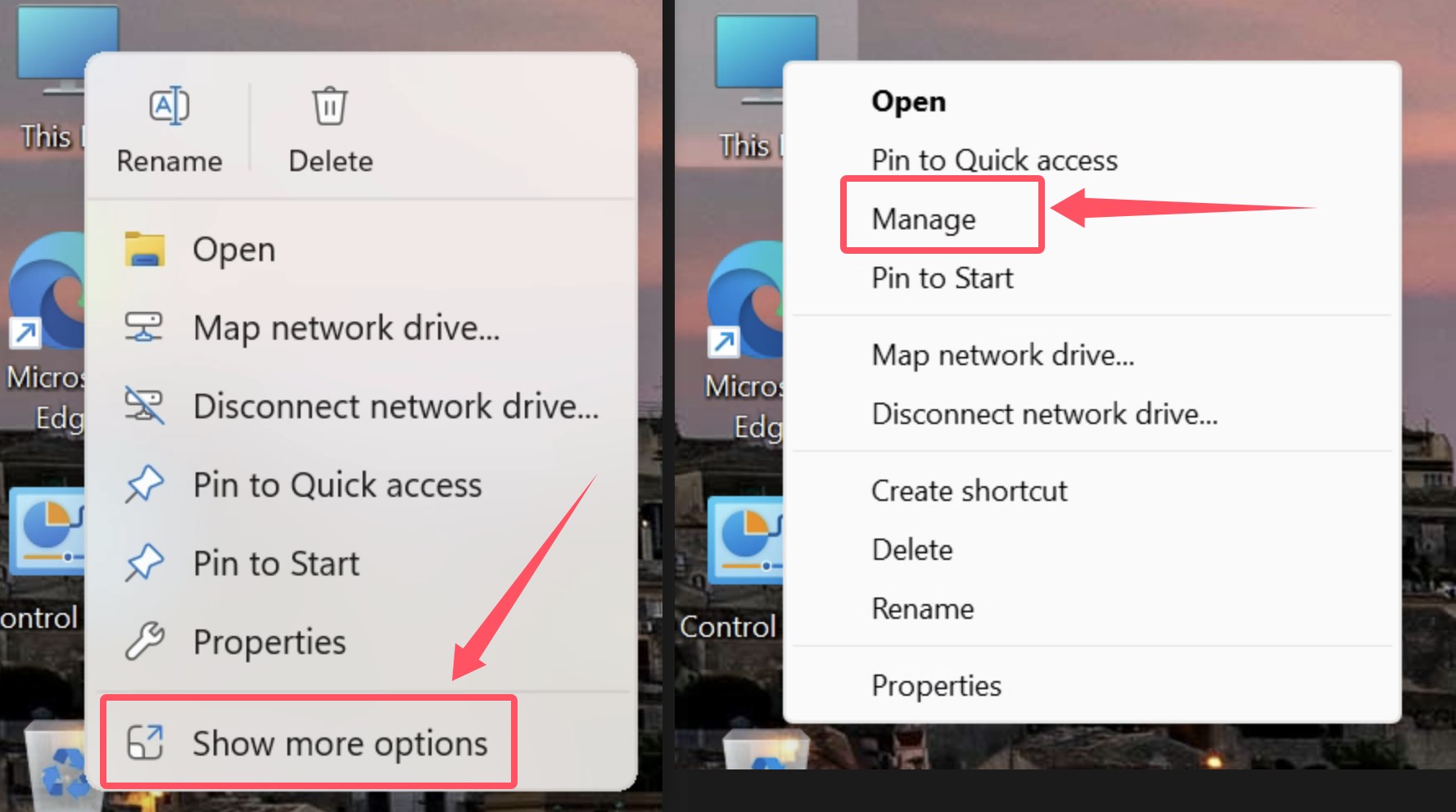
a. Right-click This PC → Manage
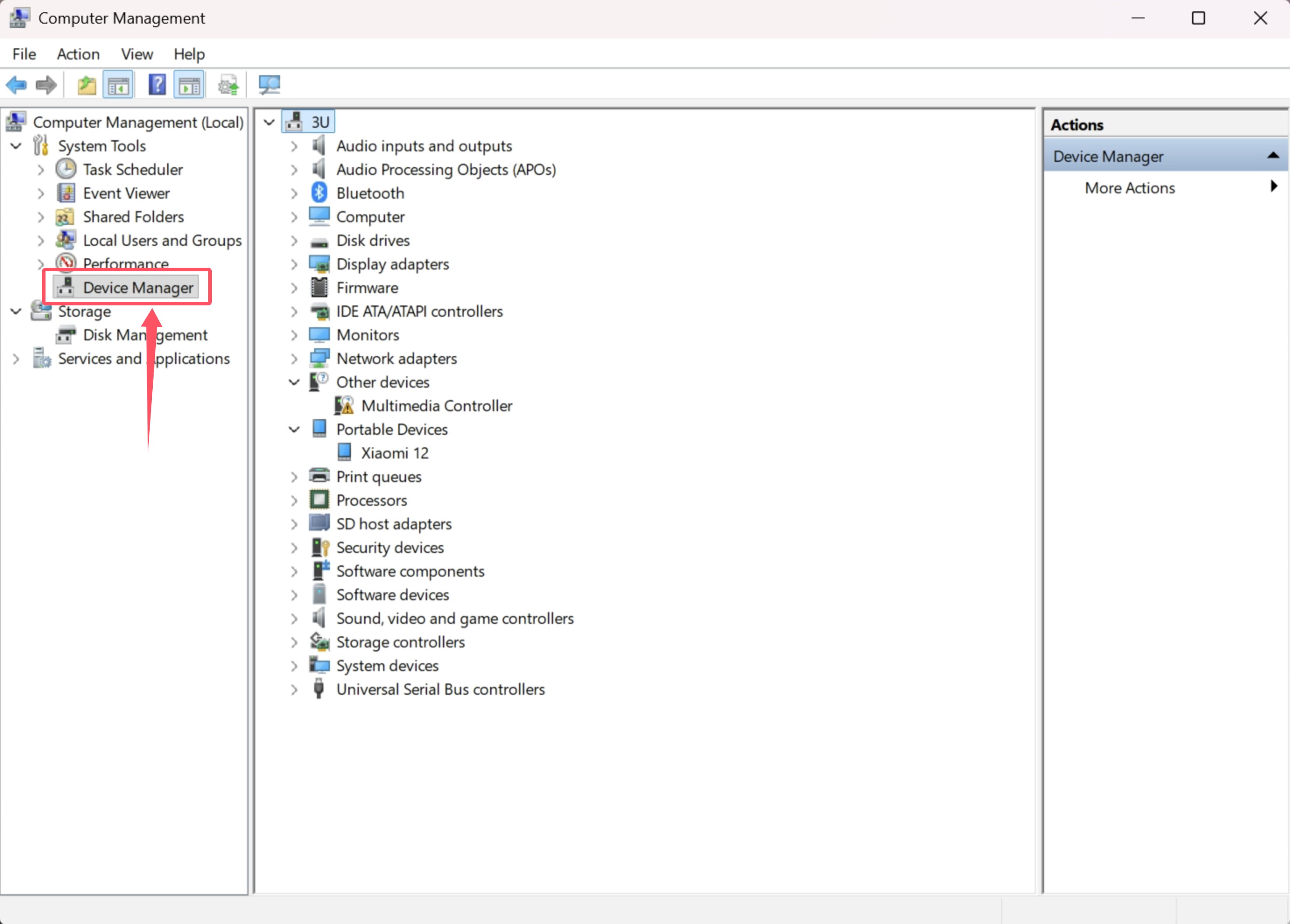
b. Open Device Manager
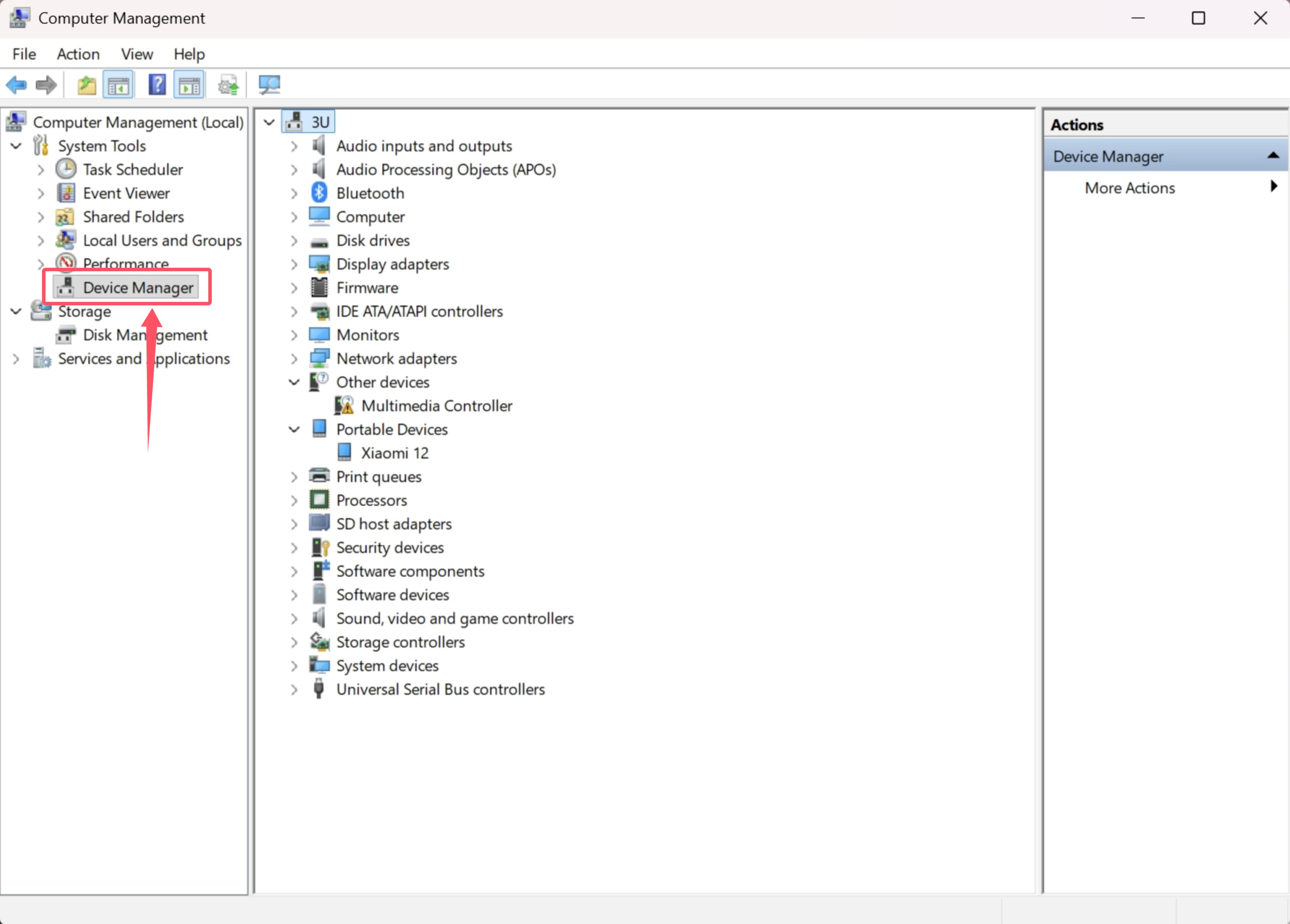
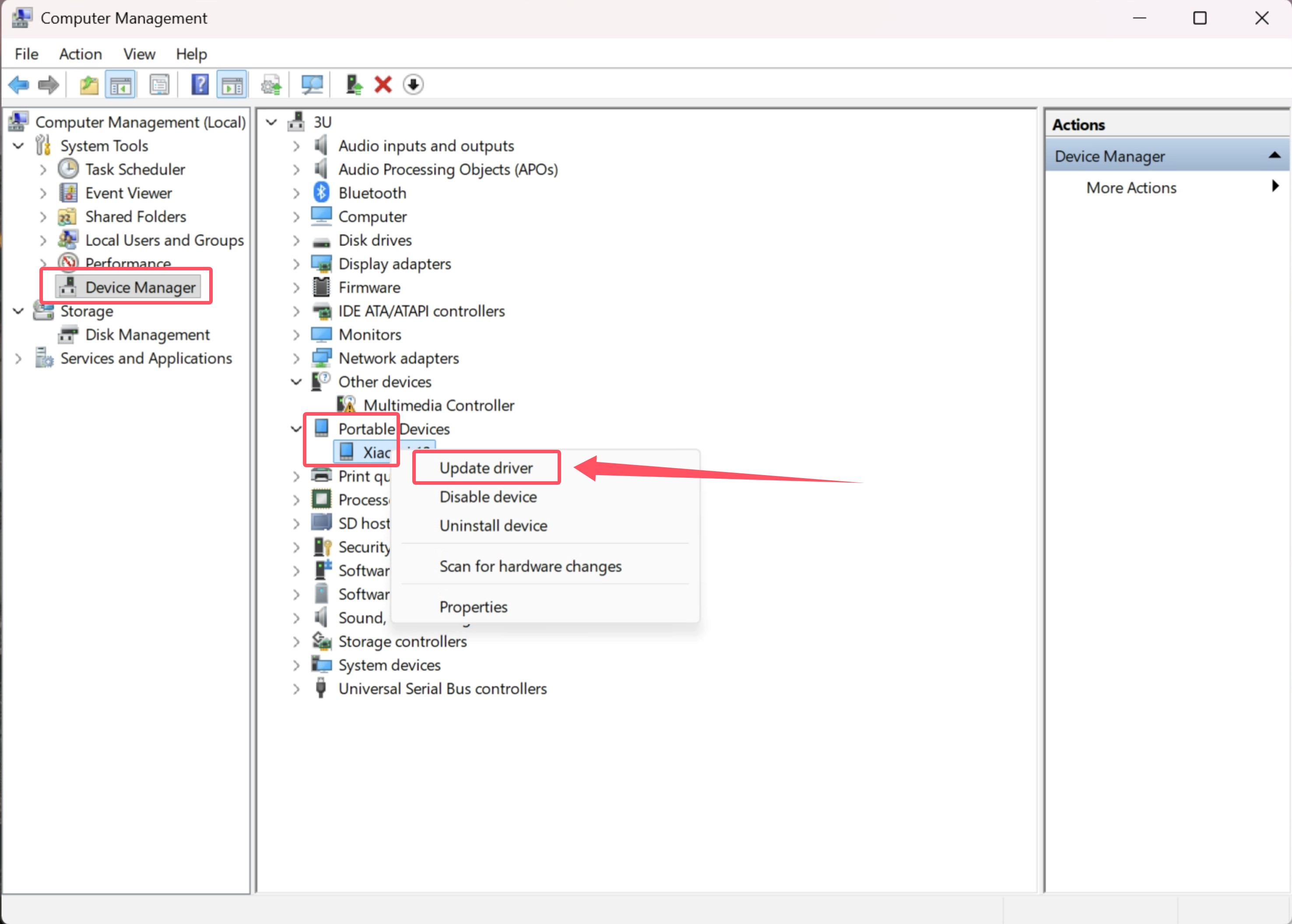
c. Find your connected device. Right-click → Update driver
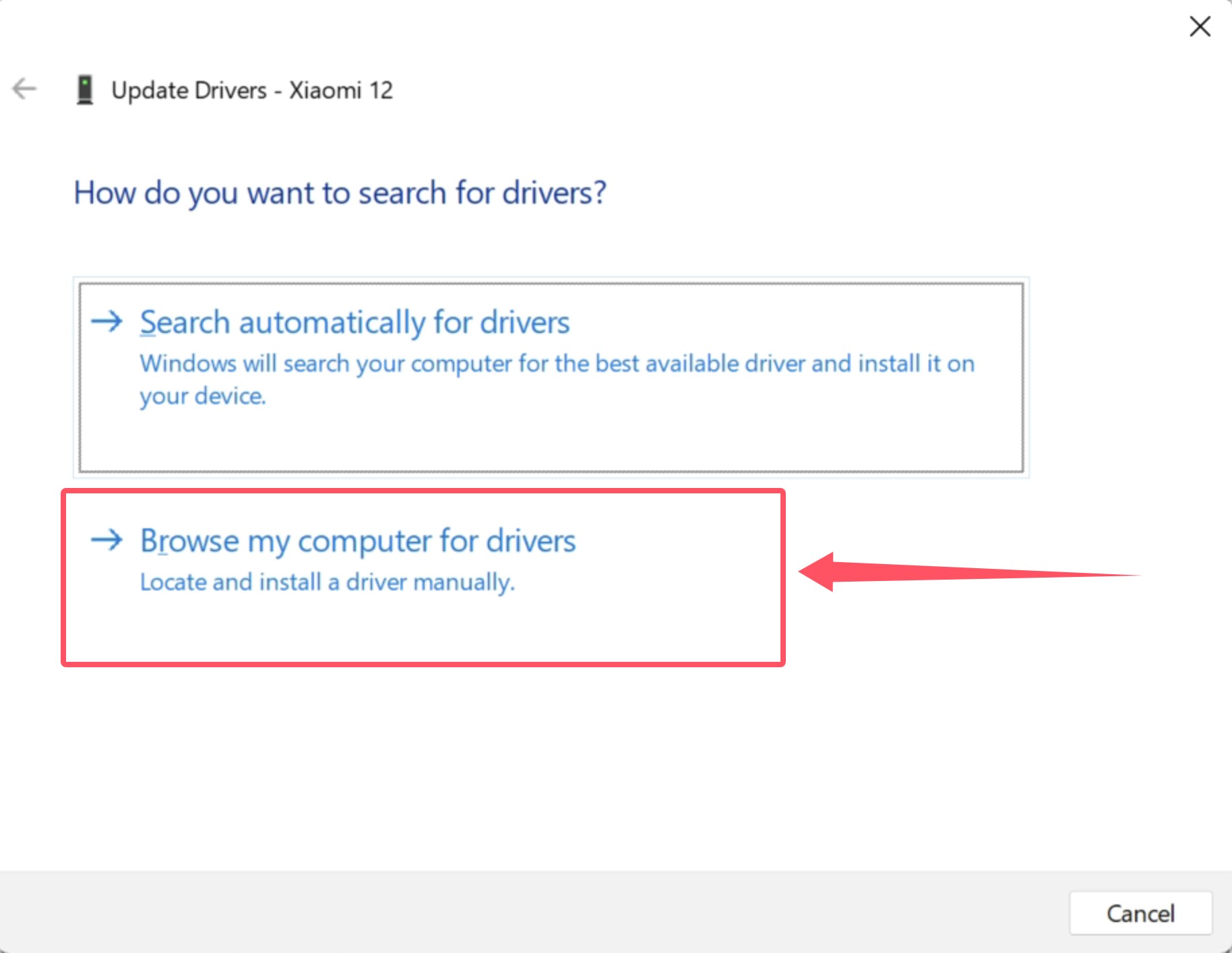
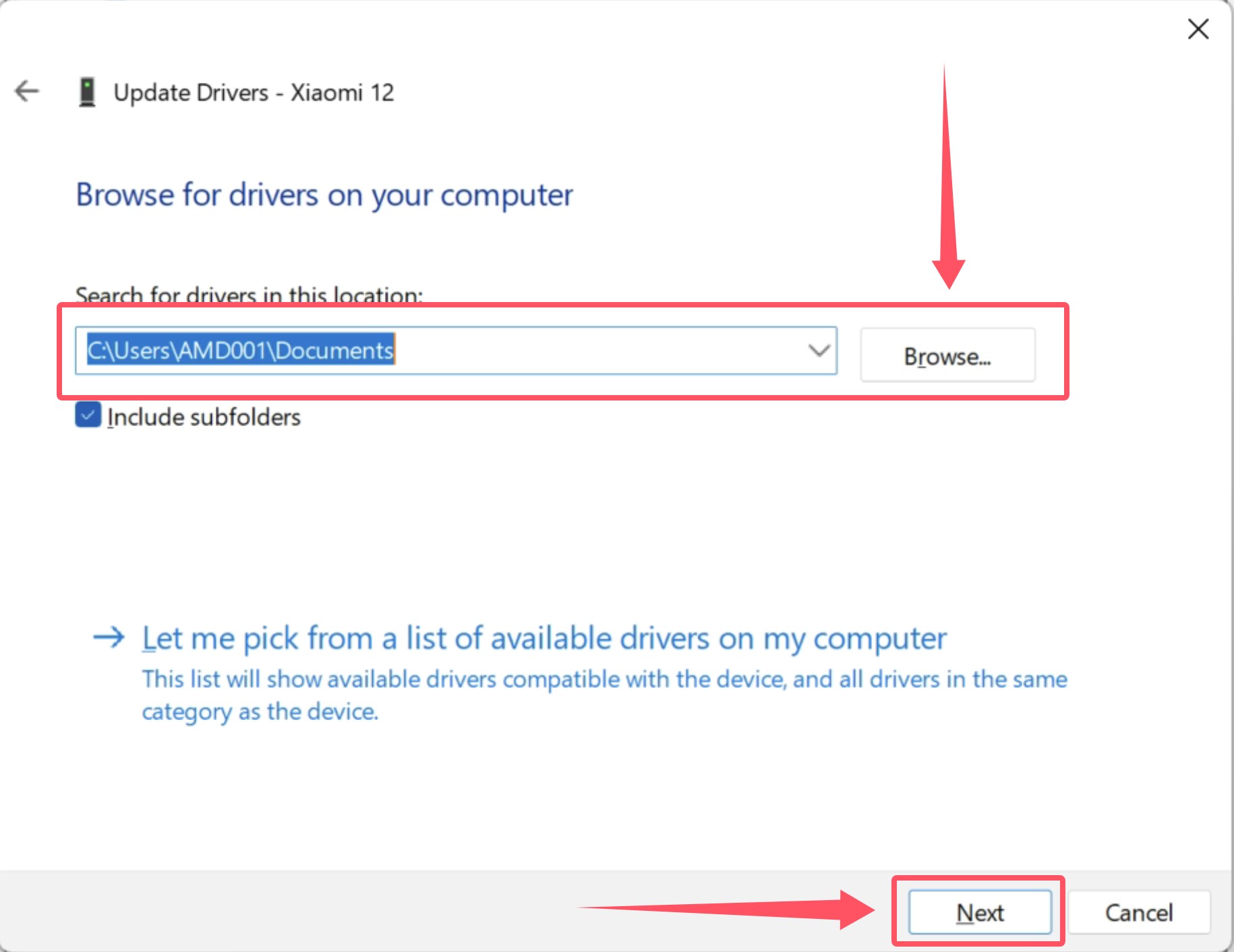
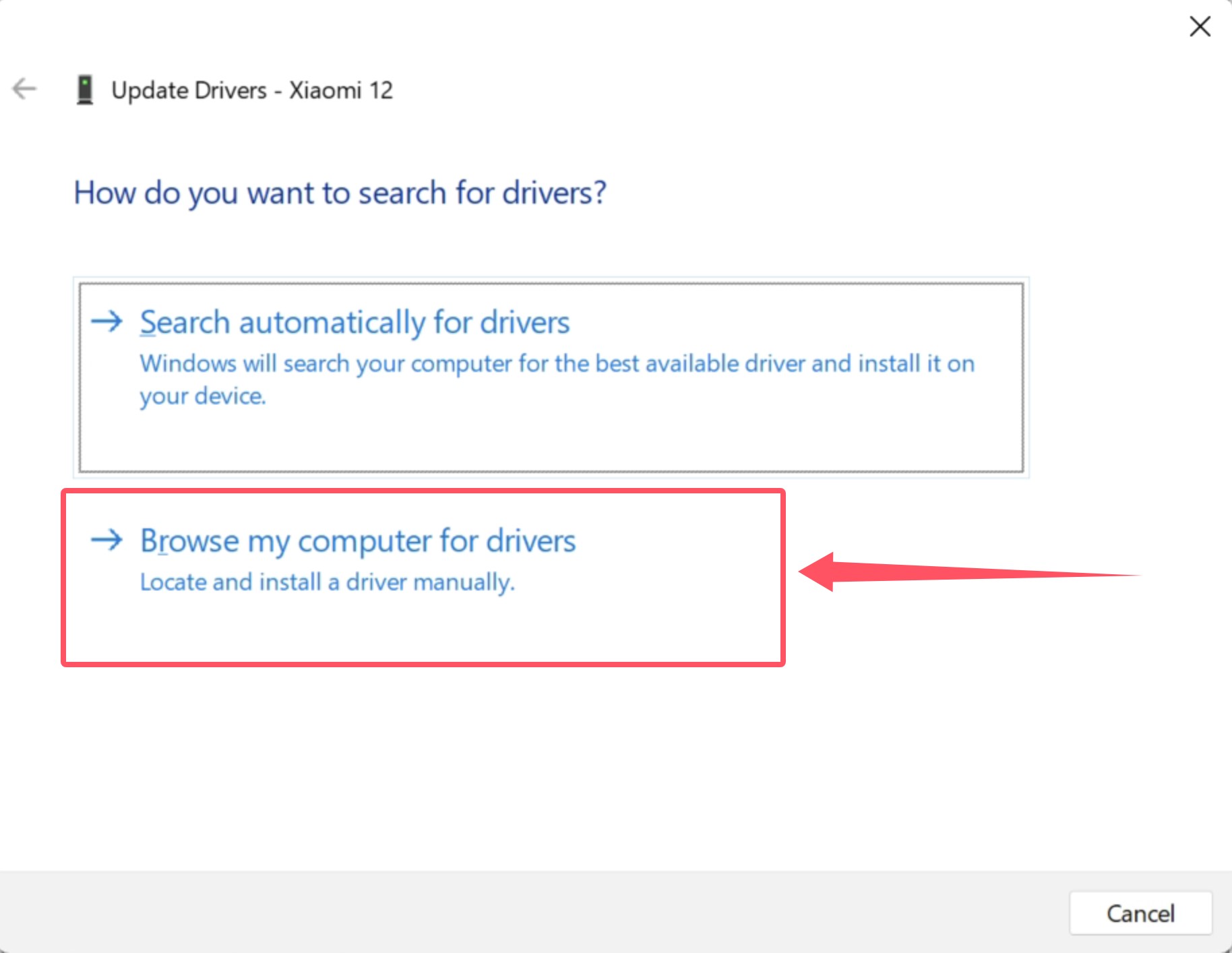
d. Select “Browse my computer for drivers”. Choose the downloaded folder and install
4. vivo Devices

Download: https://dl.3u.com/pc/driver/driver_vivo.exe
Double-click to install, then reconnect via USB.
5. OPPO Devices
Download: https://androidmtk.com/download-oppo-usb-drivers
Install and reconnect your device.
6. Meizu Devices
Download: https://androidmtk.com/download-meizu-usb-driver
Install and reconnect your device.
7. Universal Driver (Recommended if brand not listed)
Option A: Generic USB Driver
https://dl.3u.com/pc/driver/driver_public.zip
Installation:
-
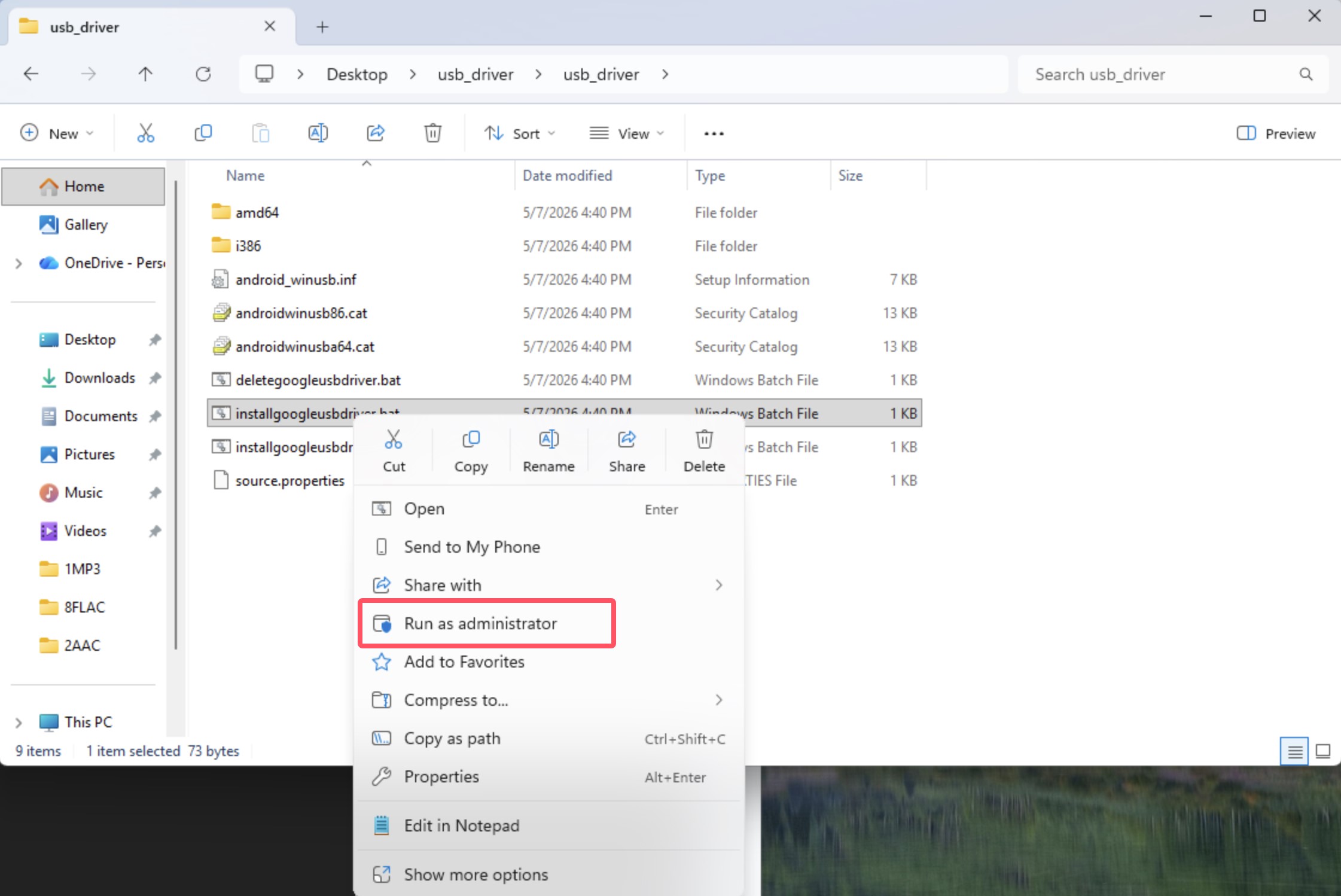
Windows 10 (Version 1607+):
Runinstallgoogleusbdriver.batas administrator
-
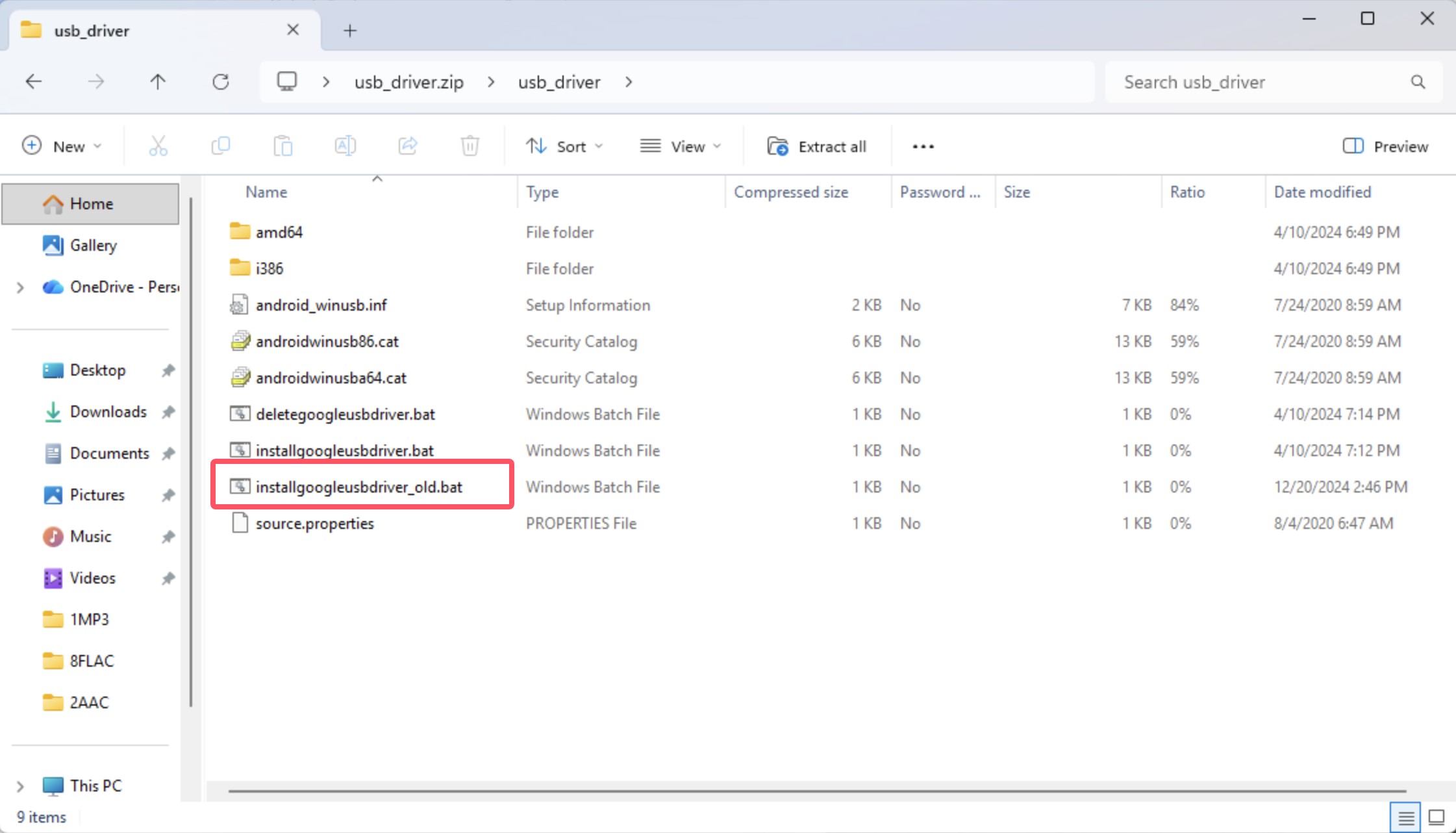
Older Windows 10 versions:
Runinstallgoogleusbdriver_old.batas administrator
Option B: Universal ADB Driver
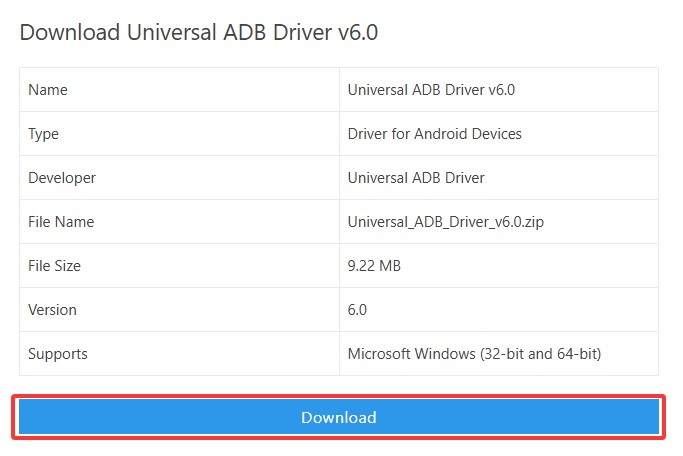
https://universaladbdriver.com/download/universal-adb-driver-v6-0/
Installation guide: https://androidmtk.com/install-universal-adb-driver
Installation Notes
All drivers support two installation methods:
1. Automatic installation
-
.exefiles → double-click to install
2. Manual installation
a. Open Device Manager
b. Locate your device
c. Select Update driver
d. Choose downloaded driver folder
e. Complete installation
System Requirements
a. Windows 7 / 8: use 32-bit driver if the system is 32-bit
b. Windows 10 / 11: install the matching 64-bit version if the system is 64-bit










