
NEWS

Apple Shares Details on Cleaning and Protecting Your Apple Card in New Support Document

08/22/2019

2433

Apple this morning shared a new Apple Card support document, which covers proper cleaning and storage methods to maintain the card's signature white finish. 

If the Apple Card gets dirty, Apple recommends gently wiping it with a soft, damp microfiber cloth. A soft microfiber cloth moistened with isopropyl alcohol can also be used for stain removal. 
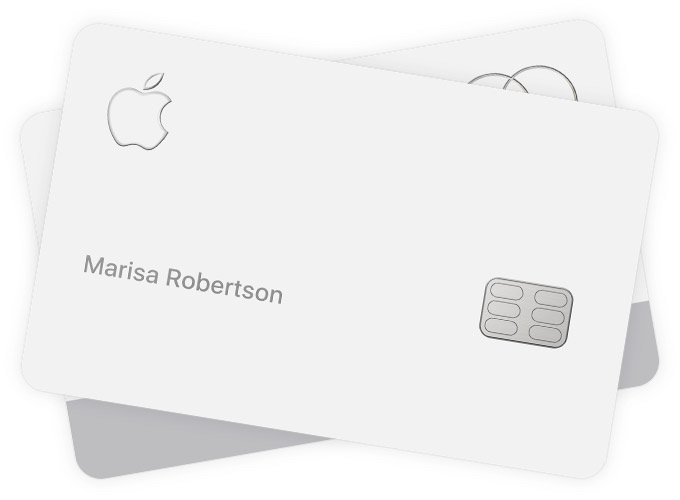
Apple Shares Details on Cleaning and Protecting Your Apple Card in New Support Document
Apple says that household cleaners, abrasives, solvents, ammonia, aerosol sprays and compressed air must be avoided, and warns that some fabrics, such as leather and denim, have the potential to cause permanent discoloration. 

Due to the multi-layer coating process that gives the titanium card its white finish, Apple has detailed rules for proper storage. 

The Apple Card should be stored in a wallet, pocket, or bag constructed from soft materials, and it should not touch another credit card because doing so could cause scratching. 

Apple also warns against putting the Apple Card near magnets because doing so could cause the magnetic strip to become demagnetized, and Apple also says that the Apple Card should not be put in a pocket or bag that contains loose change, keys, or other potentially abrasive objects. 

Apple's full list of instructions for the Apple Card can be found in the support document. Additional Apple Card details are located in our Apple Card guide.


Source: Macrumors

Windows
Mac OS
iOS
Linux
3uTools
Win 64-bit For this device
V9.01 2025-12-27
Download
Win 32-bit For this device
V9.01 2025-12-27
Download
3uTools
Intel Chip How to Identify Chip Type
V9.01 2025-12-31
Download
Apple Silicon
V9.01 2025-12-31
Download
How to Identify Chip Type
1.  Click the Apple icon in the top-left corner of the screen and select About This Mac.
2.  Check the Processor or Chip field to determine if it is "Intel" or "Apple".
Please use the 3uTools PC client to install the iOS client:
1、 Install either the Windows or Mac version of 3uTools on your computer
2、 Open the PC client and connect your device to the computer via USB cable
3、 After the connection is successful, wait for the computer to automatically install the mobile app for the device, or locate “Install Mobile App” on the computer and manually click to install.
3uTools
deb file
V3.01 2025-11-20
Download
rpm file
V3.01 2025-11-20
Download
Windows
Windows
iOS
iOS
Android
Android
TV
TV
3uAirPlayer
Win 64-bit For this device
V6.0.2 2025-11-19
Download
Win 32-bit For this device
V6.0.2 2025-11-19
Download
iOS Device Mirroring (No App Required)
1、 Install 3uAirPlayer on the Windows PC
2、 Open Control Center and select Screen Mirroring
3、 From the list, choose your PC to start mirroring
4、 Or connect your iOS device to the PC via USB to begin mirroring
Scan to get "3uAirPlayer" App
3uAirPlayer TV V1.0.18
2025-11-28
TV System Requirements: Android 7.0 or later
Download the TV installation package, copy it to a USB drive, insert it into your TV or set-top box, then select the file from the home screen to install.




