 NEWS
NEWS
Apple Brings Contactless Student IDs to a Dozen More Universities
 08/14/2019
 3101
3101
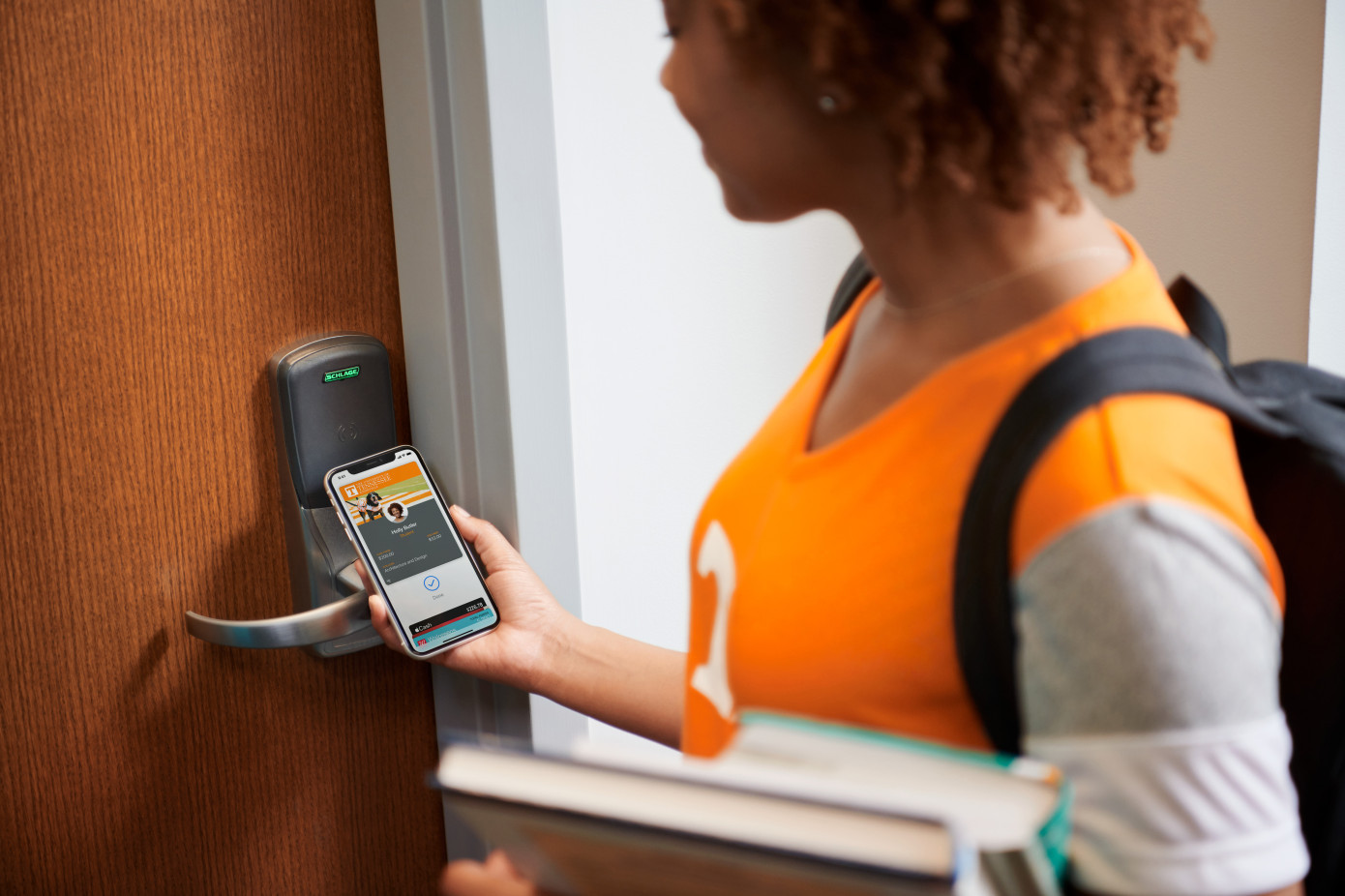
Ahead of the upcoming school year, Apple this morning announced it’s bringing contactless student IDs in Apple Wallet to several more U.S. universities. The expansion will allow more than 100,000 additional college students to carry their student ID on their iPhone or Apple Watch, where it can be used for a variety of tasks, including paying for their meals and snacks and entry into buildings, like the student’s dorm and other campus facilities.
The expanded list of universities includes: Clemson University, Georgetown University, University of Tennessee, University of Kentucky, University of San Francisco, University of Vermont, Arkansas State University, South Dakota State University, Norfolk State University, Louisburg College, University of North Alabama and Chowan University.
These join the previously supported schools: Duke University, University of Oklahoma, University of Alabama, Temple University, Johns Hopkins University, Marshall University and Mercer University.

Apple first announced its plans for contactless student IDs at WWDC 2018, then rolled out to its debut schools last October.
The contactless IDs not only serve as a means of student identification but also work as a payment mechanism for on-campus transactions — like meals at the cafeteria or textbooks and supplies at the college’s bookstore, for example. Contactless entry into buildings is also now common on college campuses, and these digital IDs can work to open doors, too, as an alternative to swiping an entry card.
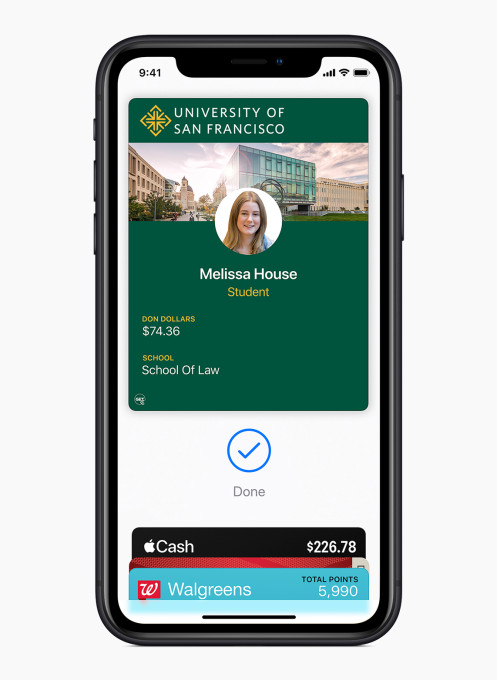
Support for college student IDs is only one way that Apple is trying to replace the physical wallet. The company also supports the ability to add your debit and credit cards, transit and loyalty cards, tickets and even paper money through Apple Pay Cash. And now it’s launching its own credit card, too, which rewards you with cashback for shopping Apple and using Apple Pay.
“We’re happy to add to the growing number of schools that are making getting around campus easier than ever with iPhone and Apple Watch,” said Jennifer Bailey, Apple’s vice president of Internet Services, in a statement about the expansion. “We know students love this feature. Our university partners tell us that since launch, students across the country have purchased 1.25 million meals and opened more than 4 million doors across campuses by just tapping their iPhone and Apple Watch.”
Related to this launch, Apple says it’s also adding support for CBORD, Allegion and HID — solution providers for campus credentials and mobile access. With these technologies on board, Apple will be able to reach other schools integrated with these systems in the future.
Source: techcrunch










