 NEWS
NEWS
Apple Card: How to Track and Manage Daily Cash Rewards
 08/13/2019
 4331
4331
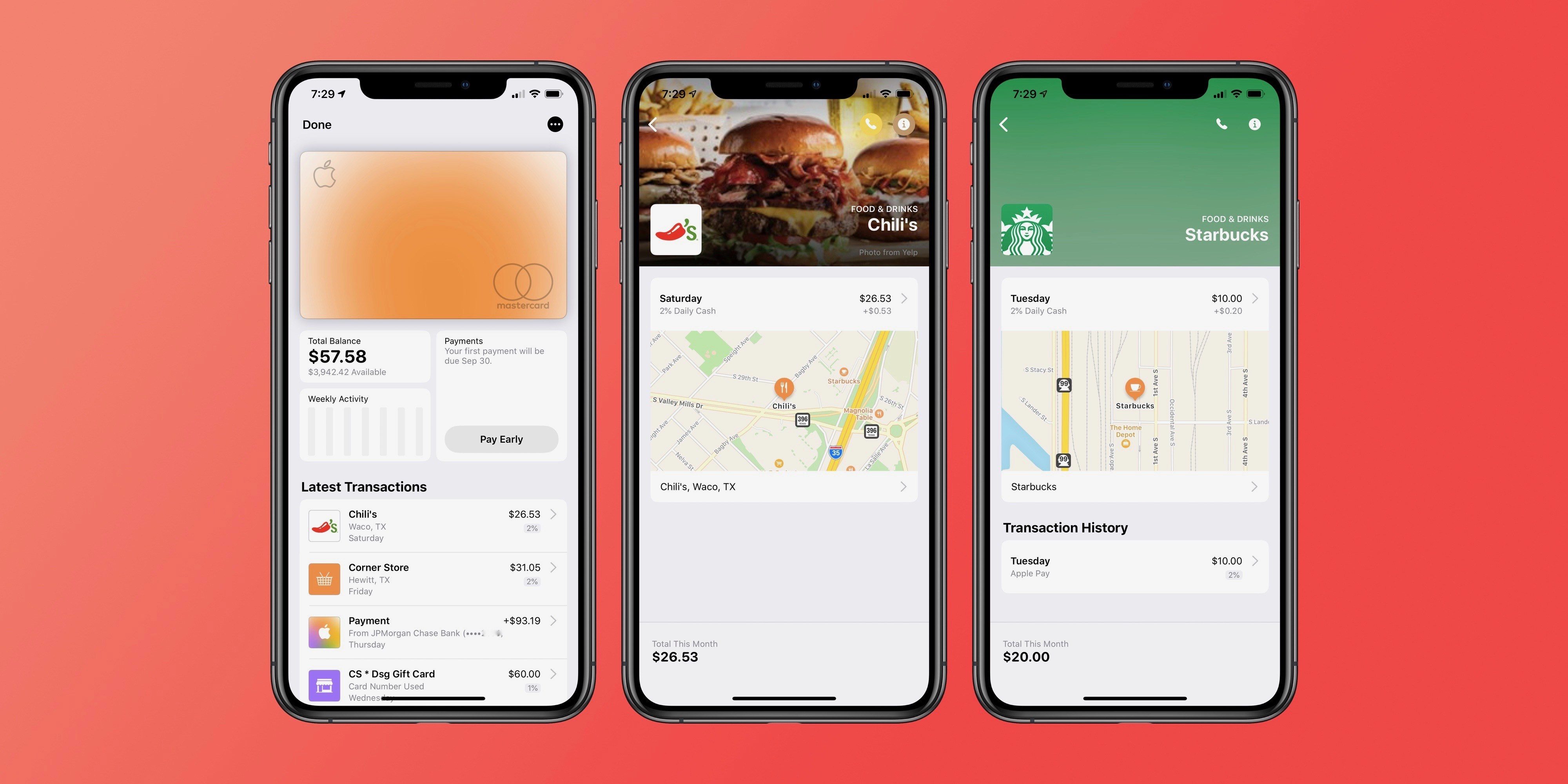
While Apple Card might not be the most lucrative card in terms of rewards, where it shines is ease of use – especially when it comes to cashback. Here’s how to track, manage, and spend Apple Card cashback.
All of the cashback you earn with Apple Card is deposited directly onto your Apple Cash card. You’ll get a deposit at the end of everyday, accounting for the transactions that took place and/or posted since the last deposit. That money can then be transferred to your bank account, or you can redeem cashback as credits to your Apple Card statement.
Apple makes it explicitly clear how much each of your transactions earns in terms of Apple Card cashback. Here’s the breakdown from Apple:
Get 3% back on everything you buy from Apple, whether you buy it at an Apple Store, apple.com, the App Store, or iTunes. That includes games, in‑app purchases, and services like your Apple Music subscription and iCloud storage plan.
Get 2% back every time you buy something using Apple Pay. That’s in every category, with no limits. Imagine all the things you use a credit card for every day — at Target, Walgreens, Lyft. You’ll get 2% back on just about everything.
If you happen to come across a store, website, or app that doesn’t take Apple Pay yet, use your titanium Apple Card to get 1% of those purchases back in the form of Daily Cash.
How to view per-transaction rewards for Apple Card cashback
Open the Wallet app
Tap your Apple Card
Look under the “Latest Transactions” list, here you’ll see the % cashback earned
Tap a specific transaction
You’ll see a small “+$” beneath the transaction total indicating the total Apple Card cashback credited
How to view your Apple Cash card and withdraw
Open the Wallet app
Tap the “Apple Cash” card
Under “Latest Transactions” you’ll see Daily Cash deposits
Tap the three dots in the upper-right corner
Tap “Transfer to Bank”
What do you think of Apple’s system for managing Apple Card cashback? Is it something you’d like to see other card companies imitate? Let us know down in the comments.
Source: 9to5mac










