 NEWS
NEWS
Google Confirms Apple iPhone Bricking iMessage Bomb
 07/08/2019
 3125
3125
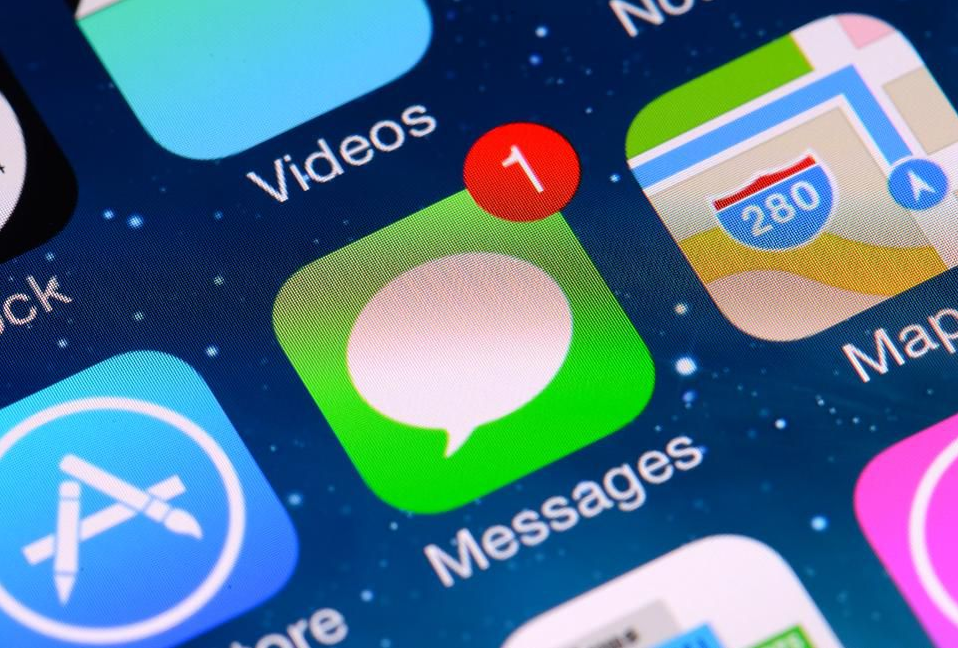
Google's Project Zero exists to hunt down zero-day vulnerabilities such as the yet to be fixed Windows 10 security bomb I wrote about recently. But it's not just Microsoft that comes under scrutiny from the Google security researchers: a vulnerability in Apple's iMessage has been found that "bricks" an iPhone and survives hard resets, leaving users having to wipe the device and start factory fresh again.
The iMessage text bombing zero-day was disclosed by Google Project Zero researcher Natalie Silvanovich, who describes how the malformed message vulnerability can cause a Mac to "crash and respawn." However, as Silvanovich notes in her disclosure, "on an iPhone, this code is in Springboard. Receiving this message will cause Springboard to crash and respawn repeatedly, causing the UI not to be displayed and the phone to stop responding to input." In other words, receiving this text bomb through iMessage creates a condition that survives a hard reset and causes the iPhone to be unusable from the moment it is unlocked. "The only way I could find to fix the phone is to reboot into recovery mode and do a restore," Silvanovich said, continuing "this causes the data on the device to be lost though."
As long as you keep your iPhone up to date, however, there is no need to panic. The Google Project Zero disclosure policy is to allow the vendor, Apple, in this case, 90 days from the point of informing it of the vulnerability to issue a fix. After that 90 days has elapsed, or a fix has been made available, the vulnerability report will be disclosed to the public. That's what has happened this week, with Silvanovich hitting the publish button on her April 19 bug report. Apple actually fixed the problem really quickly as part of the iOS 12.3 release on May 13. Even so, Silvanovich left plenty of extra time to ensure the fix has been made as broadly available as possible before disclosing the existence of the problem this week.
If you haven't turned on the automatic software update feature in iOS 12, then I recommend that you do. That way you can be sure that issues like the iMessage text bomb iPhone bricker will not impact you. Simply open the Settings app, navigate to the General section, and then select the software update option. Toggle the automatic updates button to on and you are sorted. It goes without saying, but I will say it anyway: if you are not yet running iOS 12.3, then you really should update as a matter of urgency now that the iMessage bricking technique has been made public. Sure, there are always going to be some concerns about updating to a new version of any operating system, and the forthcoming iOS 13 is not immune to these, but updating makes more sense than not if you want to reduce the risk of falling victim to known security issues that could make your iPhone unusable.
source: forbes










