 NEWS
NEWS
‘Shot on iPhone’ Mini-documentary Goes Under the Sea
 04/16/2019
 3057
3057
A short documentary about the Maldives Whale Shark Research Programme is the latest entry in the “Shot on iPhone XS” campaign, which shows what’s possible with the advanced cameras in Apple handsets.
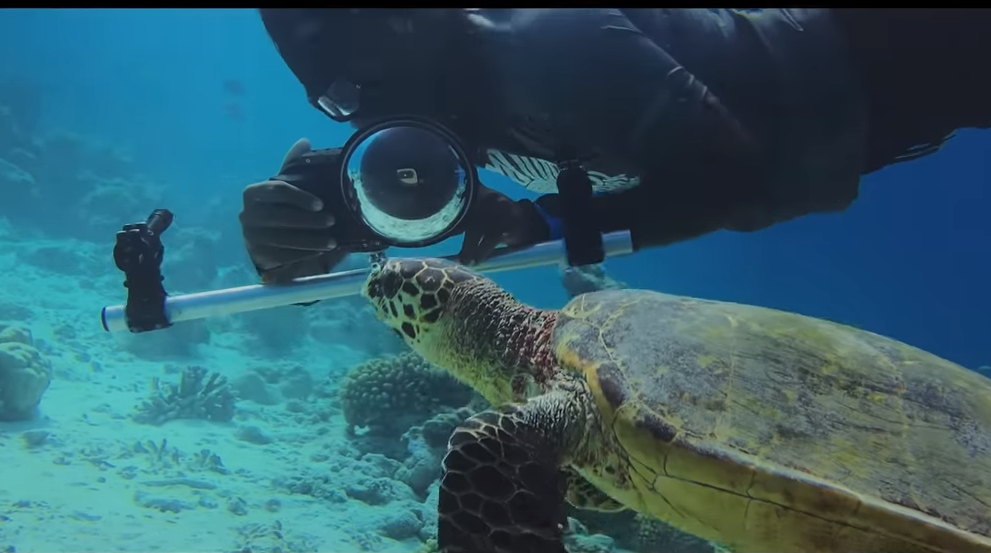
The 8-minute video is full of crystal-clear video taken beneath the waves. Watch it now:
The director of “Shot on iPhone XS — The Reef, Maldives” is Sven Dreesbach. Cinematographers are Carlos Vargas and Sven Dreesbach.
This isn’t a how-to on using an iPhone to film under the ocean, so there are no descriptions on how this documentary was made.
iPhone vs. saltwater
The handsets that show up in this film appear to be in protective cases. Recent iPhones can survive if they are fully submerged in water as deep as two meters for up to 30 minutes, but filming likely went on for much longer, and in deeper water.
But just immersion in salt water doesn’t appear to be a problem. During the launch of the iPhone XS, marketing chief Phil Schiller said, “If you happen to be hanging by the pool, drop your phone in the water… don’t worry, dive down, grab it, rinse it, let it dry, you’ll be fine. And the team tested in many different liquids — in chlorinated water, salt water, orange juice, tea, wine, even beer.”
The description for “The Reef, Maldives” has more on the conservation program that’s the subject of the video:
The Maldives Whale Shark Research Programme (MWSRP) is a charity that is breaking new ground in whale shark research and fostering community-focused conservation initiatives. The field team of the MWSRP monitors the demographics and movement of different species such as whale sharks using an iOS app.
The MWSRP software is available on the App Store.
Source: cultofmac










