
NEWS

Apple stops signing iOS 12.1.4 following iOS 12.2 Release

04/08/2019

4005

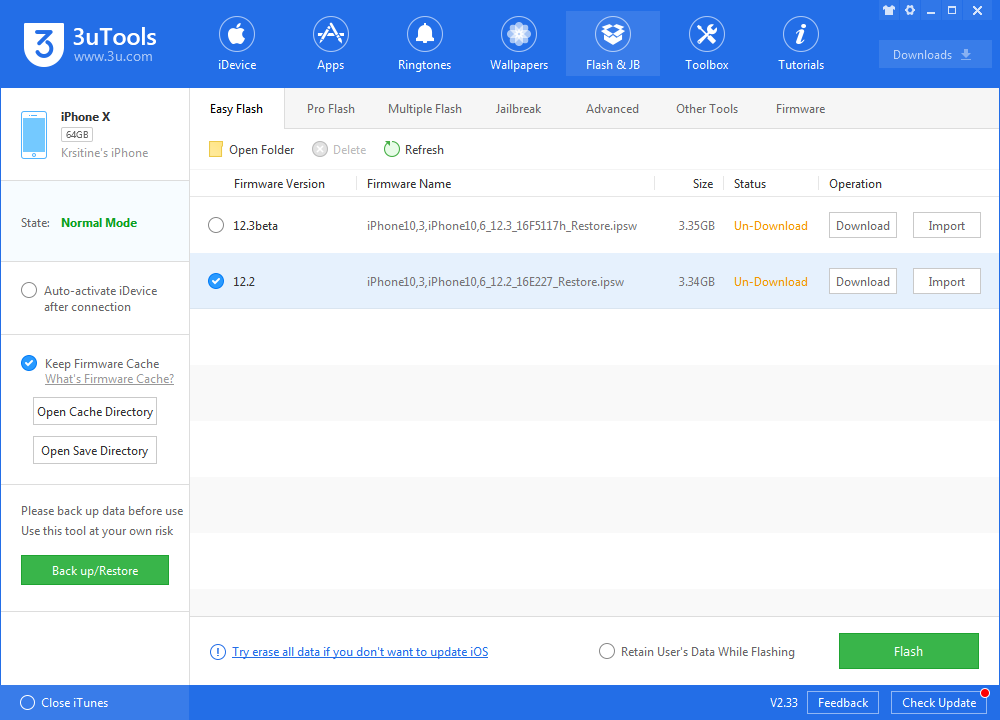
Following the March release of iOS 12.2, Apple on Thursday stopped signing code for iOS 12.1.4, ensuring iPhone, iPad and iPod touch owners are running the latest, most secure version of the operating system.


In line with prior code signing stoppages, the end of iOS 12.1.4 signing arrives ten days after Apple issued iOS 12.2 late last month. 


The latest iOS version delivers support for Apple News+, HomeKit TV compatibility, new Animoji characters and user interface updates for Wallet, Control Center and the lock screen. 


With the change, iOS 12.1.4 can no longer be downloaded from Apple servers, meaning users are restricted to iOS 12.2 or higher. 

Apple stops signing iOS 12.1.4 following iOS 12.2 Release


Apple typically stops signing legacy code shortly after a new version of iOS is released in a bid to keep users safe from new threats. The practice also ensures devices are running the most up-to-date software. 

Apple stops signing iOS 12.1.4 following iOS 12.2 Release


Apple's latest iOS 12.2 addresses a whopping 43 security issues involving WebKit, Contacts, FaceTime, GeoServices, Mail, Messages, Safari, the system kernel and other critical software. 


A beta version of the company's next iOS release, iOS 12.3, was seeded to developers last week for evaluation. Notably, the upcoming OS includes a sneak peek at the revamped Apple TV app that will host Apple TV Channels and Apple TV+.


Source: appleinsider

Windows
Mac OS
iOS
Linux
3uTools
Win 64-bit For this device
V9.01 2025-12-27
Download
Win 32-bit For this device
V9.01 2025-12-27
Download
3uTools
Intel Chip How to Identify Chip Type
V9.01 2025-12-31
Download
Apple Silicon
V9.01 2025-12-31
Download
How to Identify Chip Type
1.  Click the Apple icon in the top-left corner of the screen and select About This Mac.
2.  Check the Processor or Chip field to determine if it is "Intel" or "Apple".
Please use the 3uTools PC client to install the iOS client:
1、 Install either the Windows or Mac version of 3uTools on your computer
2、 Open the PC client and connect your device to the computer via USB cable
3、 After the connection is successful, wait for the computer to automatically install the mobile app for the device, or locate “Install Mobile App” on the computer and manually click to install.
3uTools
deb file
V3.01 2025-11-20
Download
rpm file
V3.01 2025-11-20
Download
Windows
Windows
iOS
iOS
Android
Android
TV
TV
3uAirPlayer
Win 64-bit For this device
V6.0.2 2025-11-19
Download
Win 32-bit For this device
V6.0.2 2025-11-19
Download
iOS Device Mirroring (No App Required)
1、 Install 3uAirPlayer on the Windows PC
2、 Open Control Center and select Screen Mirroring
3、 From the list, choose your PC to start mirroring
4、 Or connect your iOS device to the PC via USB to begin mirroring
Scan to get "3uAirPlayer" App
3uAirPlayer TV V1.0.18
2025-11-28
TV System Requirements: Android 7.0 or later
Download the TV installation package, copy it to a USB drive, insert it into your TV or set-top box, then select the file from the home screen to install.




