NEWS

Apple is Speaking with Chinese Telcos to Reduce Spam Messages

08/03/2018

2355

Apple is Speaking with Chinese Telcos to Reduce Spam Messages


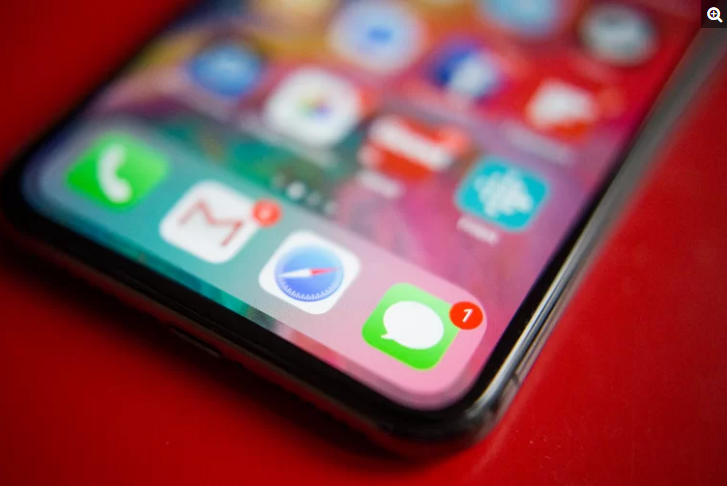
Apple is speaking with Chinese telecommunications companies to identify ways the device maker could reduce spam messages that are received through iMessage.


This move to collaborate with telecoms comes after more than a week’s worth of berating and accusations from Chinese state-controlled media outlets over the company’s alleged lack of effort to ban prohibited content like gambling, pornography, and promotions for counterfeit goods and devices.


According to Reuters, this recent flurry of Chinese negative media reports isn’t the first for Apple. This slew of attacks may be the result of a new campaign by state media to encourage companies to clean up the amount of spam messages people receive in the country. Spam calls and messages have become an increasingly universal issue, with efforts by the Federal Communications Commission in the US to decrease the unsolicited messages. In China, however, unwanted illegal calls and messages are far more pervasive.


A spokesperson for Apple confirmed to Reuters that the company was working to develop new ways to reduce spam by using machine learning to help identify and block the accounts that are sending the messages. It’s obvious that these new efforts are first aimed to qualm Chinese complaints, but if this new technology is effective, it wouldn’t be too surprising to expect Apple to bring it in other markets across the world as well.


Source: the verge

Windows
Mac OS
iOS
Linux
3uTools
Win 64-bit For this device
V9.01 2025-12-27
Download
Win 32-bit For this device
V9.01 2025-12-27
Download
3uTools
Intel Chip How to Identify Chip Type
V9.01 2025-12-31
Download
Apple Silicon
V9.01 2025-12-31
Download
How to Identify Chip Type
1.  Click the Apple icon in the top-left corner of the screen and select About This Mac.
2.  Check the Processor or Chip field to determine if it is "Intel" or "Apple".
Please use the 3uTools PC client to install the iOS client:
1、 Install either the Windows or Mac version of 3uTools on your computer
2、 Open the PC client and connect your device to the computer via USB cable
3、 After the connection is successful, wait for the computer to automatically install the mobile app for the device, or locate “Install Mobile App” on the computer and manually click to install.
3uTools
deb file
V3.01 2025-11-20
Download
rpm file
V3.01 2025-11-20
Download
Windows
Windows
iOS
iOS
Android
Android
TV
TV
3uAirPlayer
Win 64-bit For this device
V6.0.2 2025-11-19
Download
Win 32-bit For this device
V6.0.2 2025-11-19
Download
iOS Device Mirroring (No App Required)
1、 Install 3uAirPlayer on the Windows PC
2、 Open Control Center and select Screen Mirroring
3、 From the list, choose your PC to start mirroring
4、 Or connect your iOS device to the PC via USB to begin mirroring
Scan to get "3uAirPlayer" App
3uAirPlayer TV V1.0.18
2025-11-28
TV System Requirements: Android 7.0 or later
Download the TV installation package, copy it to a USB drive, insert it into your TV or set-top box, then select the file from the home screen to install.