NEWS

iPhone Supplier Wistron Accused of Using ‘Unauthorized Components’ in iPhone 8 Plus Production

03/16/2018

2416

iPhone Supplier Wistron Accused of Using ‘Unauthorized Components’ in iPhone 8 Plus Production


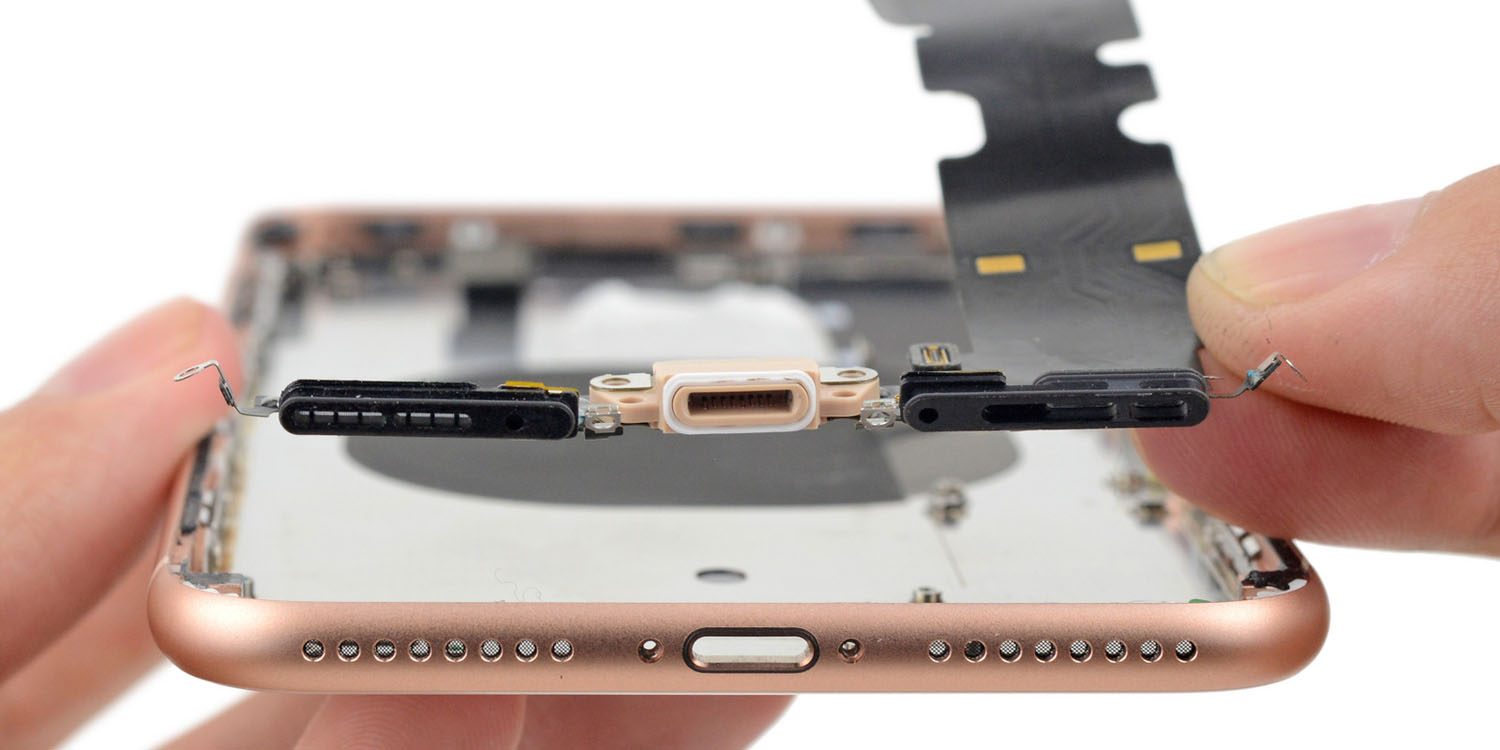
Chinese news site Commercial Times has claimed that iPhone supplier Wistron was caught using ‘unauthorized components’ in its production of the iPhone 8 Plus in China.


The report says that Apple ordered the company to halt production when the issue came to light, with assembly suspended for two weeks …


Digitimes reports that Wistron has issued a partial denial.

Wistron maintained in a filing with the Taiwan Stock Exchange March 15 that the company will not comment on matters concerning specific clients and there was not a “two-week production suspension as reported and operations remain completely normal.”


The statement as reported does not deny that it was found using fake components, and leaves open the possibility that production was halted for a shorter period. We’ve reached out to Wistron for clarification.


The issue reportedly concerns the use of waterproof components not certified by Apple, which could mean gaskets used to keep out water and dust.


Wistron is said to have ‘penalized’ a number of mid- and high-level executives as a way of demonstrating to Apple that it takes the matter seriously.


Wistron is only a secondary supplier to Apple in China, with Foxconn picking up the bulk of iPhone orders, but is a major iPhone assembler in India.


Source: 9to5mac

Windows
Mac OS
iOS
Linux
3uTools
Win 64-bit For this device
V9.0 2025-11-11
Download
Win 32-bit For this device
V9.0 2025-11-11
Download
3uTools
Intel Chip How to Identify Chip Type
V9.0 2025-12-02
Download
Apple Silicon
V9.0 2025-12-02
Download
How to Identify Chip Type
1.  Click the Apple icon in the top-left corner of the screen and select About This Mac.
2.  Check the Processor or Chip field to determine if it is "Intel" or "Apple".
Please use the 3uTools PC client to install the iOS client:
1、 Install either the Windows or Mac version of 3uTools on your computer
2、 Open the PC client and connect your device to the computer via USB cable
3、 After the connection is successful, wait for the computer to automatically install the mobile app for the device, or locate “Install Mobile App” on the computer and manually click to install.
3uTools
deb file
V3.01 2025-11-20
Download
rpm file
V3.01 2025-11-20
Download
Windows
Windows
iOS
iOS
Android
Android
TV
TV
3uAirPlayer
Win 64-bit For this device
V6.0.2 2025-11-19
Download
Win 32-bit For this device
V6.0.2 2025-11-19
Download
iOS Device Mirroring (No App Required)
1、 Install 3uAirPlayer on the Windows PC
2、 Open Control Center and select Screen Mirroring
3、 From the list, choose your PC to start mirroring
4、 Or connect your iOS device to the PC via USB to begin mirroring
Scan to get "3uAirPlayer" App
3uAirPlayer TV V1.0.18
2025-11-28
TV System Requirements: Android 7.0 or later
Download the TV installation package, copy it to a USB drive, insert it into your TV or set-top box, then select the file from the home screen to install.