
NEWS

Apple Takes Over Beddit Sleep Tracking Customer Support

08/29/2017

2777

Apple earlier this year acquired popular sleep tracking platform Beddit for an undisclosed amount. While the company has remained independent in its product offerings, it today updated its website to direct customer service requests through Apple…
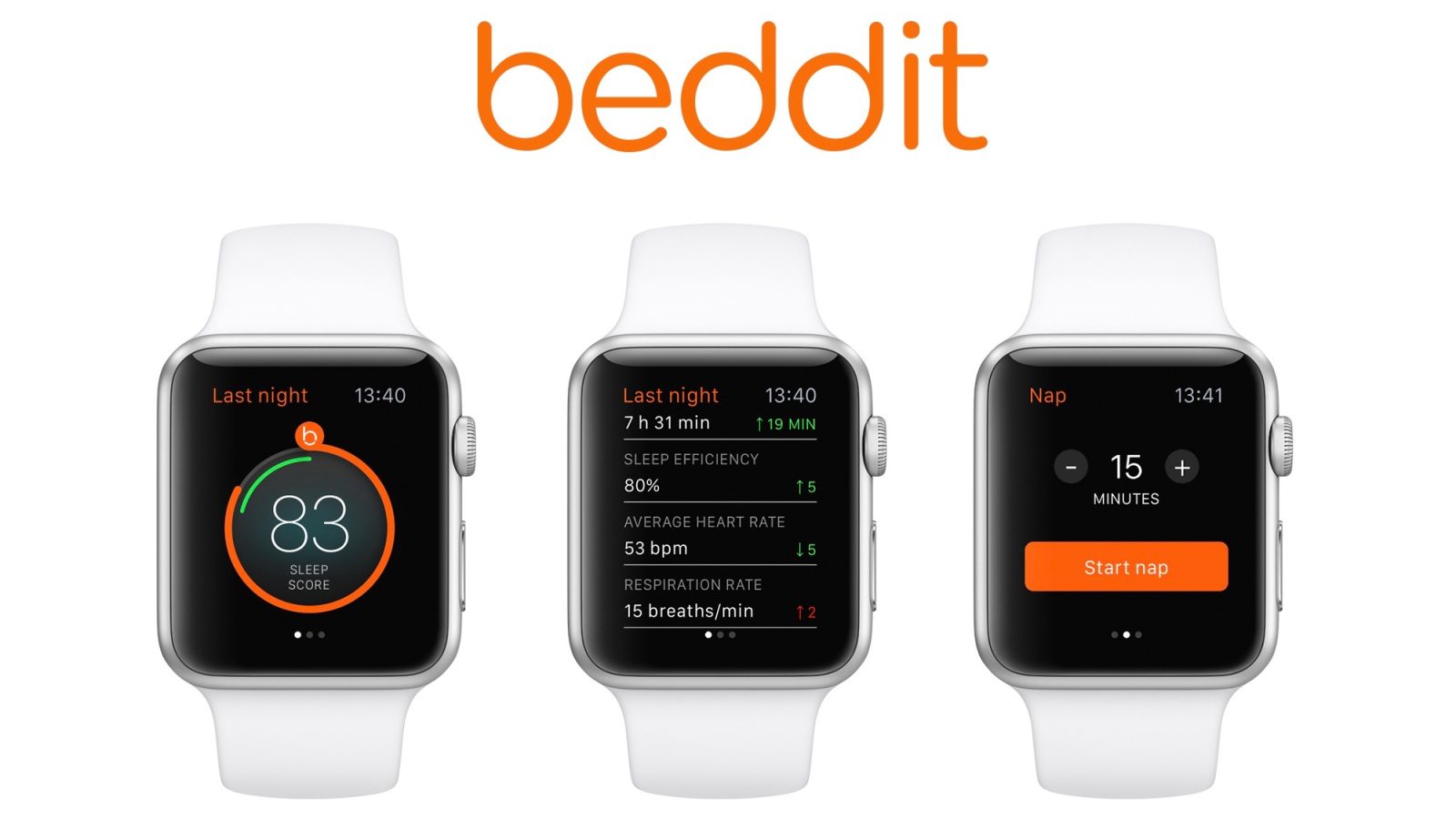

Apple Takes Over Beddit Sleep Tracking Customer Support


The change was first noted by Bloomberg. If you head to Beddit’s customer support webpage, you’ll see that it now asks users to contact Apple for help:


Beddit is now part of Apple. Contact Apple for support.


The change isn’t incredibly notable, but it does signal that Apple is seemingly keeping the Beddit platform alive and operational for users. As Beddit said at the time of the acquisition, customer data is also handled by Apple in accordance with its privacy policy.


Beddit is unique in that it also sells sleep tracking hardware. For instance, the company sells its Beddit 3 Sleep Monitor, which is placed underneath a bed sheet for more accurate sleep tracking. The product is sold via Apple’s online store


Apple initially acquired Beddit back in May for an undisclosed sum. We still don’t know too much about the acquisition, but Apple has seemingly been working to add sleep tracking to Apple Watch “for years” according to Bloomberg. Sleep tracking is one of the most often requested features for Apple Watch and many users have turned to third-party solutions like Beddit.


As for what eventually comes of sleep tracking on Apple Watch remains to be seen. The talent acquired in the Beddit deal, however, is almost certainly being put to use.


Source: 9to5mac

Windows
Mac OS
iOS
Linux
3uTools
Win 64-bit For this device
V9.0 2025-11-11
Download
Win 32-bit For this device
V9.0 2025-11-11
Download
3uTools
Intel Chip How to Identify Chip Type
V9.0 2025-12-02
Download
Apple Silicon
V9.0 2025-12-02
Download
How to Identify Chip Type
1.  Click the Apple icon in the top-left corner of the screen and select About This Mac.
2.  Check the Processor or Chip field to determine if it is "Intel" or "Apple".
Please use the 3uTools PC client to install the iOS client:
1、 Install either the Windows or Mac version of 3uTools on your computer
2、 Open the PC client and connect your device to the computer via USB cable
3、 After the connection is successful, wait for the computer to automatically install the mobile app for the device, or locate “Install Mobile App” on the computer and manually click to install.
3uTools
deb file
V3.01 2025-11-20
Download
rpm file
V3.01 2025-11-20
Download
Windows
Windows
iOS
iOS
Android
Android
TV
TV
3uAirPlayer
Win 64-bit For this device
V6.0.2 2025-11-19
Download
Win 32-bit For this device
V6.0.2 2025-11-19
Download
iOS Device Mirroring (No App Required)
1、 Install 3uAirPlayer on the Windows PC
2、 Open Control Center and select Screen Mirroring
3、 From the list, choose your PC to start mirroring
4、 Or connect your iOS device to the PC via USB to begin mirroring
Scan to get "3uAirPlayer" App
3uAirPlayer TV V1.0.18
2025-11-28
TV System Requirements: Android 7.0 or later
Download the TV installation package, copy it to a USB drive, insert it into your TV or set-top box, then select the file from the home screen to install.




