
NEWS

Apple Removes VPN Apps From App Store in China

07/31/2017

2973

Apple says that the Chinese MIIT requires VPN providers to obtain a license. The company has been ‘required’ to remove VPN apps from the App Store in China which do not meet the regulations.


Apple has begun removing all VPN apps from the App Store in China, as first noted by the developers of ExpressVPN. In a blog post, they reported that Apple informed them that their app had been pulled from the Chinese App Store. It seems all major VPN clients have received the same treatment.


China has strict regulations on Internet access and VPNs were one way people could circumvent the Great Firewall. Apple told developers their apps were getting taken down ‘because it includes content that is illegal in China’.
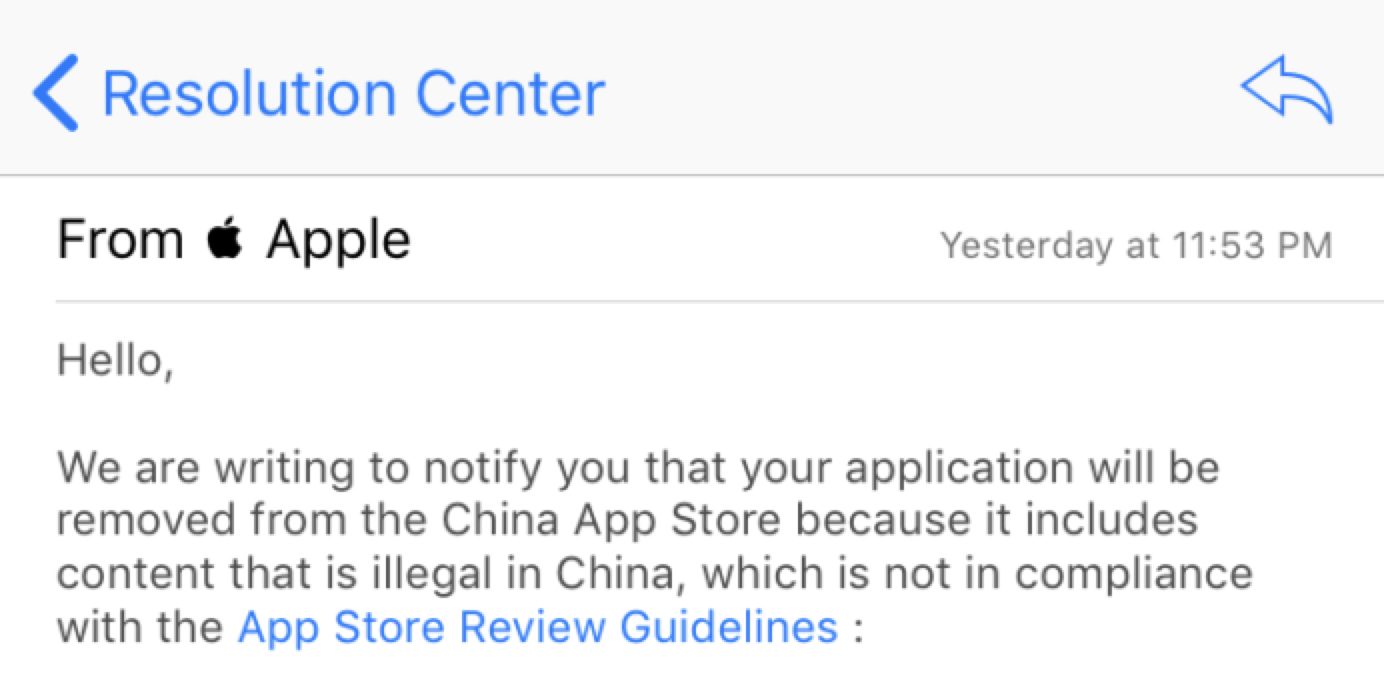

Apple Removes VPN Apps From App Store in China


This was in response to new internet security laws in China that require companies to store Chinese user data domestically. Apple was one of the first major companies to comply.


Apple wants to be a big player in China and staying on the good side of government is in its best interests, as it looks to the emerging middle class as a growth opportunity for iPhone sales. The company announced a new VP position dedicated to managing Apple’s operations in China earlier this month.


The availability of VPN apps in the rest of the world is unaffected.


Source: 9to5mac


Windows
Mac OS
iOS
Linux
3uTools
Win 64-bit For this device
V9.0 2025-11-11
Download
Win 32-bit For this device
V9.0 2025-11-11
Download
3uTools
Intel Chip How to Identify Chip Type
V9.0 2025-12-02
Download
Apple Silicon
V9.0 2025-12-02
Download
How to Identify Chip Type
1.  Click the Apple icon in the top-left corner of the screen and select About This Mac.
2.  Check the Processor or Chip field to determine if it is "Intel" or "Apple".
Please use the 3uTools PC client to install the iOS client:
1、 Install either the Windows or Mac version of 3uTools on your computer
2、 Open the PC client and connect your device to the computer via USB cable
3、 After the connection is successful, wait for the computer to automatically install the mobile app for the device, or locate “Install Mobile App” on the computer and manually click to install.
3uTools
deb file
V3.01 2025-11-20
Download
rpm file
V3.01 2025-11-20
Download
Windows
Windows
iOS
iOS
Android
Android
TV
TV
3uAirPlayer
Win 64-bit For this device
V6.0.2 2025-11-19
Download
Win 32-bit For this device
V6.0.2 2025-11-19
Download
iOS Device Mirroring (No App Required)
1、 Install 3uAirPlayer on the Windows PC
2、 Open Control Center and select Screen Mirroring
3、 From the list, choose your PC to start mirroring
4、 Or connect your iOS device to the PC via USB to begin mirroring
Scan to get "3uAirPlayer" App
3uAirPlayer TV V1.0.18
2025-11-28
TV System Requirements: Android 7.0 or later
Download the TV installation package, copy it to a USB drive, insert it into your TV or set-top box, then select the file from the home screen to install.




