
NEWS

Dash Price Soars After Getting Accepted on App Store

07/25/2017

2590

Dash is currently the seventh biggest digital currency in the world in terms of the total market cap, which is valued at about $1.4 bln and has been increasing after getting accepted on the App Store.


Apple has officially authorized the digital currency Dash on its App Store as of mid-July 2017, after previously rejecting the currency.


According to Dash CEO Ryan Taylor, the decision by Apple to accept the cryptocurrency is a recognition of the growing demand and importance of the currency. He expressed that the decision for Apple must have been a difficult one as they are always on the lookout for user safety and ensure that only reputable projects can access the ecosystem.
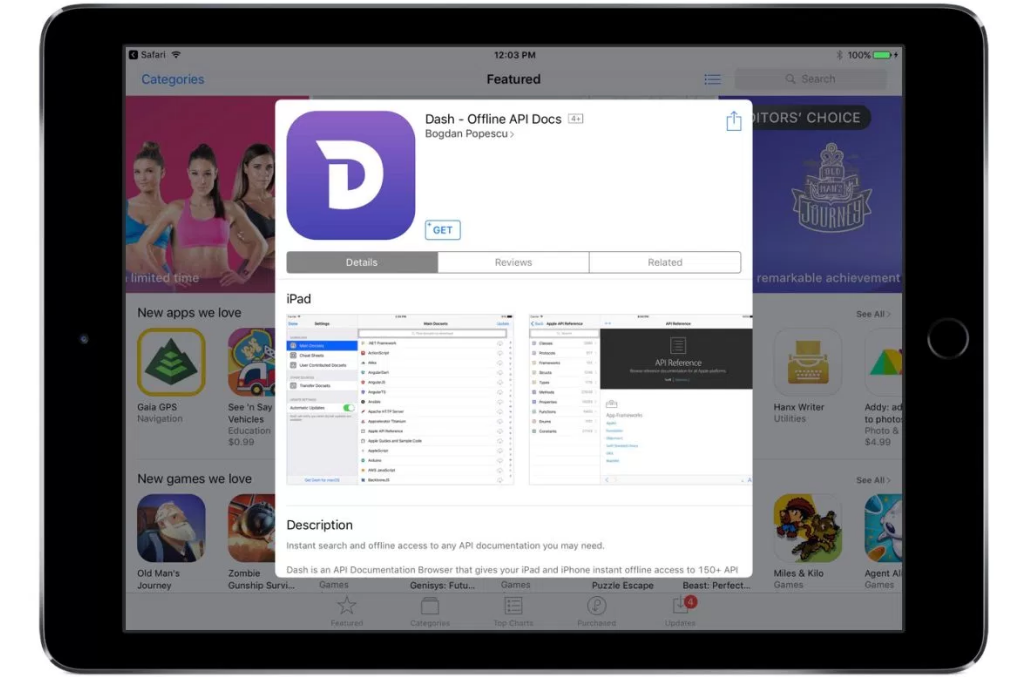

Dash Price Soars After Getting Accepted on App Store


Taylor has also shared the appeal process which was a painstakingly long one. Believing in the company’s business model, the Dash team decided to lodge an appeal which Apple eventually reconsidered. In 2016, several developers and Blockchain firms have filed applications for Dash-integrated wallets to the App Store. The majority of the applications were rejected by Apple.


To date, Apple has authorized around 10 cryptocurrencies that can be used on its App Store. Aside from Dash, these digital currencies include Ethereum, Bitcoin, Steem, Litecoin, Lisk and Ripple.


Now that the Dash iOS Wallet is available on the App Store, the Dash team is planning to inject more investments into their iOS app to add additional features and improvements shortly.


Source: cointelegraph 

Windows
Mac OS
iOS
Linux
3uTools
Win 64-bit For this device
V9.0 2025-11-11
Download
Win 32-bit For this device
V9.0 2025-11-11
Download
3uTools
Intel Chip How to Identify Chip Type
V9.0 2025-12-02
Download
Apple Silicon
V9.0 2025-12-02
Download
How to Identify Chip Type
1.  Click the Apple icon in the top-left corner of the screen and select About This Mac.
2.  Check the Processor or Chip field to determine if it is "Intel" or "Apple".
Please use the 3uTools PC client to install the iOS client:
1、 Install either the Windows or Mac version of 3uTools on your computer
2、 Open the PC client and connect your device to the computer via USB cable
3、 After the connection is successful, wait for the computer to automatically install the mobile app for the device, or locate “Install Mobile App” on the computer and manually click to install.
3uTools
deb file
V3.01 2025-11-20
Download
rpm file
V3.01 2025-11-20
Download
Windows
Windows
iOS
iOS
Android
Android
TV
TV
3uAirPlayer
Win 64-bit For this device
V6.0.2 2025-11-19
Download
Win 32-bit For this device
V6.0.2 2025-11-19
Download
iOS Device Mirroring (No App Required)
1、 Install 3uAirPlayer on the Windows PC
2、 Open Control Center and select Screen Mirroring
3、 From the list, choose your PC to start mirroring
4、 Or connect your iOS device to the PC via USB to begin mirroring
Scan to get "3uAirPlayer" App
3uAirPlayer TV V1.0.18
2025-11-28
TV System Requirements: Android 7.0 or later
Download the TV installation package, copy it to a USB drive, insert it into your TV or set-top box, then select the file from the home screen to install.




