 NEWS
NEWS
iOS 11 Will Expand iPhone's NFC Capabilities Beyond Apple Pay in Several Ways
 07/17/2017
 3380
3380
Apple at WWDC 2017 last month introduced Core NFC, a new iOS 11 framework that enables apps to detect Near Field Communication tags.
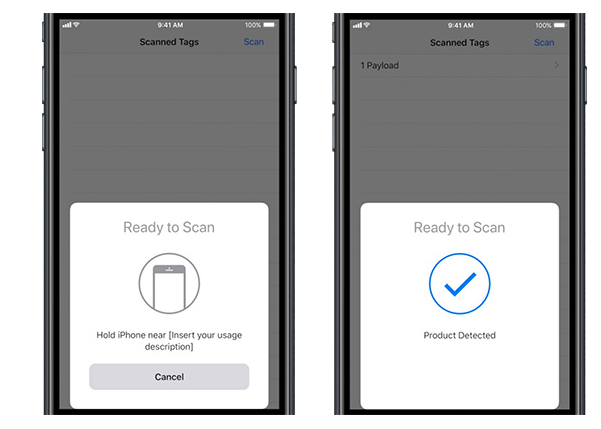
Similar to Apple Pay, iPhone users are prompted with a "Ready to Scan" dialog box. After holding the iPhone near an item with an NFC tag, a checkmark displays on screen if a product is detected. An app with Core NFC could then provide users with information about that product contained within the tag.
A customer shopping at a grocery store could hold an iPhone near a box of crackers, for example, and receive detailed information about their nutritional values, price history, recipe ideas, and so forth. Or, at a museum, a visitor could hold an iPhone near an exhibit to receive detailed information about it.
Core NFC will expand the iPhone's NFC chip capabilities beyond simply Apple Pay in several other ways.
Cybersecurity company WISeKey, for example, today announced that its CapSeal smart tag will now support iPhone thanks to Core NFC. CapSeal smart tags are primarily used for authentication, tracking, and anti-counterfeiting on products like wine bottles. Many other companies offer similar solutions.
When placed on a bottle of spirit or a bottle of lubricant oil, for instance, and tapped by an NFC phone, the chip is able to securely authenticate and track the bottle like an ePassport does. It offers the same certified security level. It also allows the brand to broadcast personalized messages to the phone-holder detecting whether the bottle has been open or not.
Core NFC is currently supported by the iPhone 7 and iPhone 7 Plus, and the framework is read-only for NFC tags of types 1 through 5 that contain data in the NFC Data Exchange Format (NDEF).
Developers interested in learning more can read Apple's documentation or watch the Introducing Core NFC session from WWDC 2017.
Source: macrumors










