 NEWS
NEWS
Apple no Longer Accepting VPN-based ad Blockers to App Store
 07/17/2017
 4227
4227
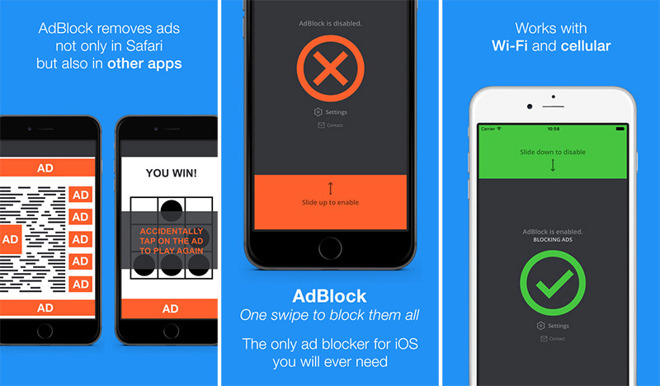
Apple is reportedly limiting App Store distribution of VPN/root certificate-based ad blockers capable of blocking adds in other third-party apps, and will instead support only first-party content blockers offered through Safari.
The supposed policy shift came to light in an interaction between Apple and developer Future Mind, which markets a number of apps including the VPN-based content blocker AdBlock.
According to MacRumors, Future Mind recently saw a submitted update for AdBlock, which has been on the App Store since 2014, rejected by Apple's App Review Board. The group told Future Mind CTO Tomasz Koperski that Apple is no longer allowing VPN/root certificate-based ad blockers to be sold through the App Store.
"After submitting an appeal to the App Review Board, a member of the Review Team contacted me directly via phone and informed that Apple has officially changed their policy regarding VPN/root certificate based ad blockers on the App Store and is no longer accepting updates of apps, which directly block content in third party apps," Koperski said. "The only officially allowed ad blocking method is now Safari Content Blockers."
It seems Apple is implementing the change as developers update existing apps, as a number of titles employing VPN-based content blocking techniques are still available for download. Presumably, new app submissions that leverage similar technology will also be denied.
The policy shift comes as Apple places heavy emphasis on its web browsing experience. At WWDC 2017 in June, the company announced new features set to debut in macOS High Sierra, including autoplay video ad blocking and intelligent tracking prevention, both of which aim to cut down on intrusive advertisements.
Source: appleinsider










