 NEWS
NEWS
Apple Fan Puts New Tech into Classic Movies
 07/05/2017
 3795
3795
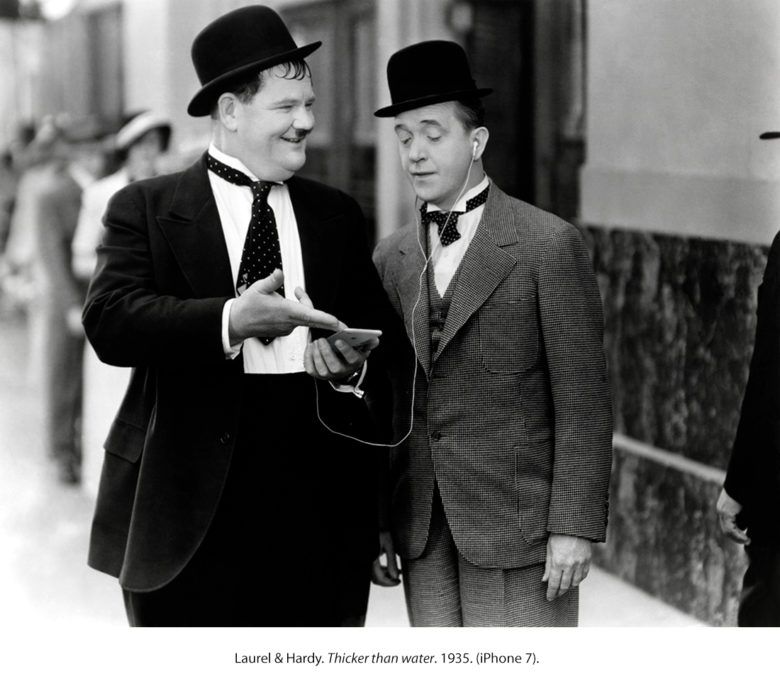
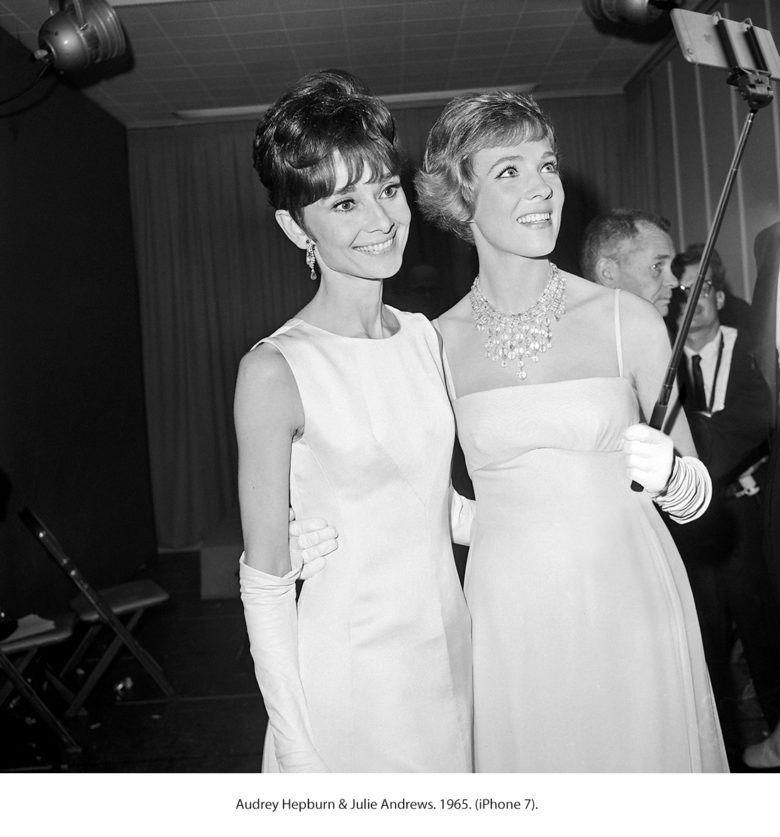
Do you remember the time Laurel and Hardy rocked an iPhone on screen in one of their movie collaborations? Or what about when Audrey Hepburn and Julie Andrews used one of Apple’s handsets to snap a selfie at the 1965 Oscars?
No, such scenes aren’t a reality — but that’s not stopped a bunch of 2017-era Apple gear showing up in classic movies, thanks to one Apple fan graphic designer’s work.
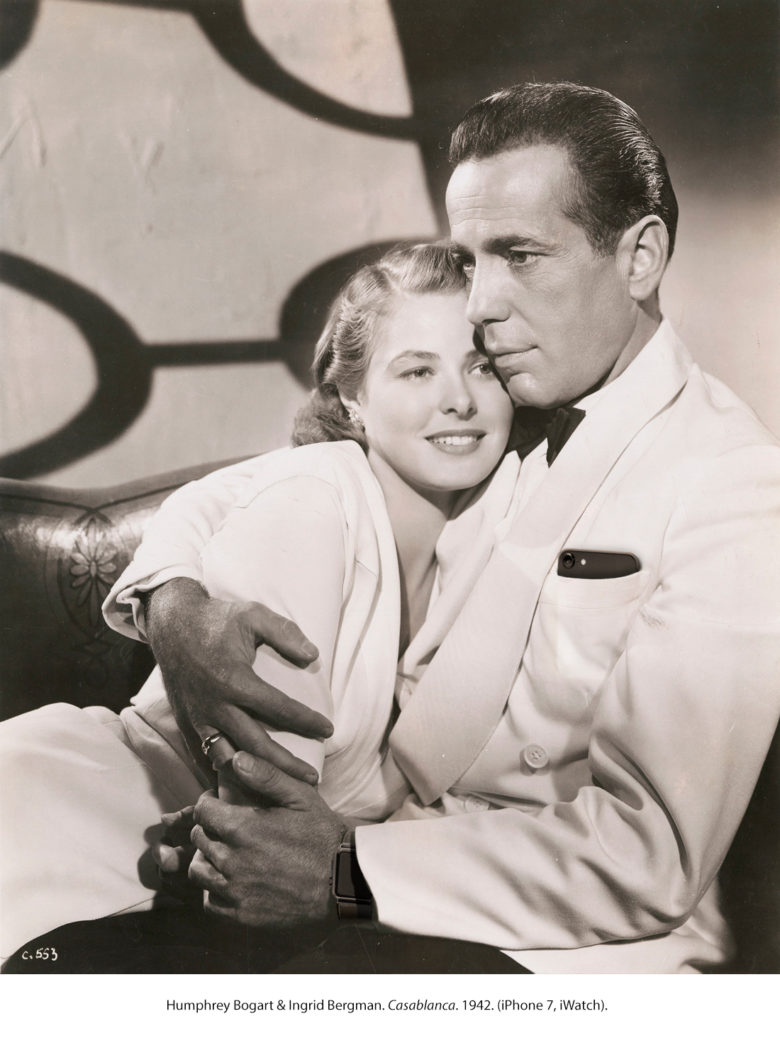
34-year-old Madrid-based graphic designer Pablo Larrocha’s “Timeless Apple” project seeks to insert Apple elements into classic movie frames to create combinations that appear normal until you start to look closely. As a result, we get sights like an iPhone 7 and Apple Watch peeking out from under Humphrey Bogart’s iconic white jacket in the 1942 movie Casablanca, created a whole 13 years before Steve Jobs was even born.
“People love the pictures,” Larrocha tells Cult of Mac. “I don’t explain anything when I show them. They first look closely, then look confused, then finally smile. Unifying two elements, separated by time, is an idea that has always fascinated me. I started with one of Charlie Chaplin, and found it interesting and fun, so continued experimenting with other photographs. I have really enjoyed creating them.”
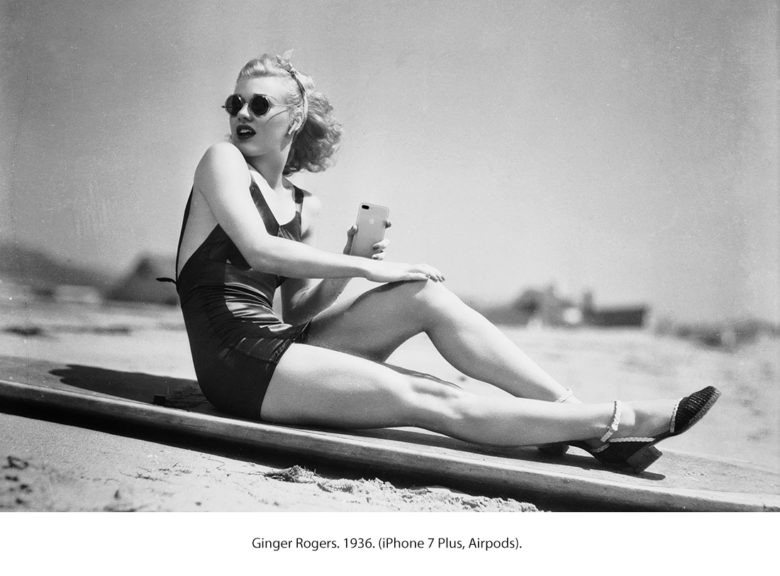
Larrocha said his favorite pics are the ones which appear to show the users really interacting with the devices, rather than just sporting them in a coat pocket or on a wrist.
“I really like the Laurel and Hardy one, because it seems they are really interacting with the iPhone,” he says. “Also, I think The Wizard of Oz with the Apple symbol is very interesting. But I think Ginger Rogers is the winner. Those AirPods and iPhone match up really well.”
Source: cult of mac










