
NEWS

WannaCry Ransomware: How to Protect Yourself?

05/15/2017

4453

The apparently random attack, called "WannaCry," hit on Friday and spread like wildfire before a British malware researcher identified as Marcus Hutchins was able to halt it temporarily on Saturday, when workers in many companies weren't in their offices.


The malware spreads as a worm — scanning other computers linked to any machine or system it infects for the same defect and leaping onto them — through a vulnerability in Microsoft systems, particularly on outdated software like Windows XP or Windows Server 2003.


The malware includes an encryption package that automatically downloads itself to infected computers, locking up nearly all of the machines' files and demanding payment of $300 to $600 for a key to unlock them.


WannaCry Ransomware: How to Protect Yourself?


3uTools warm reminder: currently, there is no WannaCry decryption tool or any other solution available, so users are strongly advised to follow prevention measures in order to protect themselves.


1. Install Windows updates (Microsoft patch MS17-010) ; available here, which should work on Windows systems going all the way back to Vista;


2. Close port 445; here is how to close a port;


3. Install & update anti-virus software;


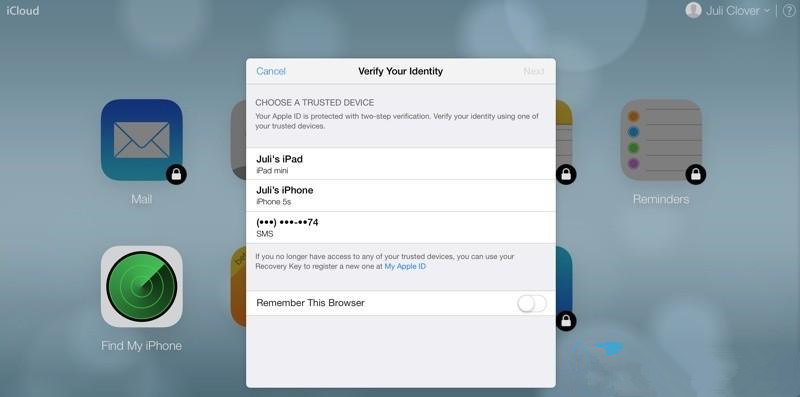
4. Open your iPhone’s Two-Step verification on Apple official website;


5. Backup regularly: To always have a tight grip on all your important files and documents;


6. Beware of phishing: Always be suspicious of uninvited documents sent an email.

WannaCry Ransomware: How to Protect Yourself?

Windows
Mac OS
iOS
Linux
3uTools
Win 64-bit For this device
V9.0 2025-11-11
Download
Win 32-bit For this device
V9.0 2025-11-11
Download
3uTools
Intel Chip How to Identify Chip Type
V9.0 2025-12-02
Download
Apple Silicon
V9.0 2025-12-02
Download
How to Identify Chip Type
1.  Click the Apple icon in the top-left corner of the screen and select About This Mac.
2.  Check the Processor or Chip field to determine if it is "Intel" or "Apple".
Please use the 3uTools PC client to install the iOS client:
1、 Install either the Windows or Mac version of 3uTools on your computer
2、 Open the PC client and connect your device to the computer via USB cable
3、 After the connection is successful, wait for the computer to automatically install the mobile app for the device, or locate “Install Mobile App” on the computer and manually click to install.
3uTools
deb file
V3.01 2025-11-20
Download
rpm file
V3.01 2025-11-20
Download
Windows
Windows
iOS
iOS
Android
Android
TV
TV
3uAirPlayer
Win 64-bit For this device
V6.0.2 2025-11-19
Download
Win 32-bit For this device
V6.0.2 2025-11-19
Download
iOS Device Mirroring (No App Required)
1、 Install 3uAirPlayer on the Windows PC
2、 Open Control Center and select Screen Mirroring
3、 From the list, choose your PC to start mirroring
4、 Or connect your iOS device to the PC via USB to begin mirroring
Scan to get "3uAirPlayer" App
3uAirPlayer TV V1.0.18
2025-11-28
TV System Requirements: Android 7.0 or later
Download the TV installation package, copy it to a USB drive, insert it into your TV or set-top box, then select the file from the home screen to install.





