
NEWS

Apple TV Could Get Multi-User Login, Picture-In-Picture With tvOS 11

04/17/2017

3806

If you’re looking forward to additional features for your Apple TV, then tvOS 11 could be an update worth looking forward to. In a report, they claim that the update will bring about several major new features, such as multi-user login as well as a picture-in-picture mode.


This will come in handy for users who have more than one person at home, or who have more than one person who watches Apple TV. Presumably this means that users can have their own set of preferences, TV shows and movies that they have saved, and so on. It has been speculated that because of this, it is possible that maybe iOS 11 could include a similar multi-user feature as well.
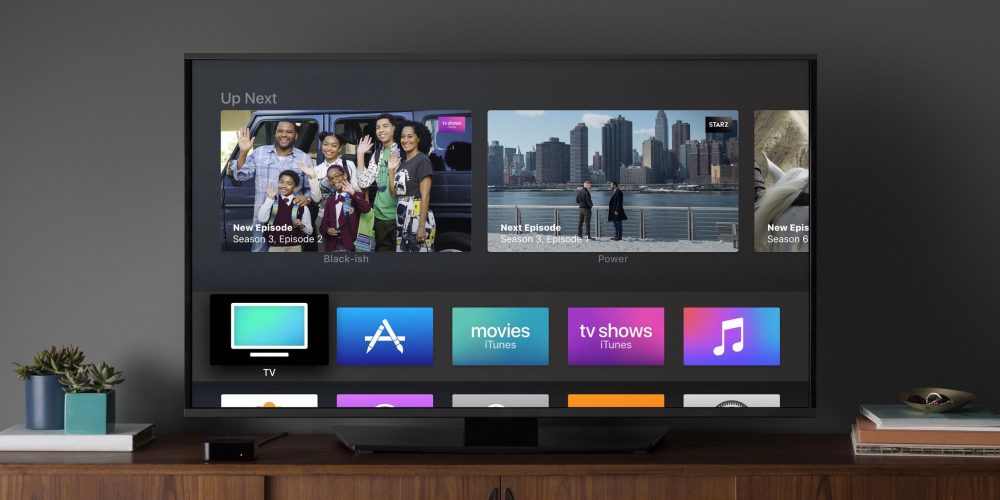

Apple TV Could Get Multi-User Login, Picture-In-Picture With tvOS 11


However given that smartphones aren’t really shared, we’re not sure if such a feature would be so useful. As for picture-in-picture mode, it should function similarly to how the feature works on other TVs, where users could have a video open, and have another video open and playing in a smaller window docked to the side, or maybe have an app running while a video is playing.


Apple’s iPad already offers up something similar so it makes sense that the feature would arrive on tvOS as well. In any case take it with a grain of salt for now, but with WWDC 2017 kicking off in the next couple of months, we should have the official details soon.


Source: ubergizmo


Windows
Mac OS
iOS
Linux
3uTools
Win 64-bit For this device
V9.0 2025-11-11
Download
Win 32-bit For this device
V9.0 2025-11-11
Download
3uTools
Intel Chip How to Identify Chip Type
V9.0 2025-12-02
Download
Apple Silicon
V9.0 2025-12-02
Download
How to Identify Chip Type
1.  Click the Apple icon in the top-left corner of the screen and select About This Mac.
2.  Check the Processor or Chip field to determine if it is "Intel" or "Apple".
Please use the 3uTools PC client to install the iOS client:
1、 Install either the Windows or Mac version of 3uTools on your computer
2、 Open the PC client and connect your device to the computer via USB cable
3、 After the connection is successful, wait for the computer to automatically install the mobile app for the device, or locate “Install Mobile App” on the computer and manually click to install.
3uTools
deb file
V3.01 2025-11-20
Download
rpm file
V3.01 2025-11-20
Download
Windows
Windows
iOS
iOS
Android
Android
TV
TV
3uAirPlayer
Win 64-bit For this device
V6.0.2 2025-11-19
Download
Win 32-bit For this device
V6.0.2 2025-11-19
Download
iOS Device Mirroring (No App Required)
1、 Install 3uAirPlayer on the Windows PC
2、 Open Control Center and select Screen Mirroring
3、 From the list, choose your PC to start mirroring
4、 Or connect your iOS device to the PC via USB to begin mirroring
Scan to get "3uAirPlayer" App
3uAirPlayer TV V1.0.18
2025-11-28
TV System Requirements: Android 7.0 or later
Download the TV installation package, copy it to a USB drive, insert it into your TV or set-top box, then select the file from the home screen to install.




