NEWS
iOS 27.3 Adds Face Unlock and Lock When Closed to iPhone Duo
 11/17/2026
 82
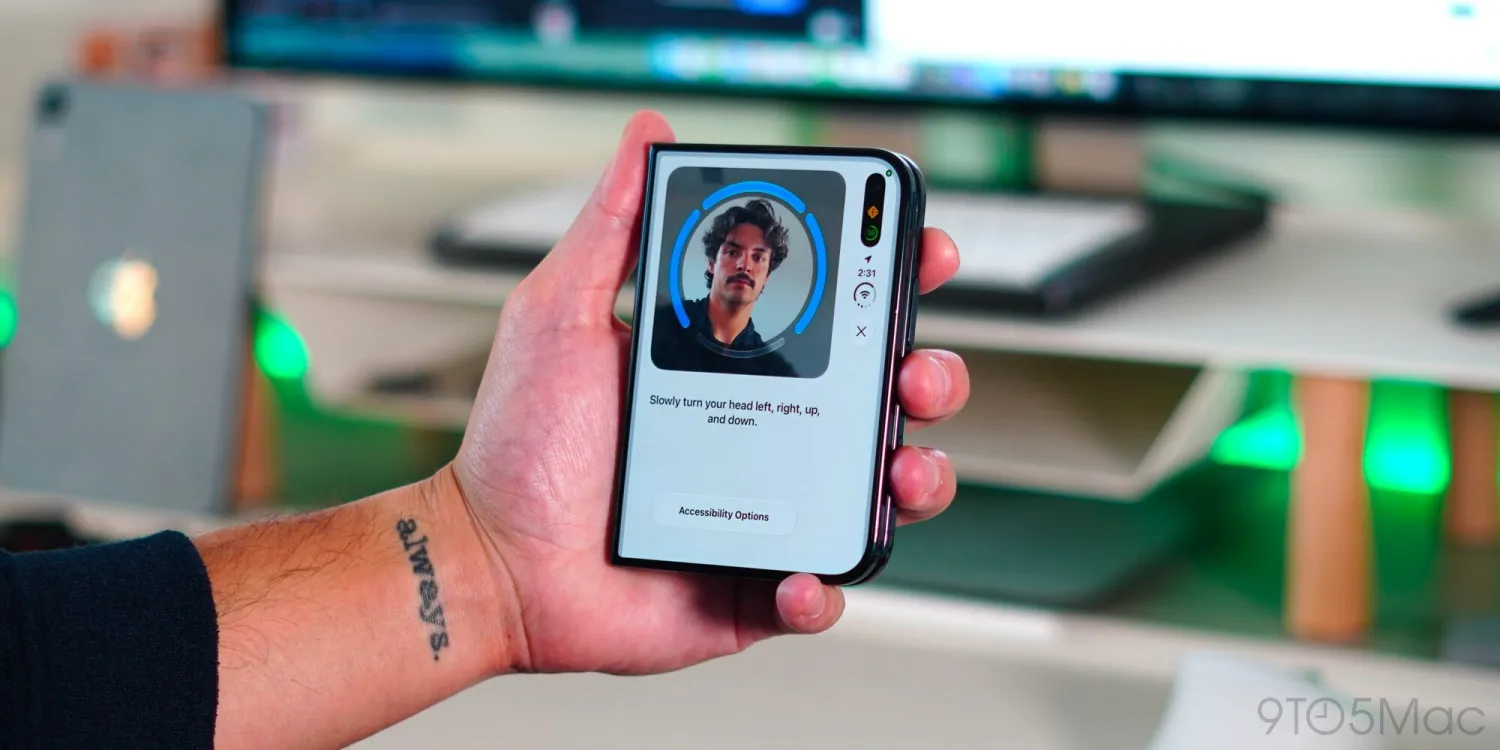
Apple is introducing two useful changes for iPhone Duo users in the latest iOS 27.3 beta. The update adds a new facial recognition option that allows users to unlock the device by looking at its front camera, along with a setting that automatically locks the iPhone Duo when it is folded closed.
Both features address common usability requests and give users more control over how they unlock and use Apple's foldable iPhone.
iPhone Duo Gets a New Face Recognition Unlock Option
The most notable addition is a new face recognition feature that allows users to unlock their iPhone Duo using the front-facing camera on the outer display.
After installing iOS 27.3, users can enable the option under Settings > Touch ID & Passcode.
Apple describes the feature as follows:
●Use the front camera, along with a recent Touch ID or passcode authentication, to quickly unlock iPhone Duo when it's closed. Face recognition data never leaves your device.
However, this is not the same as Face ID.
Unlike Face ID, which relies on dedicated facial recognition hardware, the new feature uses the outer display's front camera to recognize the user's face. The iPhone Duo does not have the hardware required for Apple's traditional Face ID system.
As a result, Apple has introduced several security restrictions.
Limitations of Face Recognition on iPhone Duo
The new feature is designed specifically for basic device unlocking and cannot replace Touch ID or a passcode for more sensitive authentication.
There are three important limitations:
●Limited authentication: Face recognition can only unlock the iPhone Duo. Apple Pay, saved passwords, protected apps, and other authentication-required functions still require Touch ID or a passcode.
●45-minute inactivity limit: If the device remains locked for 45 minutes without being unlocked, users must authenticate with Touch ID or their passcode before face recognition becomes available again.
●Closed-device requirement: Face recognition only works when the iPhone Duo is folded closed. When the device is unfolded, users must continue using Touch ID or their passcode.
These restrictions help compensate for the lower security level of camera-based facial recognition compared with Face ID.
iPhone Duo Can Now Lock Automatically When Closed
The second addition in iOS 27.3 addresses another frequently requested feature: automatically locking the device when it is folded shut.
Previously, closing the iPhone Duo simply switched the interface from the larger inner display to the outer display. The device remained unlocked.
With the new option, users can choose to have the iPhone Duo lock automatically whenever they fold it closed.
To enable the feature:
1. Open Settings.
2. Navigate to Display & Brightness.
3. Find the new lock-when-closed option.
4. Enable the setting.
Once activated, folding the device closed will lock it instead of simply switching to the outer display.
This gives users a more traditional foldable-phone experience and could be particularly useful for those who prefer their device to lock whenever they finish using the larger screen.
iOS 27.3 Makes iPhone Duo More Convenient to Use
These two additions may not be major design changes, but they address practical aspects of using a foldable iPhone.
Camera-based face recognition provides another convenient way to unlock the device when closed, while automatic locking makes the folding experience more intuitive.
Apple appears to be refining the iPhone Duo experience based on user feedback, with iOS 27.3 bringing several small but meaningful improvements.
Source: 9to5mac