NEWS

Apple Maps Ads Are Here, and There's No Way to Turn Them Off

Just now

14

 Apple Maps Ads Are Here, and There's No Way to Turn Them Off


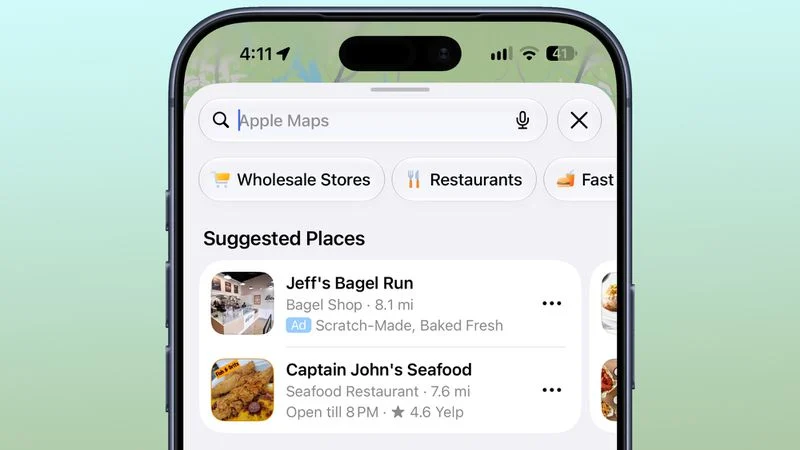
Ads in Apple Maps are live in the United States and Canada, which means iPhone and iPad users will see them when searching for locations and when viewing Suggested Places.


Apple announced plans to bring ads to the Maps app in March, and said the feature would roll out starting in late summer. Apple confirmed to 9to5Mac that ads began showing up for users over the last few days, with ad placement to ramp up in the coming weeks.


Ads are shown in Suggested Places when initiating a search and after searching if a company has bought an ad for a keyword you're looking for. Ads are shown at the top of search results, with one ad per set of search results.


There is no option to turn off ads in the Maps app, but ads are clearly labeled with a blue "Ad" tag. Apple says ads you interact with in the Maps app are not associated with your Apple Account, and data is not shared with third parties.


Apple has been preparing to launch ads all summer, with signs of ads showing up in iOS 26 updates. Apple started allowing businesses to purchase ad slots in August, offering a 15 percent credit toward future ad spend as an incentive.


Ads for home services, bail bonds, and cryptocurrency ATMs are not allowed in the Maps app per Apple's Advertising Services policy. Ads that promote or reference medical services may be allowed, and are evaluated on a case-by-case basis. Maps ads also have to adhere to Apple's other advertising rules.


Source: Macrumors
Windows
Mac OS
iOS
Linux
3uTools
Win 64-bit For this device
V9.08 2026-08-18
Download
Win 32-bit For this device
V9.08 2026-08-18
Download
3uTools
Intel Chip How to Identify Chip Type
V9.06 2026-08-20
Download
Apple Silicon
V9.06 2026-08-20
Download
How to Identify Chip Type
1.  Click the Apple icon in the top-left corner of the screen and select About This Mac.
2.  Check the Processor or Chip field to determine if it is "Intel" or "Apple".
Please use the 3uTools PC client to install the iOS client:
1、 Install either the Windows or Mac version of 3uTools on your computer
2、 Open the PC client and connect your device to the computer via USB cable
3、 After the connection is successful, wait for the computer to automatically install the mobile app for the device, or locate “Install Mobile App” on the computer and manually click to install.
3uTools
deb file
V9.02 2026-08-19
Download
rpm file
V9.02 2026-08-19
Download
Windows
Windows
iOS
iOS
Android
Android
TV
TV
3uAirPlayer
Win 64-bit For this device
V6.0.7 2026-08-25
Download
Win 32-bit For this device
V6.0.7 2026-08-25
Download
iOS Device Mirroring (No App Required)
1、 Install 3uAirPlayer on the Windows PC
2、 Open Control Center and select Screen Mirroring
3、 From the list, choose your PC to start mirroring
4、 Or connect your iOS device to the PC via USB to begin mirroring
Scan to get "3uAirPlayer" App
3uAirPlayerTV
 
TV System Requirements: Android 7.0 or later
Download the TV installation package, copy it to a USB drive, insert it into your TV or set-top box, then select the file from the home screen to install.