 NEWS
NEWS
Home Hub Code Hints at Face-Based Profile Switching
 Just now
 13
13
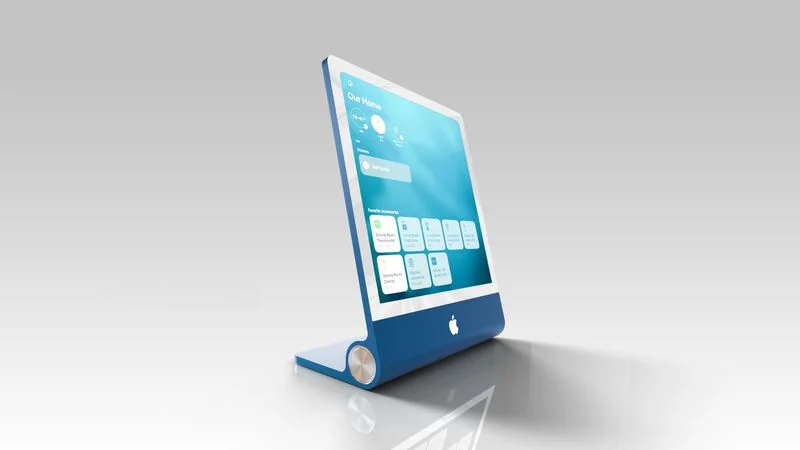
Apple's upcoming home hub will support multiple profiles and will include "ambient sensing" for identity verification, according to code we found in the macOS Tahoe 26.7 update.
The accessory will show Personal Content for different users in the home, with options to select a profile via Control Center or the Settings app on the device. The home hub is expected to have an operating system similar to tvOS, so the Control Center and profile selection options might look like those on the Apple TV.
It sounds like the home hub can switch between profiles automatically using some combination of cameras and sensors, based on the mentions of ambient sensing. The device is rumored to include cameras and a presence-sensing feature to determine when someone is in the room, so it will be able to tell who is near it and switch profiles appropriately.
Here are some of the code strings.
●Sorry, I'm not sure who you are. To access your Personal Content, you'll need to select yourself in Control Center.
●Before I can help with that, you'll need to enable Personal Content. In the Settings app, tap on your name, and turn on Personal Content.
●I'm not sure who's speaking. Please come in front of this device and ask again.
●Sorry, since this device hasn't seen you in a while, you'll need to ask again in front of the camera.
●To access your Personal Content, you'll need to select yourself in Control Center and temporarily allow ambient sensing to verify your identity.
There are also mentions of a wall-mounted version of the home hub, confirming that there will be two models. The other version will include a speaker base.
Rumors suggest the home hub will have a square, 7-inch display. It will run apps and have a main home screen with quick-access widgets. We could see the home hub announced as soon as September.
Source: Macrumors