 NEWS
NEWS
Here’s everything new for Apple Calendar in iOS 27
 08/20/2026
 997
997
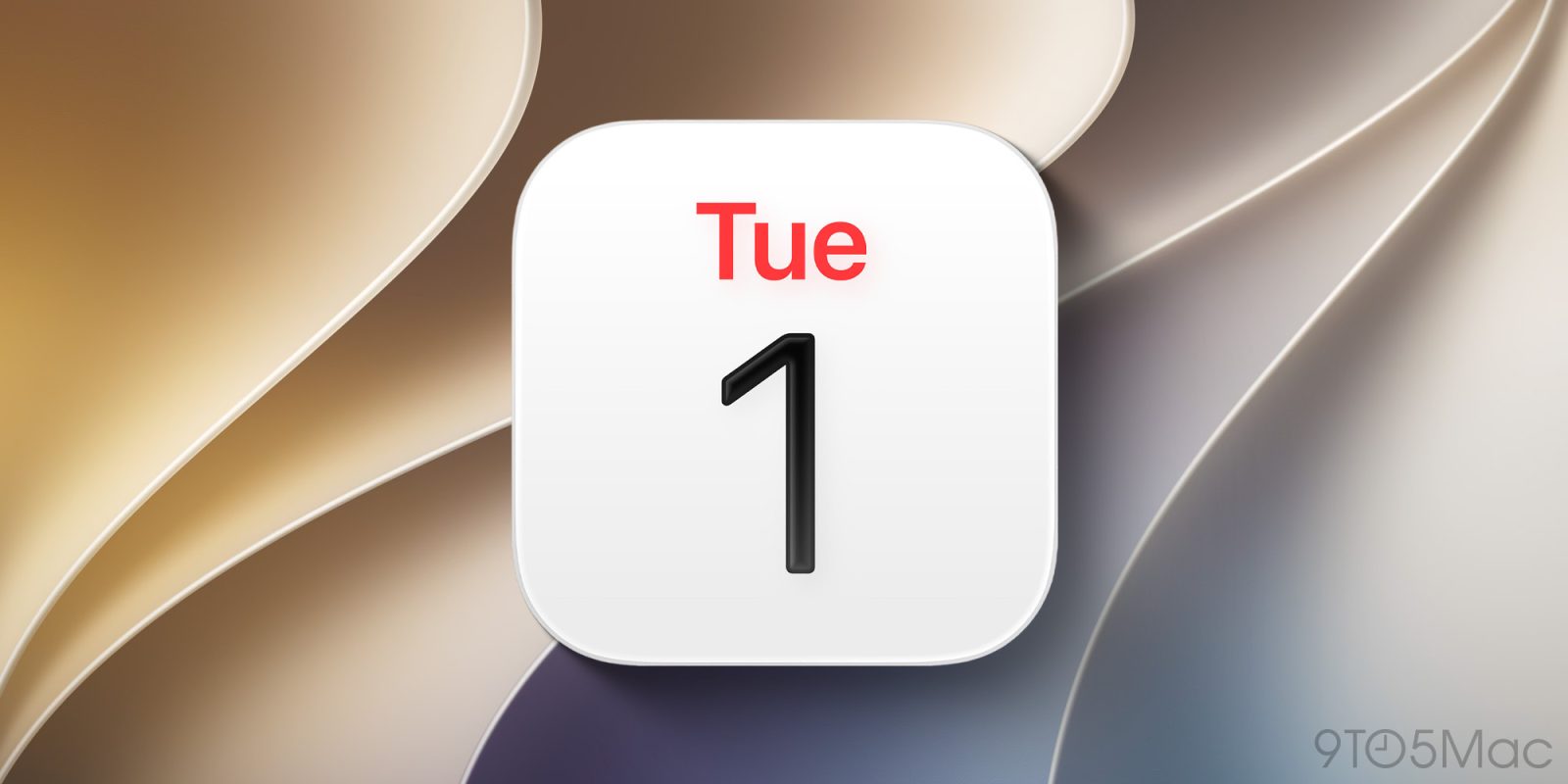
iOS 27 is packed with new features for Apple Wallet, Messages, Notes, and other system apps—including Calendar. Here’s everything new for Apple’s Calendar app in iOS 27.
Natural language input for events and reminders
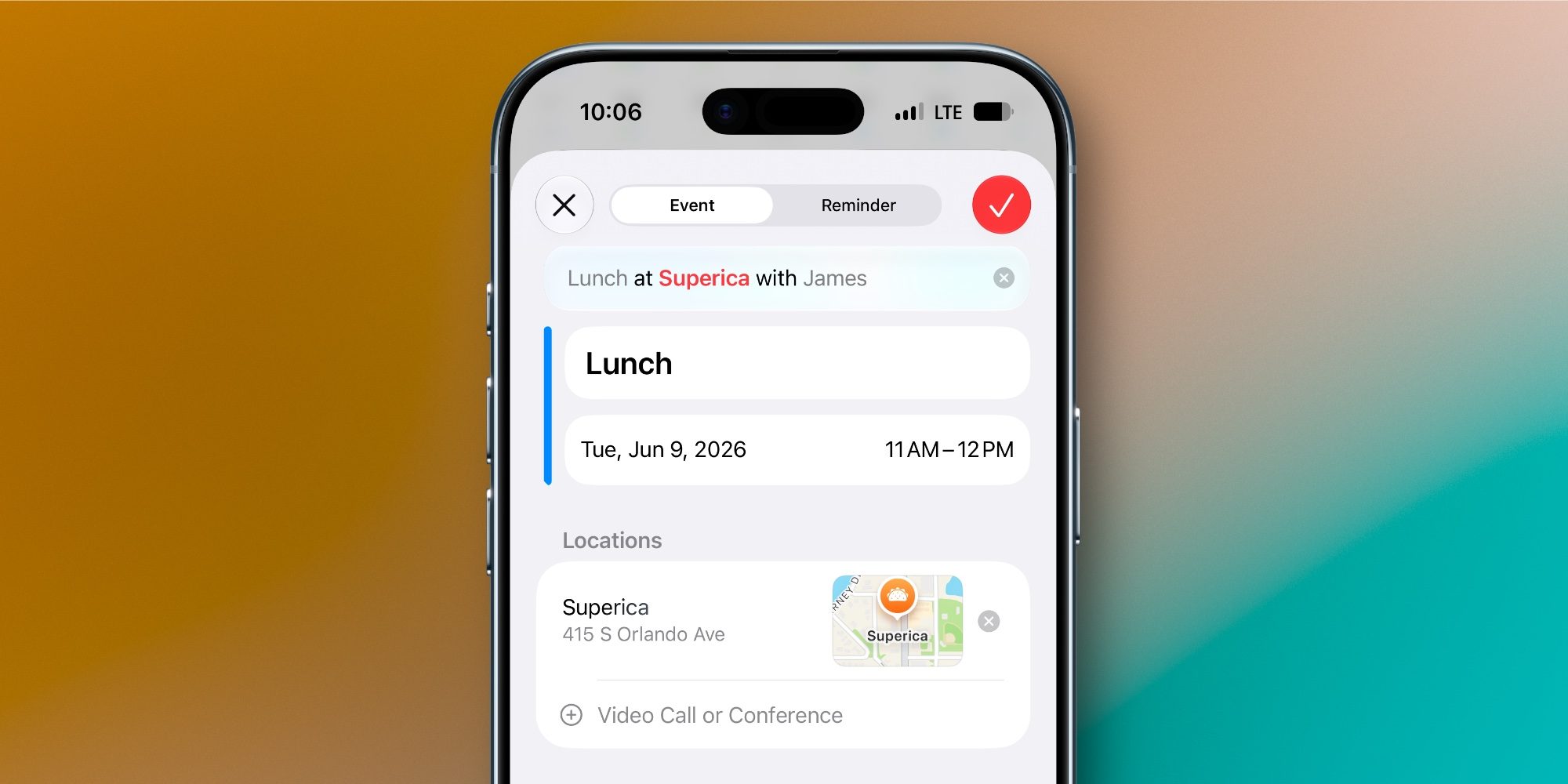
Calendar adds a feature in iOS 27 that’s been on my wishlist for years: natural language input.
Apple calls this ‘Smart Event Details,’ and it’s powered by Apple Intelligence. Here’s how it’s described:
Type events in your own words. Apple Intelligence fills in the title, time, location, and invitees as you go.
This works for both events and reminders. You can type in natural language when creating or editing an event, and watch the event details automatically fill in based on what you type.
If you prefer the manual approach, you can toggle this off in Settings, but I’ve been very happy to have it.
Design updates
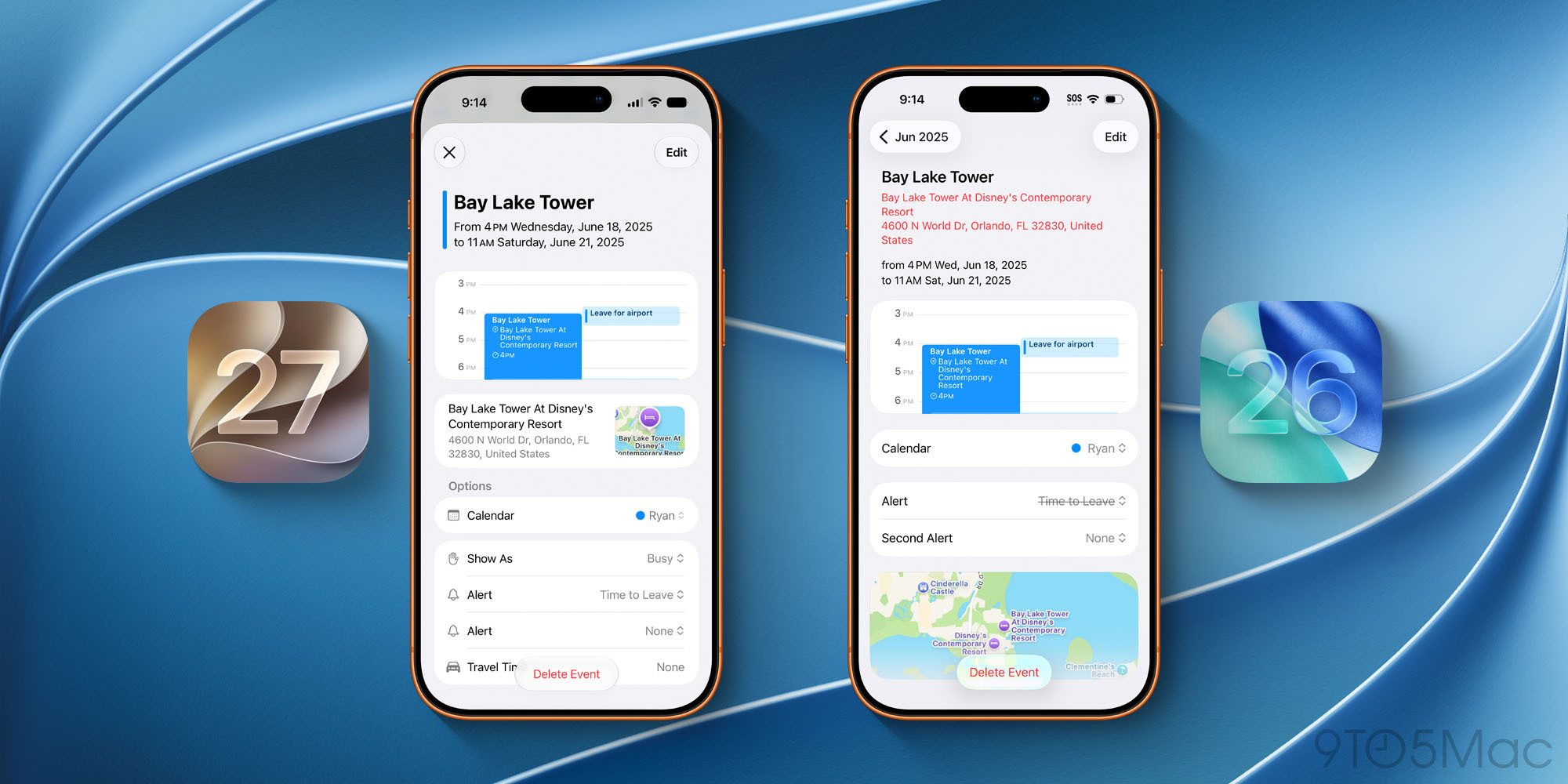
Apple has updated Calendar’s design in iOS 27 in two main places:
- Event details view
- Event creation and editing
When you tap an event, it now pops up in a card overlay with a fresh design. Event options have been reorganized and given icons to make them visually pop.
And for event creation and editing, iOS 27 has an updated look too. Like with event details, Apple has reorganized the various options and added icons for each category.
Show as Busy/Free option for iCloud calendars

With modern digital calendars, the ability to mark yourself as busy or free related to a given event is a pretty standard feature. But until iOS 27, that option never existed for iCloud calendars.
If you use a Google calendar inside Apple’s app, you’ll see the event option to show yourself as busy or free. But for iCloud calendars, that’s long been missing.
iOS 27 finally remedies the oversight, offering a free/busy option for iCloud events like you would get for events from Google and other third-party calendar providers.
Extra-large widgets
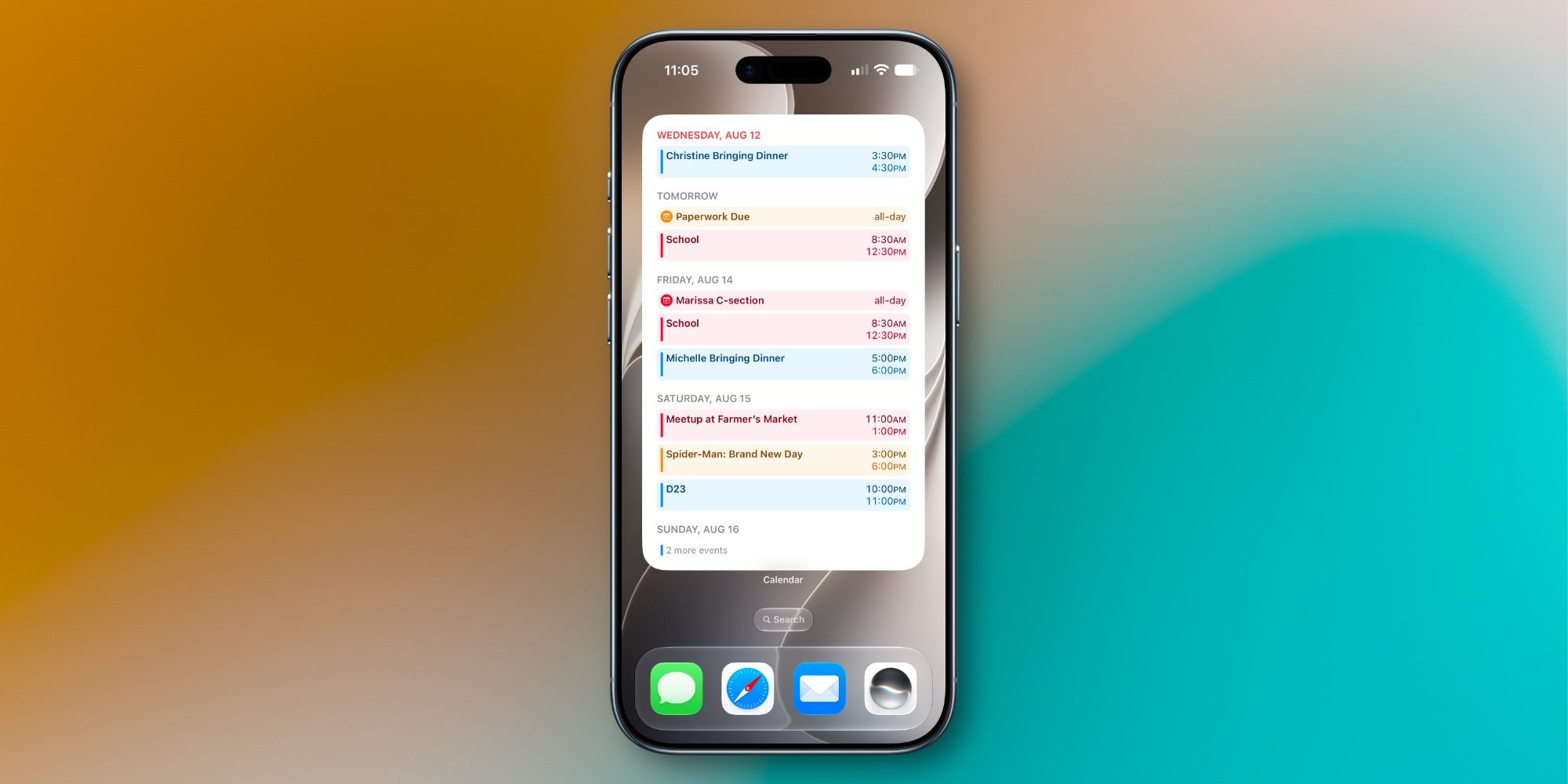
iOS 27 lets you make Home Screen and Today widgets bigger than ever thanks to a new extra-large size. And Calendar supports two extra-large widgets.
You can set up ’List’ and ‘Up Next’ widgets in the extra-large size. Each is great for showing more events and reminders than ever, so if you have a packed calendar, the new widgets could prove useful.
Extra-large widgets take up a lot of screen real estate, but they should prove especially handy on the iPhone Ultra’s extra-large display later this year.
Siri AI upgrades
It’s worth mentioning that Siri AI comes with plenty of upgrades relevant to the Calendar app.
Siri gains onscreen awareness, understands your personal context, and is overall more intelligent and capable than ever before. That means it’s a much better tool for managing your calendar. Throughout the iOS 27 beta, I’ve found myself relying much more on Siri for handling events and reminders.
There’s also a new visual intelligence button in the event creation screen that lets you scan an event flyer with the new Siri mode in the Camera app. Siri then creates a new event with the details.
Source: 9to5mac