 NEWS
NEWS
iOS 27 helps apps detect when a user may be getting scammed in real time
 07/06/2026
 1357
1357
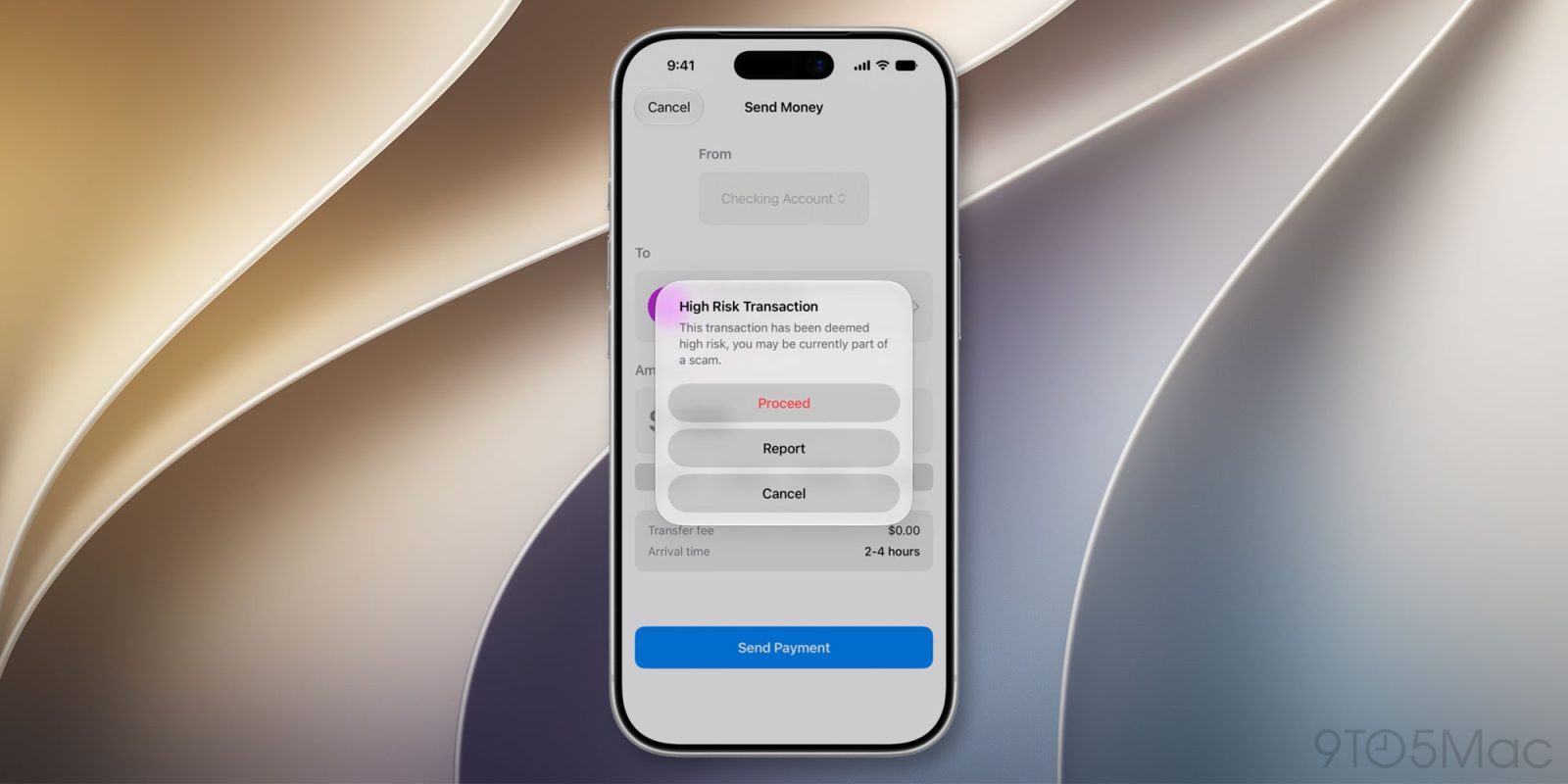
A new iOS 27 framework will help apps fight back against social engineering scams as they unfold via voice calls, text messages, emails, and more. Here are the details.
Details on the new Trust Insights framework
With iOS 27, Apple is introducing a framework called Trust Insights that can alert apps when a user may be falling victim to a scam.
As Apple explains, social engineering scams are harder to detect automatically because the user is often the one carrying out the actions, “authenticated and legitimately.”
In recent years, tech support scams, authority impersonation, and family emergency fraud have become increasingly common, particularly as AI deepfakes have grown more accessible.
To counter that, Apple is introducing a framework that runs mostly on-device, analyzing “interaction patterns, timing, context, and basic sensor data.”
If it detects signs that a user may be getting coached through a scam, Trust Insights can assign a medium or high risk level, allowing the app to add warnings, delays, or additional verification steps.
Apple stresses that Trust Insights doesn’t inspect the contents of Photos, Messages, or Mail. Instead, it analyzes behavioral signals on-device, immediately discards the underlying data, and sends only a single output value to Apple’s servers.
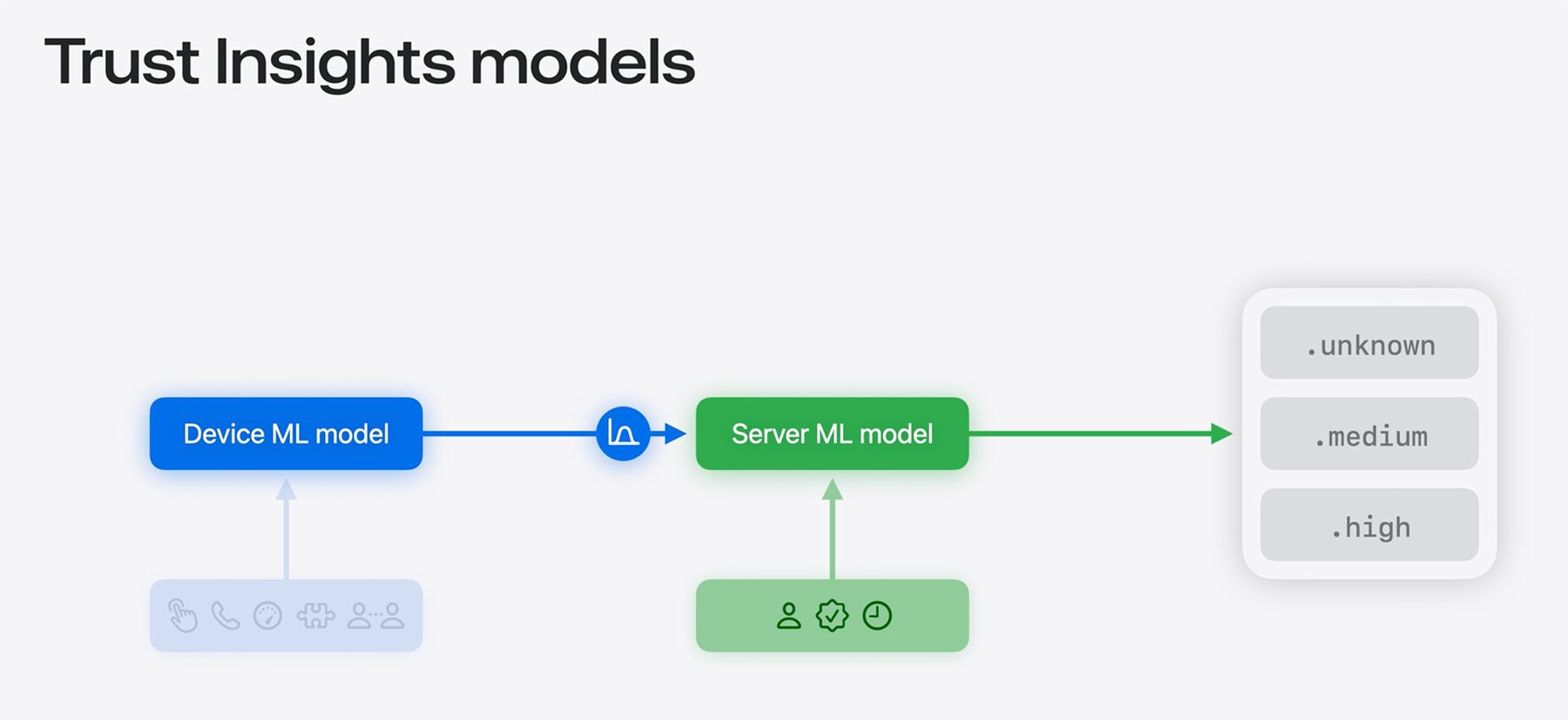
That value may then be combined with information from the user’s Apple Account and checks for unusual activity before Trust Insights returns its final assessment of the suspected scam.
Apple says that although users can disable Trust Insights in Settings, there may be a cooldown period meant “to protect users who may have themselves been coached into turning it off.”
Source: 9to5mac