 NEWS
NEWS
iOS 27 adds three new iPhone features I’ve been really loving
 06/29/2026
 1076
1076

iOS 27 is packed with new features across Messages, Notes, Apple Wallet, CarPlay, and more. Here are three of my favorite new iOS 27 features so far.
#1: Siri app
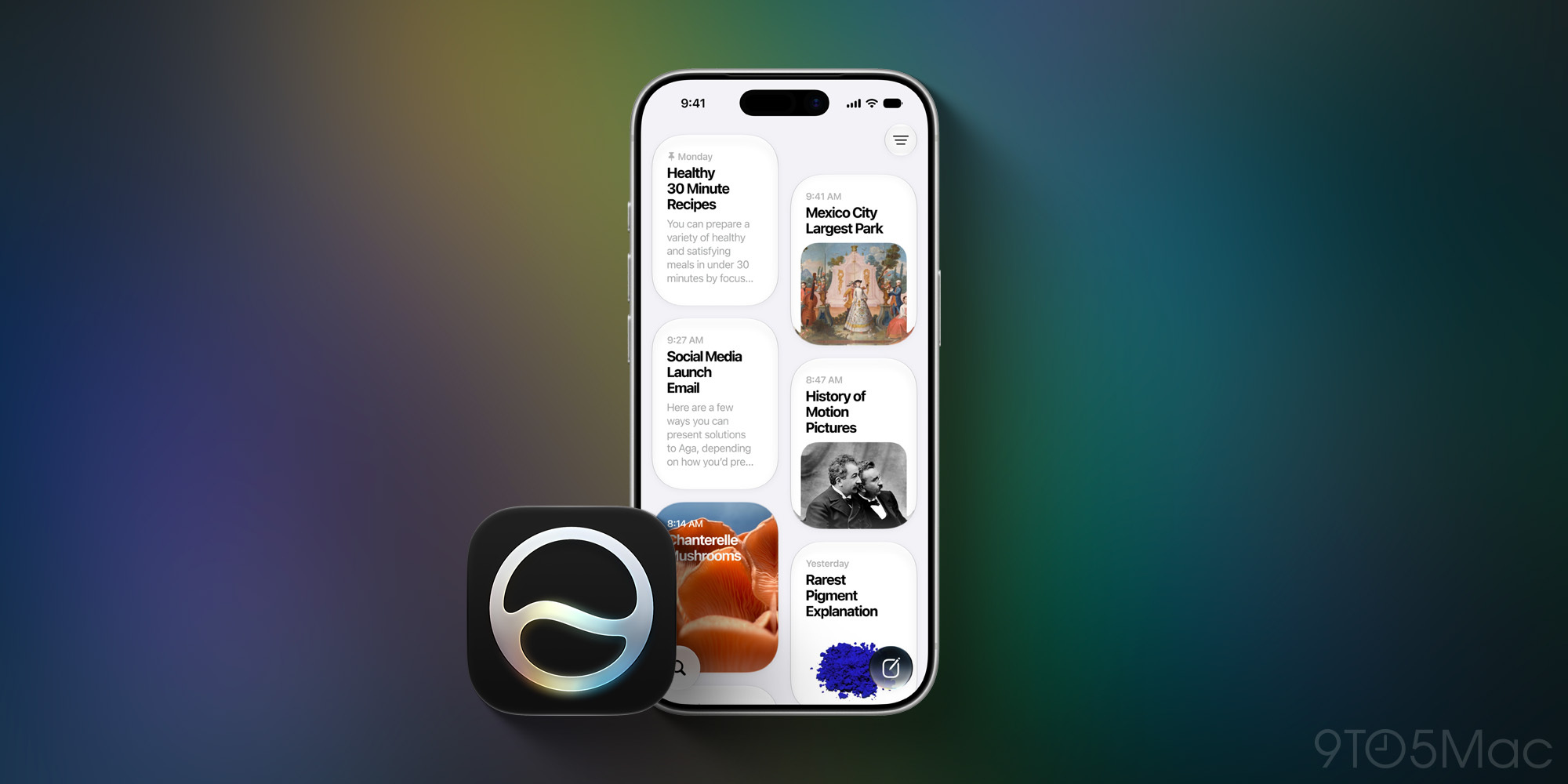
Siri is completely new in iOS 27, rebuilt from the ground up for the AI era. And one exciting upgrade is the dedicated Siri app. From Apple’s press release:
When users want to revisit a past conversation or kick off a new one, they can open the all-new dedicated Siri app. The Siri app uses iCloud to privately sync conversational history across a user’s products, so they can start chatting with Siri on Mac and continue the conversation on iPhone, iPad, Apple Watch, or Apple Vision Pro, bringing together rich conversations in one place.
The Siri app provides a convenient, go-to home for any question you have. It’s especially great for chatbot-style conversations that go beyond a simple request.
With the popularity of apps like ChatGPT, Claude, and Google Gemini, a dedicated Siri app makes a lot of sense. And since it’s pre-installed on the iPhone Home Screen, I suspect it could quickly become a go-to app for many users.
#2: One-tap suggestions in Messages
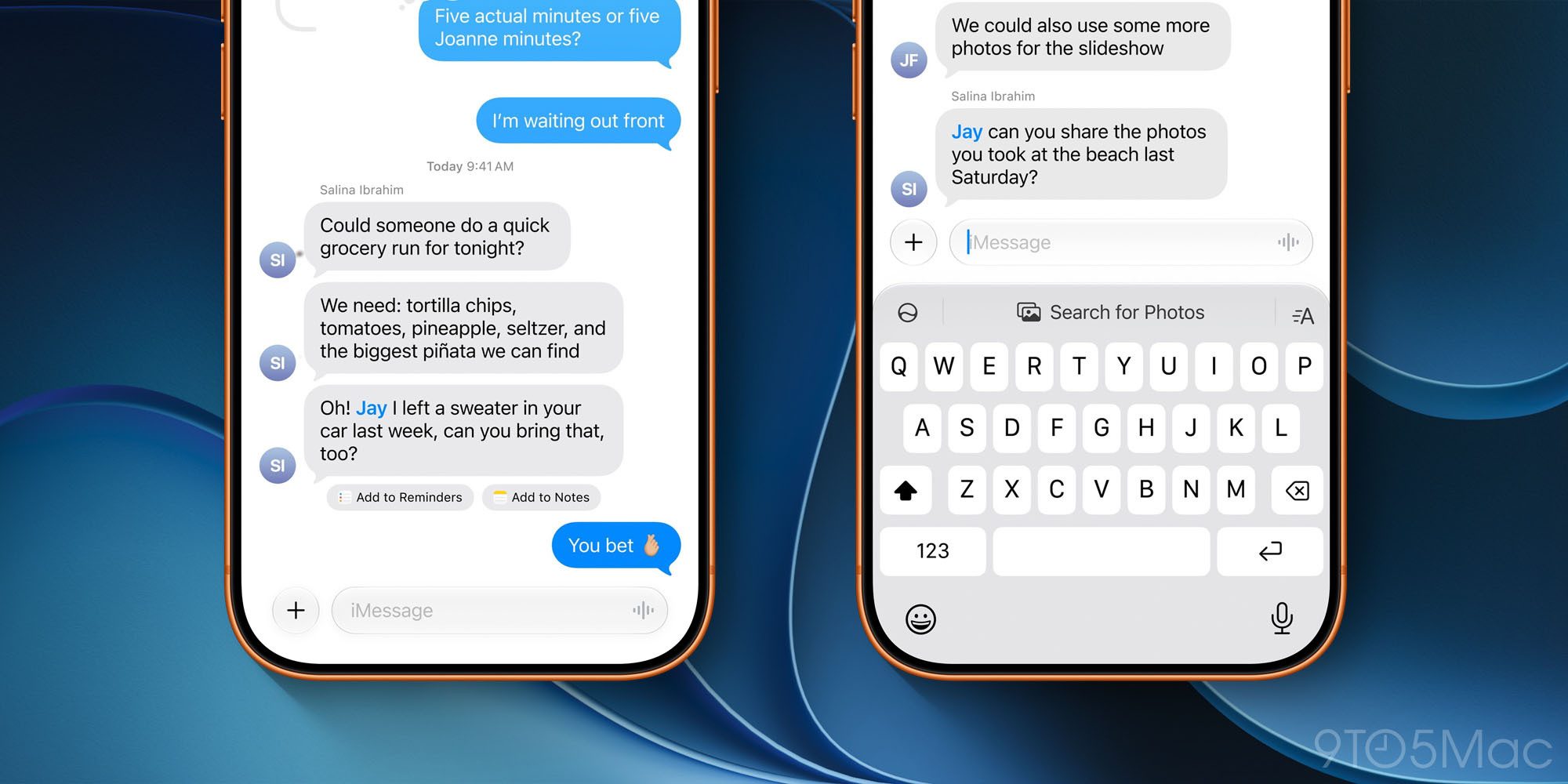
iOS 27 has plenty of Apple Intelligence features that don’t “feel like AI” but simply offer convenient tools. One shining example is actionable suggestions in the Messages app. Per Apple:
Messages offers one-tap suggestions based on the context of users’ conversations, making it easier than ever to get things done, such as creating a reminder or a note. For example, if someone asks for photos, Messages can also help users find the right ones, recognizing keywords, locations, and people in their library to find the best options.
Plenty of messaging apps have tried to infuse AI via an integrated chatbot in your conversation. I’ve never been a fan of that approach.
But one-tap suggestions in Messages offer similar utility in many respects, and are quicker and easier to use than typing out an AI request. It’s the kind of AI feature I can fully get behind.
#3: ‘Smart Event Details’ in Apple Calendar
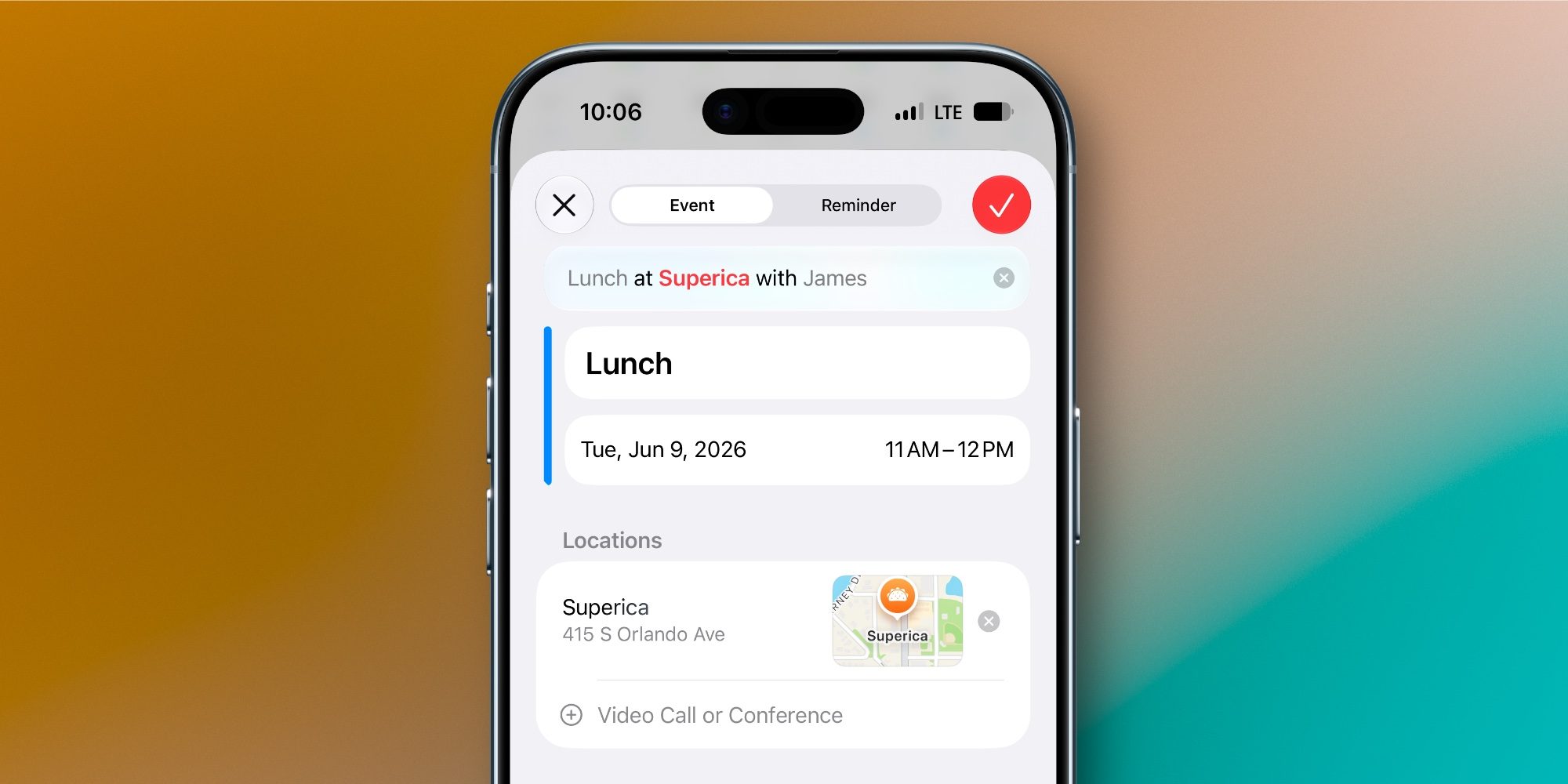
Apple’s Calendar app gets a new feature in iOS 27 that I’ve long wanted: natural language input for creating events. Apple calls it ‘Smart Event Details.’
Using Apple Intelligence, you can type out an event in your own words and have iOS 27 automatically detect and fill in key details, including:
- title
- time
- location
- invitees
With Smart Event Details, you won’t need to manually enter these details separately anymore. Instead, you can just type everything in a single line, and AI will update your event accordingly.
For more new iOS 27 features, see our full coverage here.
Source: 9to5mac










