 NEWS
NEWS
Siri AI App on iOS 27 Lets Users Easily Switch Between Siri and ChatGPT
 06/25/2026
 671
671
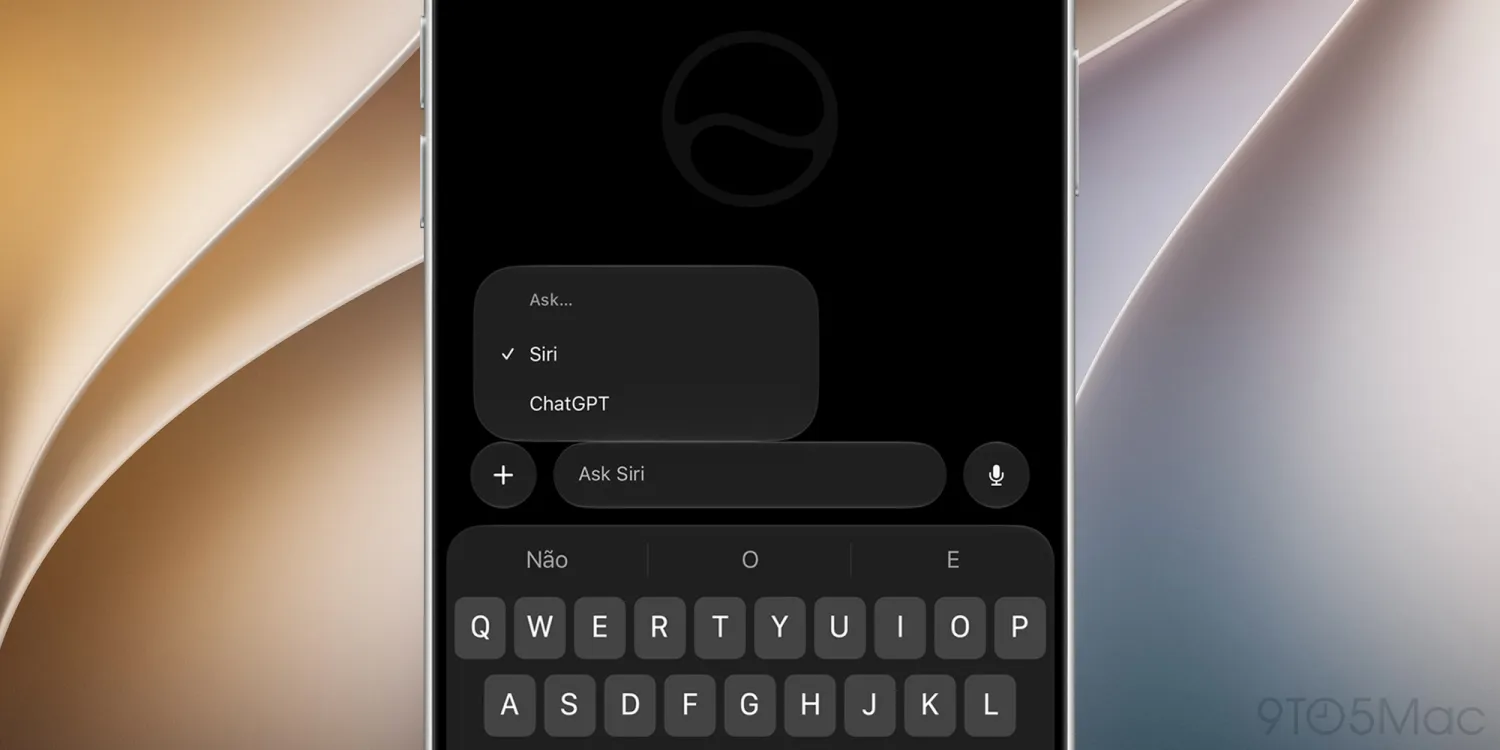
The new Siri app on iOS 27 defaults to the new Siri AI, but there is a way to quickly switch to ChatGPT at any time. Here’s how it works.
You can use ChatGPT from the Siri app, with caveats
iOS 27 includes a dedicated Siri app with a familiar chatbot-style interface, including a text input field, support for image and file attachments, and a menu for accessing previous conversations.
However, while the app unsurprisingly currently defaults to Siri AI, users can quickly switch to ChatGPT by long-pressing the input field and then tapping on “Ask…”.
That brings up a pop-up that lets them choose between Siri and ChatGPT. Apple could potentially add support for other chatbots in the future, though only those two options are currently available.
There is one notable limitation: conversation context does not transfer when switching chatbot providers. In practice, this means that ChatGPT cannot see messages previously exchanged with Siri, and Siri cannot access the portion of the conversation handled by ChatGPT.
Additionally, closing and reopening the app currently causes it to switch back to Siri, even in ongoing conversations where ChatGPT had been selected. It is unclear whether this is a bug in the iOS 27 beta or intended behavior.
It is also worth noting that ChatGPT appears as an alternative chatbot provider in the Siri AI app, regardless of whether the ChatGPT extension is enabled under Settings > Siri > ChatGPT.
For now, there does not appear to be a way to permanently set ChatGPT as the Siri app’s default model, though that could also change in the future.
Source: 9to5mac










