NEWS

iOS 27 Introduces New 'Tap to Share' Feature, But Not Available in EU

06/11/2026

124

 iOS 27 Introduces New 'Tap to Share' Feature, But Not Available in EU


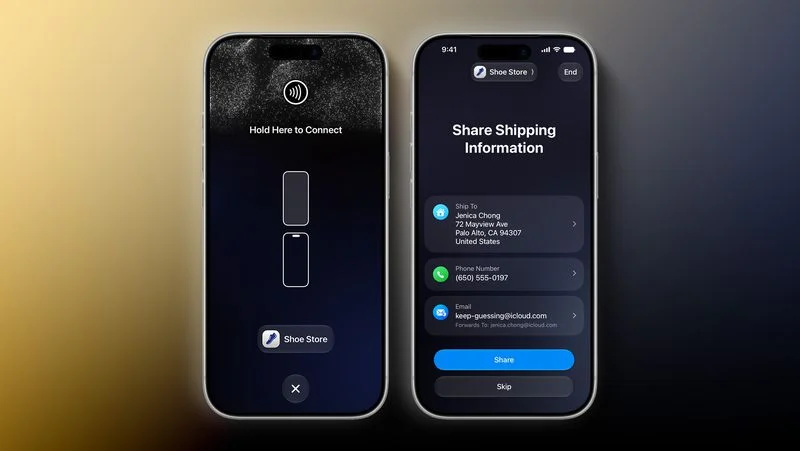
iOS 27 has a new "Tap to Share" feature that lets merchants use their iPhone to connect to a customer's device with an NFC tap for the purpose of data exchange. This is useful for small business owners, vendors at local markets, and so forth.


Tap to Share is an extension of the existing Tap to Pay on iPhone feature, which lets merchants accept contactless payments on an iPhone, with no point-of-sale hardware required. The latter feature allows customers to pay by simply tapping their iPhone or Apple Watch, contactless credit card or debit card, or other contactless payment option on the merchant's iPhone. Payment is securely completed using NFC, like Apple Pay.


During an active Tap to Pay on iPhone session, iOS 27 users can now share contact details for membership sign-up, provide a shipping address or email for receipts, add or share Apple Wallet passes, view their cart, and pay with Apple Pay.


Tap to Share requires an iPhone 12 or newer, and the feature is not currently available in the European Economic Area (EEA), which consists of all of the countries in the EU plus Iceland, Liechtenstein, and Norway. Apple did not explain why the feature is not immediately launching in the EEA or provide a timeframe for future availability there.


Source: Macrumors

Windows
Mac OS
iOS
Linux
3uTools
Win 64-bit For this device
V9.06 2026-04-09
Download
Win 32-bit For this device
V9.06 2026-04-09
Download
3uTools
Intel Chip How to Identify Chip Type
V9.03 2026-03-27
Download
Apple Silicon
V9.03 2026-03-27
Download
How to Identify Chip Type
1.  Click the Apple icon in the top-left corner of the screen and select About This Mac.
2.  Check the Processor or Chip field to determine if it is "Intel" or "Apple".
Please use the 3uTools PC client to install the iOS client:
1、 Install either the Windows or Mac version of 3uTools on your computer
2、 Open the PC client and connect your device to the computer via USB cable
3、 After the connection is successful, wait for the computer to automatically install the mobile app for the device, or locate “Install Mobile App” on the computer and manually click to install.
3uTools
deb file
V9.01 2026-05-28
Download
rpm file
V9.01 2026-05-28
Download
Windows
Windows
iOS
iOS
Android
Android
TV
TV
3uAirPlayer
Win 64-bit For this device
V6.0.5 2026-04-23
Download
Win 32-bit For this device
V6.0.5 2026-04-23
Download
iOS Device Mirroring (No App Required)
1、 Install 3uAirPlayer on the Windows PC
2、 Open Control Center and select Screen Mirroring
3、 From the list, choose your PC to start mirroring
4、 Or connect your iOS device to the PC via USB to begin mirroring
Scan to get "3uAirPlayer" App
3uAirPlayer TV V1.0.18
2025-11-28
TV System Requirements: Android 7.0 or later
Download the TV installation package, copy it to a USB drive, insert it into your TV or set-top box, then select the file from the home screen to install.