NEWS

iPadOS 26.5 Has Convenient Upgrade When Using Magic Keyboard, More

04/21/2026

52

iPadOS 26.5 Has Convenient Upgrade When Using Magic Keyboard, More

iOS and iPadOS 26.5 are still in beta testing, but one of their under-the-radar improvements involves using a Mac accessory—Magic Keyboard, Magic Trackpad, or Magic Mouse—with your iPhone or iPad. Here are the details.

Connecting iPad or iPhone to ‘Magic’ accessory with USB-C now initiates Bluetooth pairing, too
iPadOS 26.5 Has Convenient Upgrade When Using Magic Keyboard, More

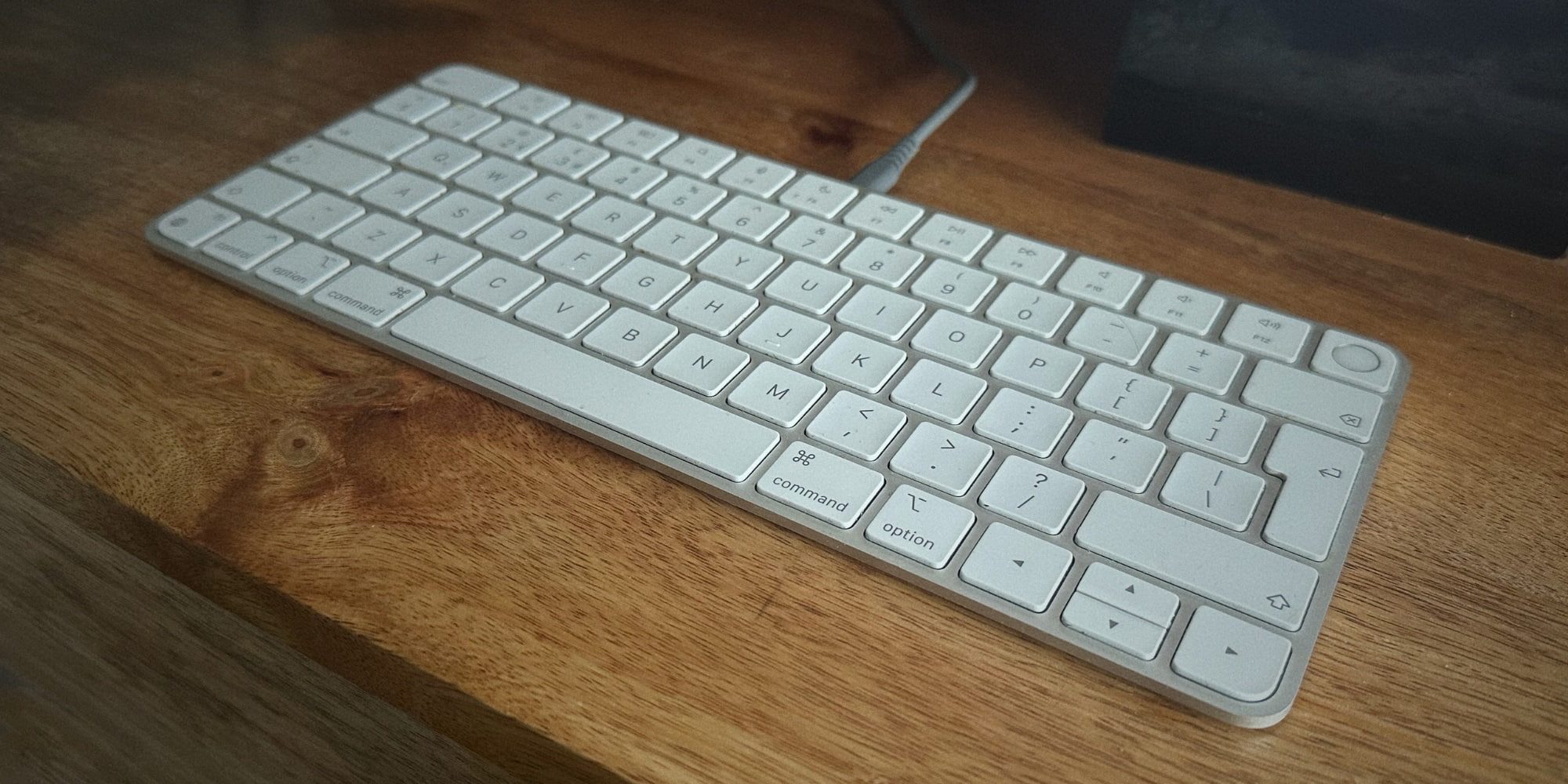
If you ever need to connect your iPhone or iPad to one of Apple’s first-party Mac accessories with the ‘Magic’ branding, there’s a convenient improvement coming in iOS and iPadOS 26.5.

Both devices already support connecting a Magic Keyboard, Magic Trackpad, or Magic Mouse via USB-C to establish an immediate connection.

Historically though, after you unplug your accessory, the iPhone or iPad will no longer retain any ongoing connection at all.

With iOS and iPadOS 26.5 though, Bluetooth pairing is automatically established after you make the USB-C connection, that way the device and accessory will stay paired after unplugging the cable.

As his post says, this behavior with Apple’s ‘Magic’ accessories mirrors what happens when using a Mac. Making a wired USB-C connection automatically creates a Bluetooth connection that persists after unplugging.

I suspect not many iPhone users regularly connect a Magic Keyboard or Magic Trackpad via USB-C. But on the iPad side, this change could potentially be a much bigger deal.

That said, it could also create confusion if a user prefers that their Magic Keyboard, for example, stays paired with their Mac but iPadOS 26.5 hijacks that connection.

Source: 9to5mac

Windows
Mac OS
iOS
Linux
3uTools
Win 64-bit For this device
V9.06 2026-04-09
Download
Win 32-bit For this device
V9.06 2026-04-09
Download
3uTools
Intel Chip How to Identify Chip Type
V9.03 2026-03-27
Download
Apple Silicon
V9.03 2026-03-27
Download
How to Identify Chip Type
1.  Click the Apple icon in the top-left corner of the screen and select About This Mac.
2.  Check the Processor or Chip field to determine if it is "Intel" or "Apple".
Please use the 3uTools PC client to install the iOS client:
1、 Install either the Windows or Mac version of 3uTools on your computer
2、 Open the PC client and connect your device to the computer via USB cable
3、 After the connection is successful, wait for the computer to automatically install the mobile app for the device, or locate “Install Mobile App” on the computer and manually click to install.
3uTools
deb file
V9.0 2026-04-16
Download
rpm file
V9.0 2026-04-16
Download
Windows
Windows
iOS
iOS
Android
Android
TV
TV
3uAirPlayer
Win 64-bit For this device
V6.0.3 2026-03-11
Download
Win 32-bit For this device
V6.0.3 2026-03-11
Download
iOS Device Mirroring (No App Required)
1、 Install 3uAirPlayer on the Windows PC
2、 Open Control Center and select Screen Mirroring
3、 From the list, choose your PC to start mirroring
4、 Or connect your iOS device to the PC via USB to begin mirroring
Scan to get "3uAirPlayer" App
3uAirPlayer TV V1.0.18
2025-11-28
TV System Requirements: Android 7.0 or later
Download the TV installation package, copy it to a USB drive, insert it into your TV or set-top box, then select the file from the home screen to install.