 NEWS
NEWS
iOS 26’s Messages App Got a Big Upgrade for an Essential Feature
 04/10/2026
 2021
2021
iOS 26 brought a lot of changes to the Messages app, like new group chat features, spam prevention tools, and more. Joining those improvements, Messages also got a big AI upgrade in iOS 26 for an essential feature: search.
Messages app search now lets you use natural language and view related results
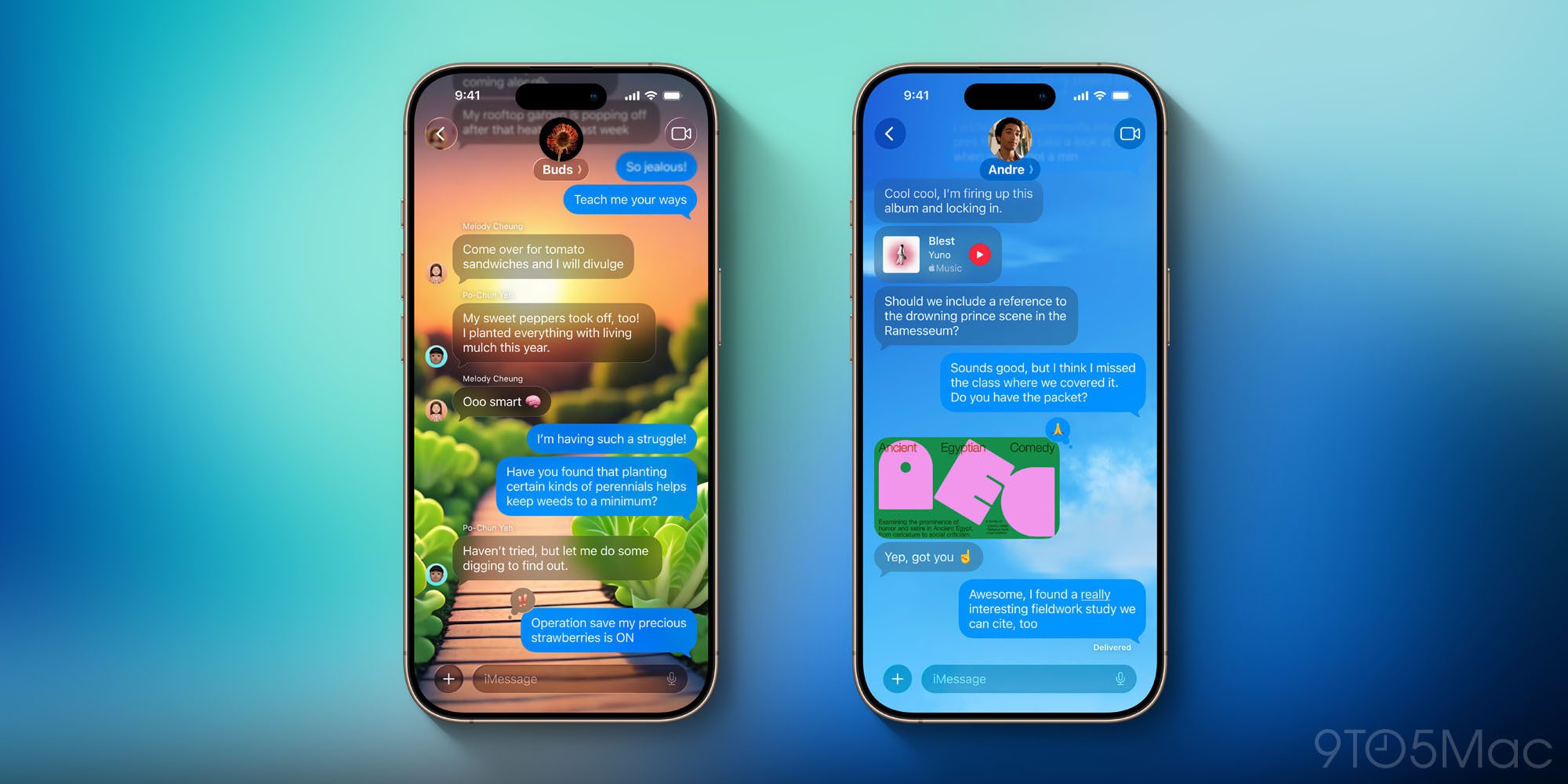
For many iPhone users, Messages might be among their most-used apps with the most saved data.
Depending on your device settings, Messages can save conversations you had many years ago—complete with links, photos, and other media. That’s why it’s easy for Messages to fill up iCloud storage.
But that vast history of data is only useful if you can find what you’re looking for.
And in iOS 26, Apple has made search better than ever in the Messages app so you can.
From Apple’s official iOS 26 documentation for Messages:
Improved search
Search with more natural language, like “photos of mom during our June trip to the beach.” Search will also show results based on related terms to what you typed, like texts about the beach or ocean when you type “sand.”
Before iOS 26, search could be hit or miss depending on how precise your search terms were.
But now, with natural language support and the ability to show related results, Apple says it’s better than ever.
New search experience is powered by Apple Intelligence
If you’re using iOS 26 on a device that doesn’t support Apple Intelligence, you’ll be stuck with the old search capabilities. That’s because Messages’ upgraded search is one of 20+ new AI features in iOS 26.
Just like it has in apps like Photos, Music, and TV, Apple is using LLMs to provide a more user-friendly search experience in Messages.
Apple Intelligence-supported models include:
- iPhone 17 Pro and Pro Max
- iPhone Air
- iPhone 17
- iPhone 17e
- iPhone 16 Pro and Pro Max
- iPhone 16 and 16 Plus
- iPhone 16e
- iPhone 15 Pro and Pro Max
There’s no need to enable a special setting for AI search. As long as your device supports it, and Apple Intelligence as a whole is enabled, you’ll get the upgrade in Messages too.
Source: 9to5mac










