
NEWS

OpenAI Brings ChatGPT to CarPlay for Hands-Free Voice Conversations

Just now

38

OpenAI has updated ChatGPT with support for CarPlay, which means ‌CarPlay‌ users can now ask ChatGPT questions and make requests directly from their vehicle dashboard.
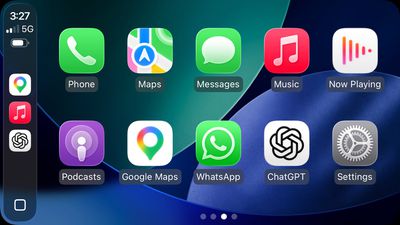
OpenAI Brings ChatGPT to CarPlay for Hands-Free Voice Conversations
Apple began allowing third-party voice-based conversational apps to interface with ‌CarPlay‌ in iOS 26.4, but apps need to implement the feature and get a special entitlement from Apple.
OpenAI Brings ChatGPT to CarPlay for Hands-Free Voice Conversations
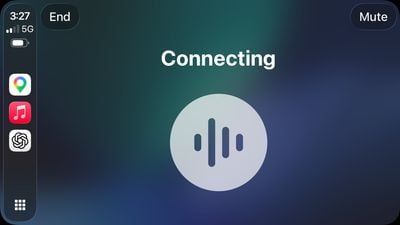
For the ChatGPT app and other apps that implement ‌CarPlay‌ support, voice has to be the primary method of interaction. Apple says that chatbot apps should not show text or imagery in response to queries.
OpenAI Brings ChatGPT to CarPlay for Hands-Free Voice Conversations
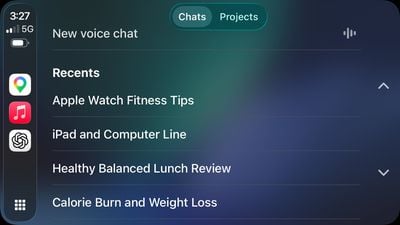
Apple has a voice control template that apps are required to use. Apps have to display the voice control screen while voice-based services are active, and apps are able to have up to four action buttons. To use ChatGPT with ‌CarPlay‌, an iPhone running iOS 26.4 or later is required.

‌CarPlay‌ has supported third-party apps for years, but Apple limits the types of apps that are available to cut down on driver distractions. Apple has a list of allowed app categories, which includes audio apps, communication apps, EV charging apps, and navigation apps.

ChatGPT integration will let users ask questions hands-free, but the chatbot is not able to control vehicle or iPhone functions. There is no wake word, so users will need to open the ChatGPT app to use it.

Source: Macrumors

Windows
Mac OS
iOS
Linux
3uTools
Win 64-bit For this device
V9.05 2026-03-28
Download
Win 32-bit For this device
V9.05 2026-03-28
Download
3uTools
Intel Chip How to Identify Chip Type
V9.03 2026-03-27
Download
Apple Silicon
V9.03 2026-03-27
Download
How to Identify Chip Type
1.  Click the Apple icon in the top-left corner of the screen and select About This Mac.
2.  Check the Processor or Chip field to determine if it is "Intel" or "Apple".
Please use the 3uTools PC client to install the iOS client:
1、 Install either the Windows or Mac version of 3uTools on your computer
2、 Open the PC client and connect your device to the computer via USB cable
3、 After the connection is successful, wait for the computer to automatically install the mobile app for the device, or locate “Install Mobile App” on the computer and manually click to install.
3uTools
deb file
V3.01 2025-11-20
Download
rpm file
V3.01 2025-11-20
Download
Windows
Windows
iOS
iOS
Android
Android
TV
TV
3uAirPlayer
Win 64-bit For this device
V6.0.3 2026-03-11
Download
Win 32-bit For this device
V6.0.3 2026-03-11
Download
iOS Device Mirroring (No App Required)
1、 Install 3uAirPlayer on the Windows PC
2、 Open Control Center and select Screen Mirroring
3、 From the list, choose your PC to start mirroring
4、 Or connect your iOS device to the PC via USB to begin mirroring
Scan to get "3uAirPlayer" App
3uAirPlayer TV V1.0.18
2025-11-28
TV System Requirements: Android 7.0 or later
Download the TV installation package, copy it to a USB drive, insert it into your TV or set-top box, then select the file from the home screen to install.




