 NEWS
NEWS
MacBook Neo Will Warn You If You Plug a display into the Wrong USB-C Port
 03/05/2026
 2033
2033
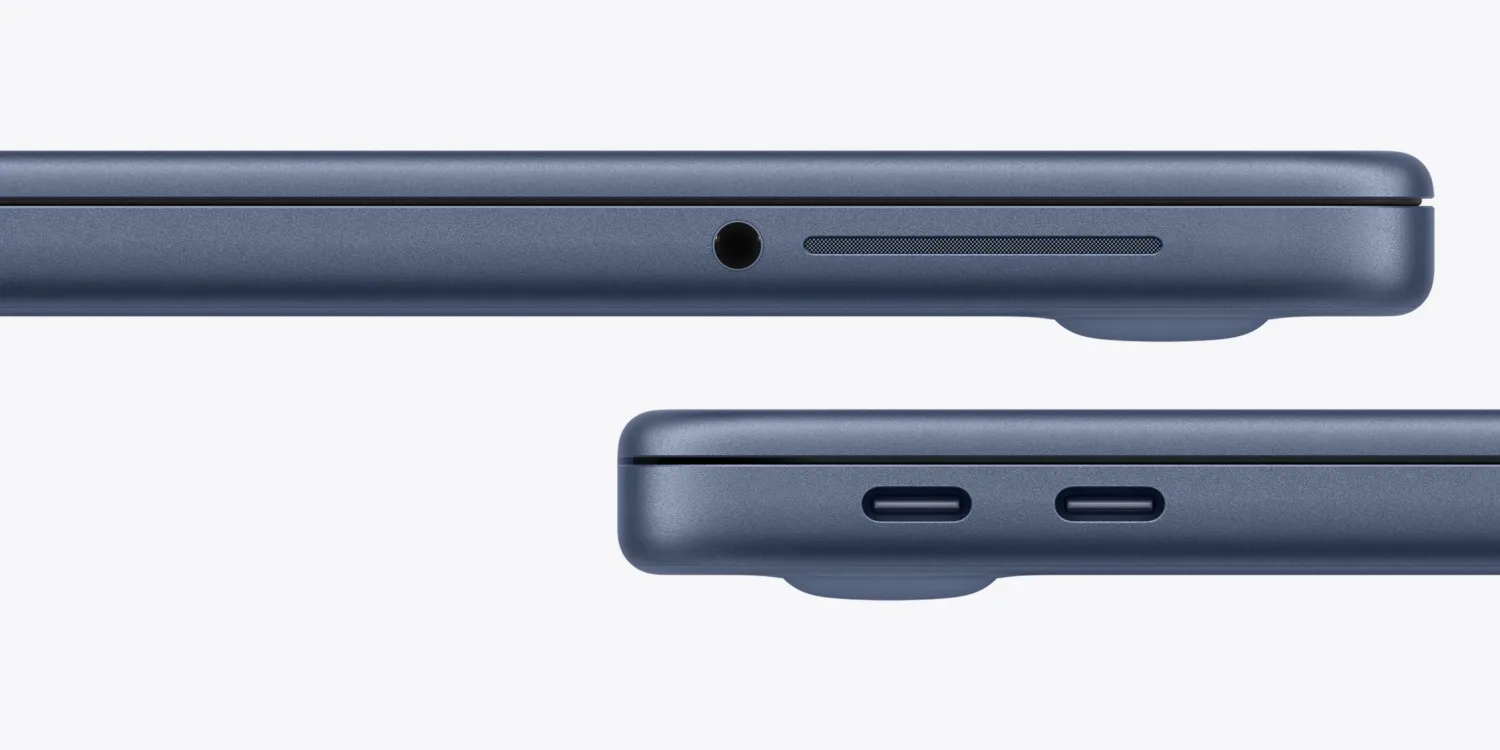
MacBook Neo is a great laptop for users who almost never use an external display. If you do connect MacBook Neo to a monitor, there are a couple of things to know.
First, as we’ve noted today, MacBook Neo features two USB-C ports, but they’re not equal.
Both ports look the same. However, the rear USB-C port has USB 3 and DisplayPort while the second USB-C has USB 2 (without external display support).
Each can be used for charging and data. The back port supports up to 10Gb/s transfer speed and the second port is capped at up to 480Mb/s.
If you’re transferring data and charging, you’ll want to charge with that second port and not the rear port. Charging ports are traditionally rear-most ports on Apple laptops.
As for what happens if you try to connect a display over the USB 2 port, Apple tells John Gruber at Daring Fireball that macOS will warn you that you’re using the wrong USB-C port.
●It was, I am reliably informed by Apple product marketing folks, a significant engineering achievement to get a second USB port at all on the MacBook Neo while basing it on the A18 Pro SoC. And while the ports aren’t labeled, if you plug an external display into the “wrong” port, you’ll get an on-screen notification suggesting you plug it into the other port.
The other thing to know is that MacBook Neo’s external display support is limited to “one external display with up to a native resolution of 4K at 60Hz” according to Apple.
“Enabling scaled resolution higher than the native resolution of the external display may affect availability of some refresh rate or HDR modes in display preferences,” according to a footnote on Apple’s website.
That means unlike MacBook Air, MacBook Neo can’t take full advantage of 5K monitors like Apple Studio Display. Apple’s cheapest 5K display costs $1000 more than MacBook Neo, but BenQ has a new glossy 5K 27-inch offering for $999.
At any rate, brace yourself for the memes of reviewers triggering the macOS wrong port warning!
MacBook Neo is available for pre-order starting today. It arrives in stores in one week on March 11.
Source: 9to5mac










