 NEWS
NEWS
Tesla Still Working on CarPlay Support, Here’s What We Know
 02/03/2026
 2226
2226
Last November, Bloomberg broke the news that Tesla was working on CarPlay support, a dramatic shift in policy for Elon Musk’s company.
Here’s the latest on what we know about Tesla’s plans to support CarPlay.
How Tesla’s CarPlay support will work
This weekend, Mark Gurman doubled down on this reporting at said CarPlay is “still in the works” at Tesla, and that we should expect more information on that “soon.” This suggests that as of right now, Tesla hasn’t walked back its plans or scrapped the work
According to Bloomberg, Tesla will integrate CarPlay with its own infotainment interface. What this means is that the two platforms will coexist with each other, rather than CarPlay completely taking over like it does in some cars.
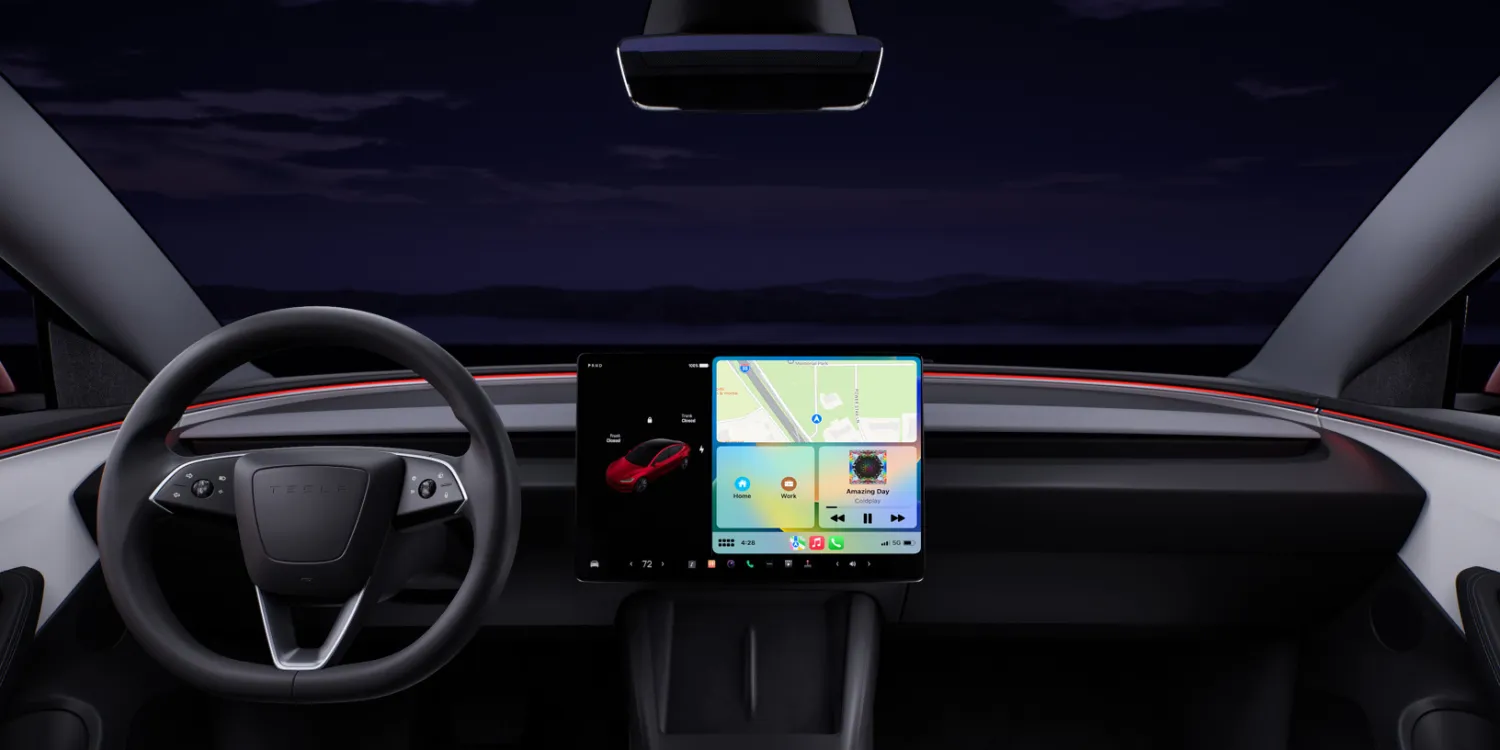
“Tesla plans to feature CarPlay within a window inside its broader interface,” Bloomberg has reported. CarPlay won’t integrate with features like Autopilot or Full Self-Driving (Supervised).
The image above is a mockup, but could be a likely representation of how Tesla will integrate CarPlay. You can see how Tesla still controls the left one-third of the screen and bottom navigation bar, while CarPlay controls the other two-thirds of the screen.
Tesla is reportedly planning to support wireless CarPlay. This means you won’t have to plug your iPhone in to access the feature. Instead, it will automatically connect when you get in your car.
9to5Mac’s Take
This hybrid solution makes a lot of sense for Tesla, which has spent years developing what is probably the best in-car software experience of any automaker.
By integrating the two platforms together, drivers will still be able to use Tesla’s interface for things like charging, driver assistance features, and climate controls. CarPlay, meanwhile, could be used for Apple Maps, media playback, and other apps.
While Tesla does offer native apps for Apple Music and Apple Podcasts, it lacks the breadth of apps available via CarPlay. For example, I use apps like Overcast and Apple Books with CarPlay all the time. Giving drivers the ability to use those apps without actually looking at their iPhone is a huge win. It’s essentially the best of both worlds.
Source: 9to5mac










