NEWS

iPadOS and macOS 26.2 Double 5GHz Wi-Fi Bandwidth for Wi-Fi 6E Devices

01/06/2026

254

iPadOS and macOS 26.2 Double 5GHz Wi-Fi Bandwidth for Wi-Fi 6E Devices


With the release of iPadOS 26.2 and macOS Tahoe 26.2, Apple has improved the Wi-Fi speeds for select Macs and iPads that support Wi-Fi 6E. Updated Wi-Fi connectivity specifications are listed in Apple's platform deployment guide.


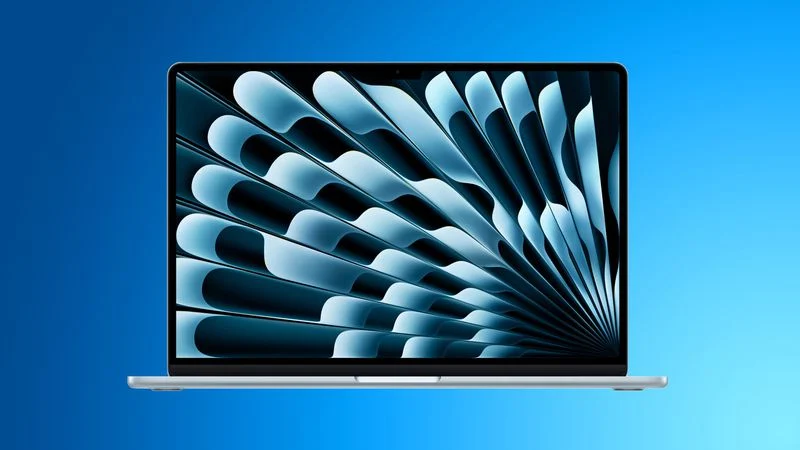
The M4 iPad Pro models, M3 iPad Air models, A17 Pro iPad mini, M2 to M5 MacBook Pro models, ‌M2‌, M3, and M4 MacBook Air models, and other Wi-Fi 6E Macs and iPads now support 160MHz maximum channel bandwidth when connected to 5GHz Wi-Fi networks, the same theoretical maximum throughput supported by 6GHz networks. Previously, these devices were limited to 80MHz.


In ideal conditions, a 160MHz maximum means that iPad and Mac users should see faster file transfers, quicker uploads, and smoother streaming. Wi-Fi 6E devices can take advantage of 6GHz networks, but 5GHz networks remain far more common. 6GHz networks require new router hardware, along with a machine that can take advantage of a 6GHz network.


With the upgrade, Wi-Fi 6E devices that connect to a 5GHz network can get throughput approaching peak 6GHz speeds without having to connect to a 6GHz network. Users who have a Wi-Fi 6 or 6E setup that supports 160MHz on 5GHz networks will be able to take advantage of the bandwidth improvement. Macs that have the updated 160MHz bandwidth limit will not see improvements when connected to 5GHz routers limited to 80MHz.


Though 5GHz bandwidth has improved on select Macs and iPads, 6GHz networks still have the benefit of less congestion and more spectrum.


Source: Macrumors

Windows
Mac OS
iOS
Linux
3uTools
Win 64-bit For this device
V9.01 2025-12-27
Download
Win 32-bit For this device
V9.01 2025-12-27
Download
3uTools
Intel Chip How to Identify Chip Type
V9.01 2025-12-31
Download
Apple Silicon
V9.01 2025-12-31
Download
How to Identify Chip Type
1.  Click the Apple icon in the top-left corner of the screen and select About This Mac.
2.  Check the Processor or Chip field to determine if it is "Intel" or "Apple".
Please use the 3uTools PC client to install the iOS client:
1、 Install either the Windows or Mac version of 3uTools on your computer
2、 Open the PC client and connect your device to the computer via USB cable
3、 After the connection is successful, wait for the computer to automatically install the mobile app for the device, or locate “Install Mobile App” on the computer and manually click to install.
3uTools
deb file
V3.01 2025-11-20
Download
rpm file
V3.01 2025-11-20
Download
Windows
Windows
iOS
iOS
Android
Android
TV
TV
3uAirPlayer
Win 64-bit For this device
V6.0.2 2025-11-19
Download
Win 32-bit For this device
V6.0.2 2025-11-19
Download
iOS Device Mirroring (No App Required)
1、 Install 3uAirPlayer on the Windows PC
2、 Open Control Center and select Screen Mirroring
3、 From the list, choose your PC to start mirroring
4、 Or connect your iOS device to the PC via USB to begin mirroring
Scan to get "3uAirPlayer" App
3uAirPlayer TV V1.0.18
2025-11-28
TV System Requirements: Android 7.0 or later
Download the TV installation package, copy it to a USB drive, insert it into your TV or set-top box, then select the file from the home screen to install.