 NEWS
NEWS
iOS 26.2 Adds New Way for Your iPhone to Make Notifications Pop
 12/15/2025
 6879
6879

iOS 26.2 arrived today, packed with changes for Apple’s system apps, and also a hidden new feature for notifications that can help ensure you don’t miss any alerts.
iPhone display can now flash brightly for notifications in iOS 26.2
iOS 26.2 is a big update for new features. Highlights include Reminders’ ’Urgent’ alarms, AI-generated chapters in Podcasts, Apple News design changes, and offline lyrics in Apple Music.
If you dig into the Settings app, you’ll also find a new option for notifications.
iOS has long allowed users to trigger the camera’s flash when a notification is received. This is a great accessibility feature for the hard of hearing, but it’s also just a nice option to have that I’ve seen plenty of users take advantage of.
Now in iOS 26.2, Apple has added a similar, but distinct feature: you can optionally have your iPhone display flash brightly when a notification comes through.
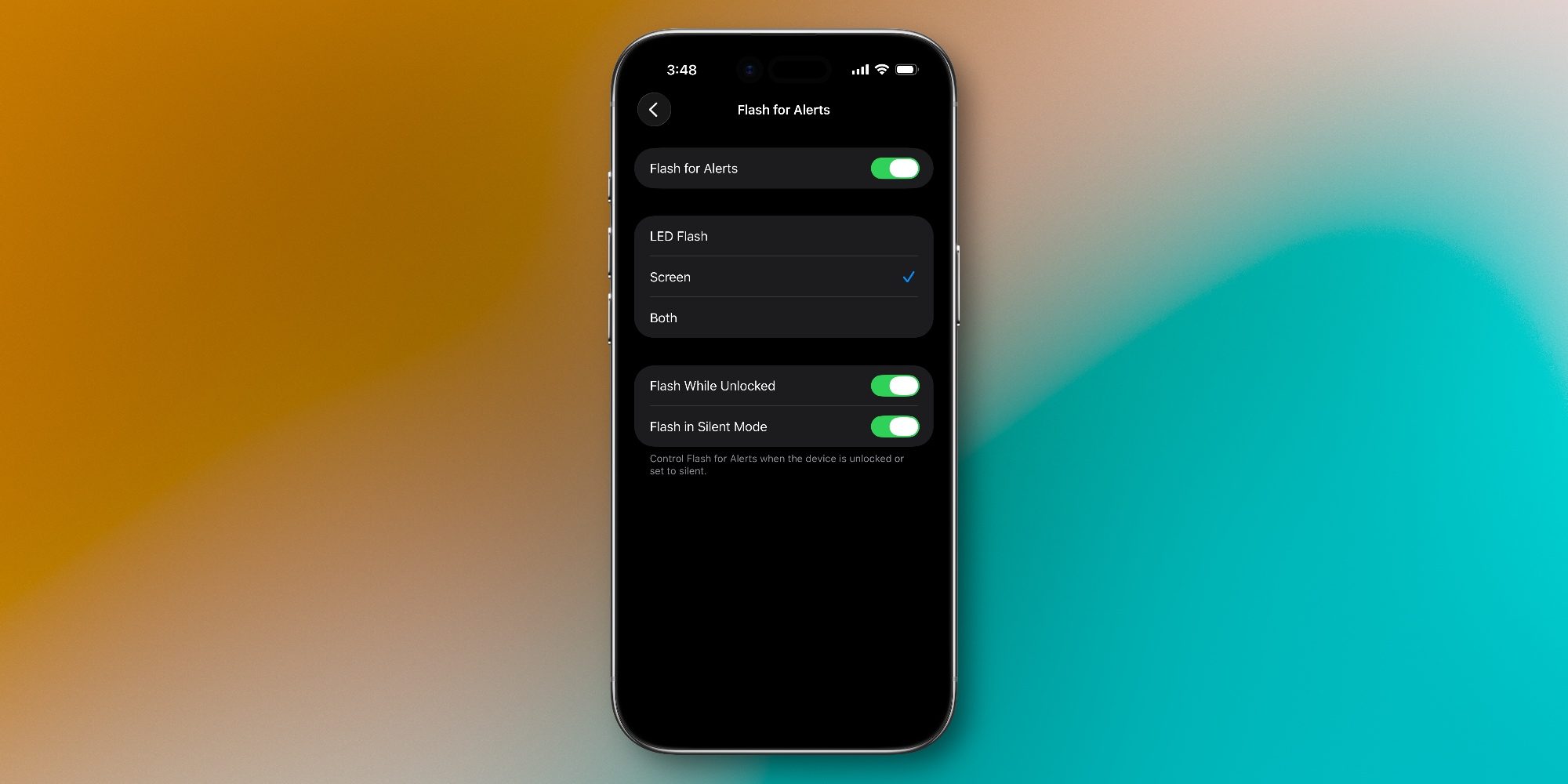
To enable the feature, open Settings and go to Accessibility ⇾ Audio & Visual ⇾ Flash for Alerts.
Here you’ll find the existing option to use an LED Flash for notifications, as well as the new ‘Screen’ option. If you’d like, you can even choose ‘Both’ to get the maximum effect.
When ‘Screen’ flash is enabled, notifications will cause the iPhone display to fully light up for a brief moment before reverting to normal brightness. The effect is especially noticeable when the always-on display isn’t activated.
I wear an Apple Watch and get all of my notifications via haptic taps, so this feature isn’t for me. But for anyone without a Watch, the new iOS 26.2 option for screen flashes might be a nice alternative to the LED flash.
Source: 9to5mac










