 NEWS
NEWS
Apple Addresses Location Privacy Issue With iPhone 11 Chip in Second iOS 13.3.1 Beta
 01/18/2020
 4343
4343
Apple's latest iOS 13.3.1 beta release includes a settings toggle to disable iPhone 11's U1 Ultra Wideband chip, addressing recent concerns that the device is collecting location information without user consent.
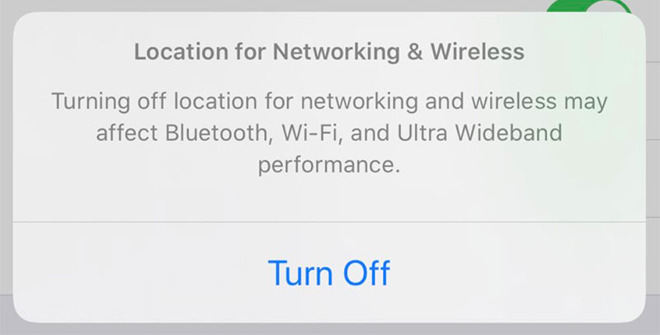
Spotted by YouTuber Brandon Butch and published to Twitter on Friday, a "Networking & Wireless" radio button now resides in iOS Settings under Locations Services > System Services. Switching the feature off appears to disable all location tracking assets for Bluetooth, Wi-Fi and UWB, as a warning notes those services might be affected by the change.
Cutting off UWB access to location data allays concerns over what was initially characterized as a problem with Apple's mobile operating system.
In December, security journalist Brian Krebs discovered iPhone 11 Pro periodically pings its GPS module to gather location data for certain system services despite manual disablement of individual Location Services buttons in Settings. The behavior can be seen in Apple's current iOS public release, as the operating system's location services indicator, a small arrow icon that denotes recent or current use of GPS data, appears next to apps and services that have been manually disabled.
Apple in a response issued at the time said the behavior is expected, adding that it does "not see any actual security implications" from the seemingly constant GPS pinging. The vague response offered no clear insight into the matter, but suggested iOS was operating as designed.
In a follow-up statement a day later, the company provided a more complete overview of the perceived problem.
Specifically, Apple employs location services to heed UWB standard regulations that prohibit use of the technology in certain locales. In order to conform to the location-specific guidelines, devices with the U1 UWB chip — iPhone 11, iPhone 11 Pro and iPhone 11 Pro Max — use iOS GPS data to determine when the feature needs to be disabled.
Apple was quick to point out that no location data is collected in UWB management as the process is conducted "entirely on the device." The iPhone maker also noted customers will be able to completely disable the feature in a future update, which appears to iOS 13.3.1.
Source: 9to5mac










